
Not every company uses every tool. Project modules lets you take a module off the menu on every project in the workspace, for everyone, so people only see the tools you actually use.
Switch modules on or off
Go to Settings and open Project modules.
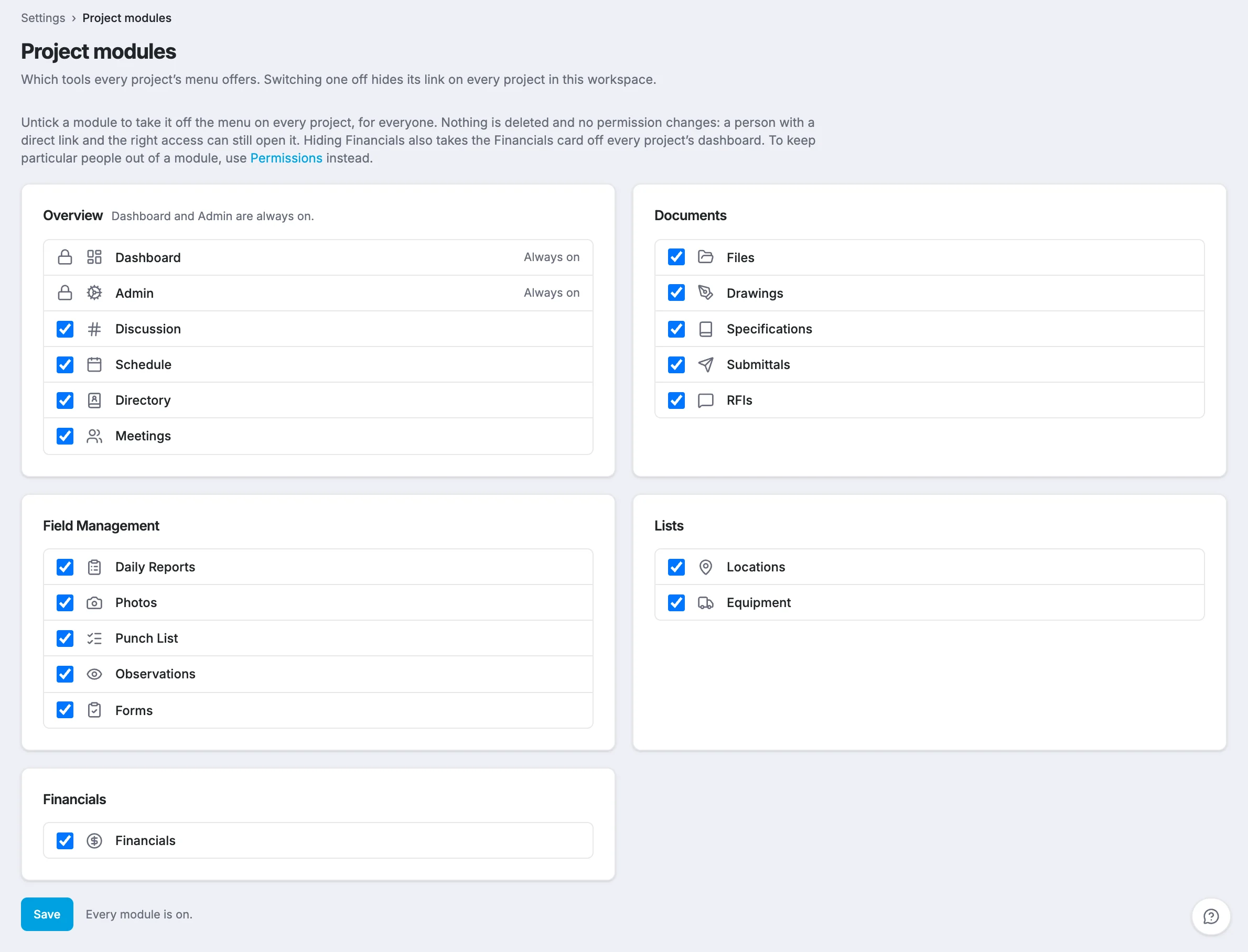
The page is laid out like a project's sidebar, in the same groups. Untick each module you want to hide. Tick a hidden one to bring it back.
Click Save.
The page says Saved. and how many modules are hidden, and each hidden module shows Hidden. The change applies to every project straight away.
Dashboard and Admin are marked Always on and can't be switched off. Discussion can be switched off like any other module.
What hiding a module does
When a module is switched off:
- Its link goes from the menu on every project.
- Its cards and counts go from each project's dashboard, and its items leave the My Work card and the weekly digest.
- Its settings go from each project's Admin page, and its default recipients go from the New Project wizard.
What hiding a module doesn't do
- Nothing is deleted. Records already in the module stay as they are, and come back into view when you switch it on again.
- No permission changes. Someone with a direct link and the right access can still open the module.
Switching a module off is not a way to keep people out of it. To stop particular people using a module, change their access under Permissions in Settings instead.
Modules not in your plan
A module shown with a lock and Not in your plan isn't included in your workspace's subscription. It is off on every project and can't be ticked. To add one, contact StruXure.
Financials
The Financials switch controls the contract figures on each project: the Financials step in the New Project wizard, the Financials card on Project Admin, and the money card on the dashboard. The Financials pages themselves appear on projects only once your workspace has Financials: then each project's menu has a Financials group, with Overview, Estimate, Budget, Prime Contract, Buyout Log, Commitments, Changes, Compliance, Sub Invoices, Pay Applications, Owner Invoices, AP Invoices and GC Invoices, and Audit for people with Financials — Approve. Until then, there's no Financials group on the menu. Unticking Financials here also takes that group off every project's menu.