
Every project in your workspace starts from the same company settings: which tools are on the menu, how it is numbered, who manages its RFIs and submittals, what its pick lists offer, what counts as a working day, and which folders and schedule tasks it can start from. You set these once, in Settings, instead of on every job.
Open Settings from the main menu. The project defaults are in two groups, Projects and Calendar & scheduling, plus Folder templates under Templates & libraries.
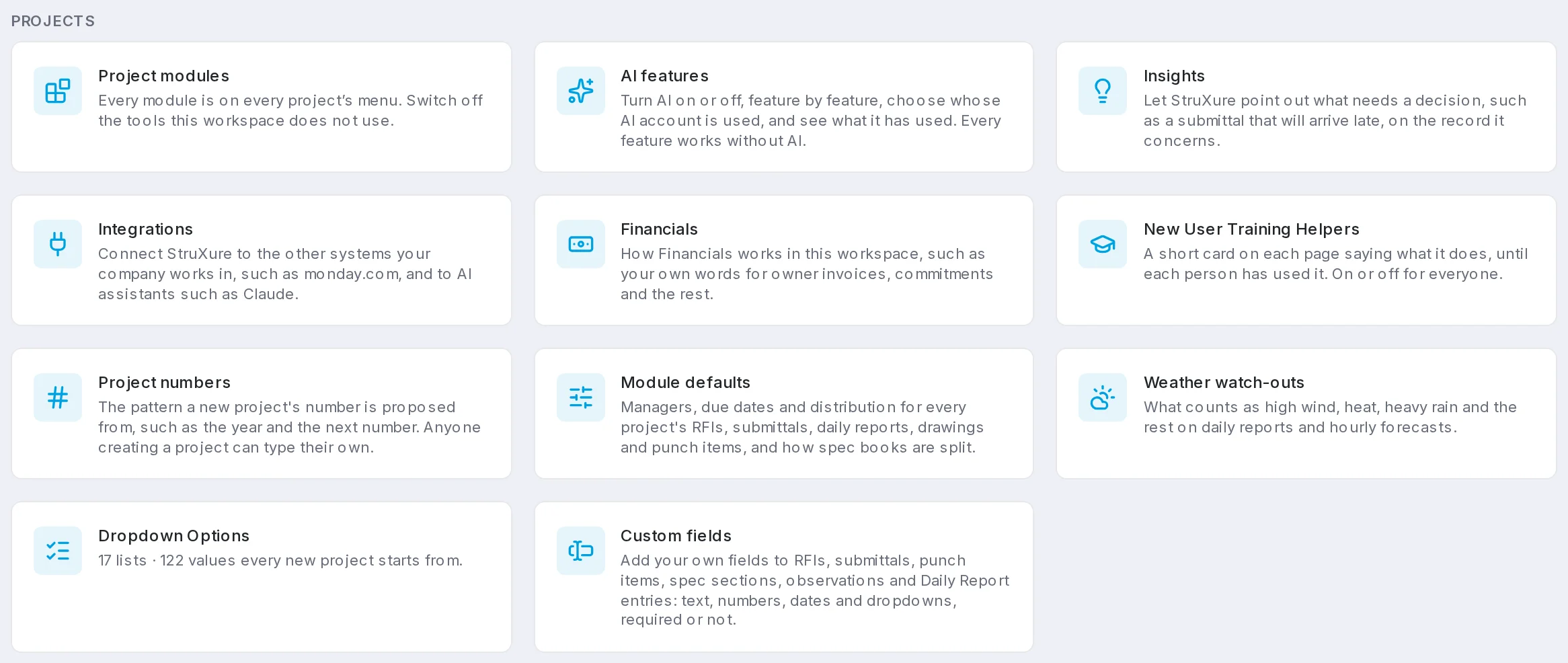

Workspace first, then each project
Most of these settings work in two tiers:
- The workspace default, set here in Settings.
- The project's own setting, set by a project admin under the project's Admin page (or, for the schedule, in the project's Schedule settings).
A project that hasn't set its own follows the workspace. Changing a workspace default isn't copied into projects: it flows through to every project that hasn't overridden it, from the next record raised. A project that has overridden a setting keeps its own value until its admin goes back to the workspace default.
Which settings flow through, and which are copied
Not every setting works the same way. This table shows what happens to existing projects when you change each one.
| Setting | When you change it | Can a project set its own? |
|---|---|---|
| Project modules | Every project's menu changes straight away. | No. It applies to every project. |
| Project numbers | Only new projects are proposed numbers from the new pattern. | Whoever creates a project can type their own number, and a project admin can change it later. |
| Module defaults: managers, approver, work days until due, approver response | Flows through to every project that hasn't set its own, for records raised from now on. | Yes, field by field, under Admin > Module settings. |
| Module defaults: distribution groups | Only new projects. The New Project wizard starts with these people selected; after that, each project keeps its own list. | Yes. Each project edits its own default recipients. |
| Daily Report Approvals | Flows through to every project that hasn't set its own. | Yes, under Admin. |
| Dropdown Options | Flows through to every project that hasn't customised that list. | Yes. A project that customises a list keeps its own copy. |
| Weather watch-outs | Every daily report and forecast uses the new figures from now on. | No. |
| Holidays and Scheduling | Flows through to every project that follows the workspace calendar. | Yes, in the project's Schedule settings. |
| Folder templates | Only new projects. Projects already created keep their folders. | A project picks a template when it's created, and can apply another later from Files. |
| Schedule templates | Only future inserts. Schedules a template was already inserted into keep their tasks. | A project picks which templates to insert. |
Nothing you change here rewrites a record that already exists. An RFI already raised keeps its due date and manager, an option already used keeps reading correctly after you retire it, and a project keeps the folders it started with.
Where the project side is explained
- Set module defaults for one project
- Customise this project's lists
- Project numbers
- Choose a folder template
- Working days and holidays on the Schedule
Equipment, Meeting templates, Form templates and Document templates are also under Templates & libraries in Settings. They are explained in the Equipment, Meetings, Forms and Your company and documents topics.