
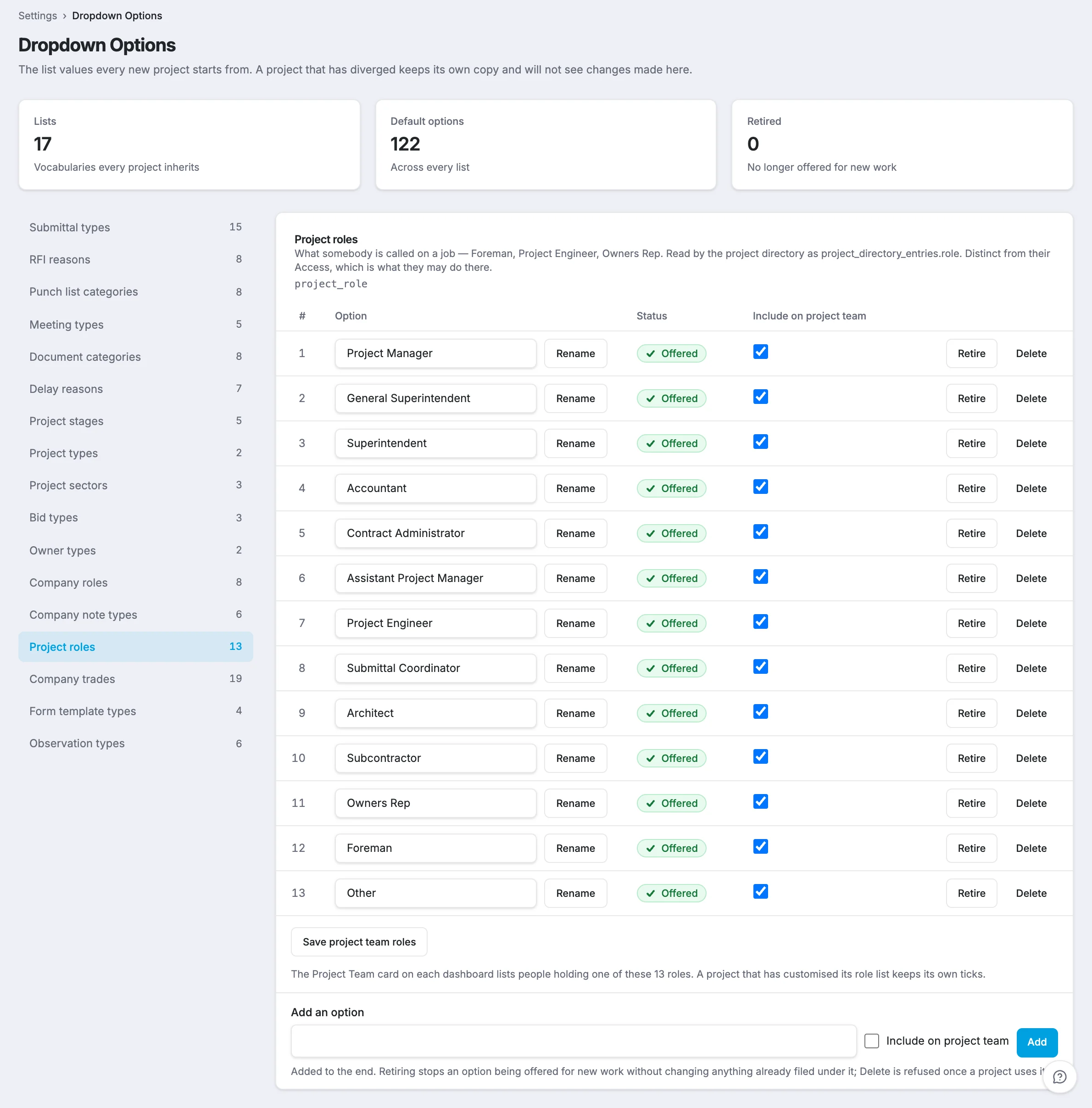
Each person in a project's directory can be given a project role, such as Project Manager, Superintendent or Architect. The Project Team card on each project's dashboard lists the people whose role you include on the project team. Use this to keep the card to the people others need to reach, rather than everyone on the job.
Choose the roles
- Go to Settings and open Dropdown Options.
- Choose Project roles on the left. This list has an extra column, Include on project team.
- Tick each role whose holders should appear on the Project Team card, and untick the rest.
- Click Save project team roles.
The page says Project Team roles saved., and every dashboard shows the change. If no role is ticked, every dashboard's Project Team card is empty.
Add a role that's on the team
When you add a new project role, tick Include on project team beside Add to put its holders on the card from the start.
Projects with their own role list
A project that has customised its role list keeps its own ticks, and isn't changed by this page. Its admin can set them under the project's Admin page. See Choose who appears on the project team.
Adding, renaming, retiring and deleting roles works the same as any other list. See Edit Dropdown Options.