
Scheduling sets two things for the whole workspace: what a working day is, and whether projects' schedules are read only or have full control. A project can set its own of both in its Schedule settings; one that hasn't follows these.
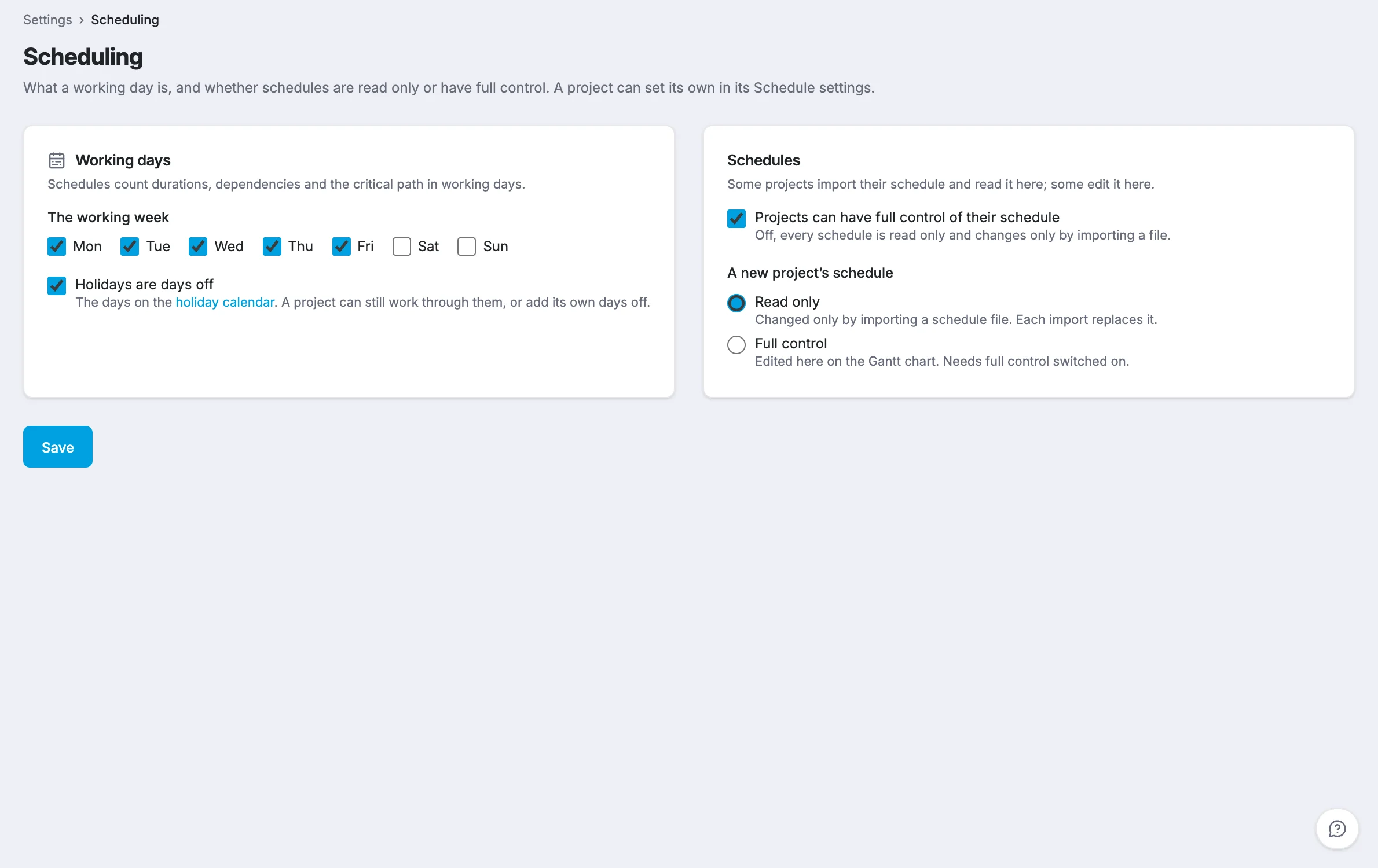
Set the working days
- Go to Settings and open Scheduling.
- Under Working days, tick the days in The working week. At least one day must be ticked.
- Tick Holidays are days off to skip the days on the holiday calendar. Untick it to work through them.
- Click Save.
The page says Saved. Every project that follows the organization counts on these days from now on.
Schedules count durations, dependencies and the critical path in working days. Due dates for new RFIs, submittals and punch items are counted on the same days. Dates already set don't move.
Choose read only or full control
Under Schedules:
- Projects can have full control of their schedule: when ticked, projects can build and edit a schedule on the Gantt chart. When unticked, every schedule is read only and changes only by importing a file.
- A new project's schedule: choose Read only (changed only by importing a Microsoft Project or Primavera P6 file; each import replaces it) or Full control (edited on the Gantt chart; needs full control switched on).
Click Save.
The choice applies to new projects. A project can make its own choice later. See Choose read only or full control.
If the page won't save
| Message | What to do |
|---|---|
| Choose at least one working day of the week. | Tick at least one day. |
| Choose where new schedules come from. | Pick one of the two options under A new project's schedule. |