
Durations, dependencies, lags and the critical path are all counted in working days. A project's working days start from your company's (set in Settings › Scheduling and Settings › Holidays), and each project can change them.
Open the schedule settings
- Open the project's Schedule.
- Click Schedule settings at the top.
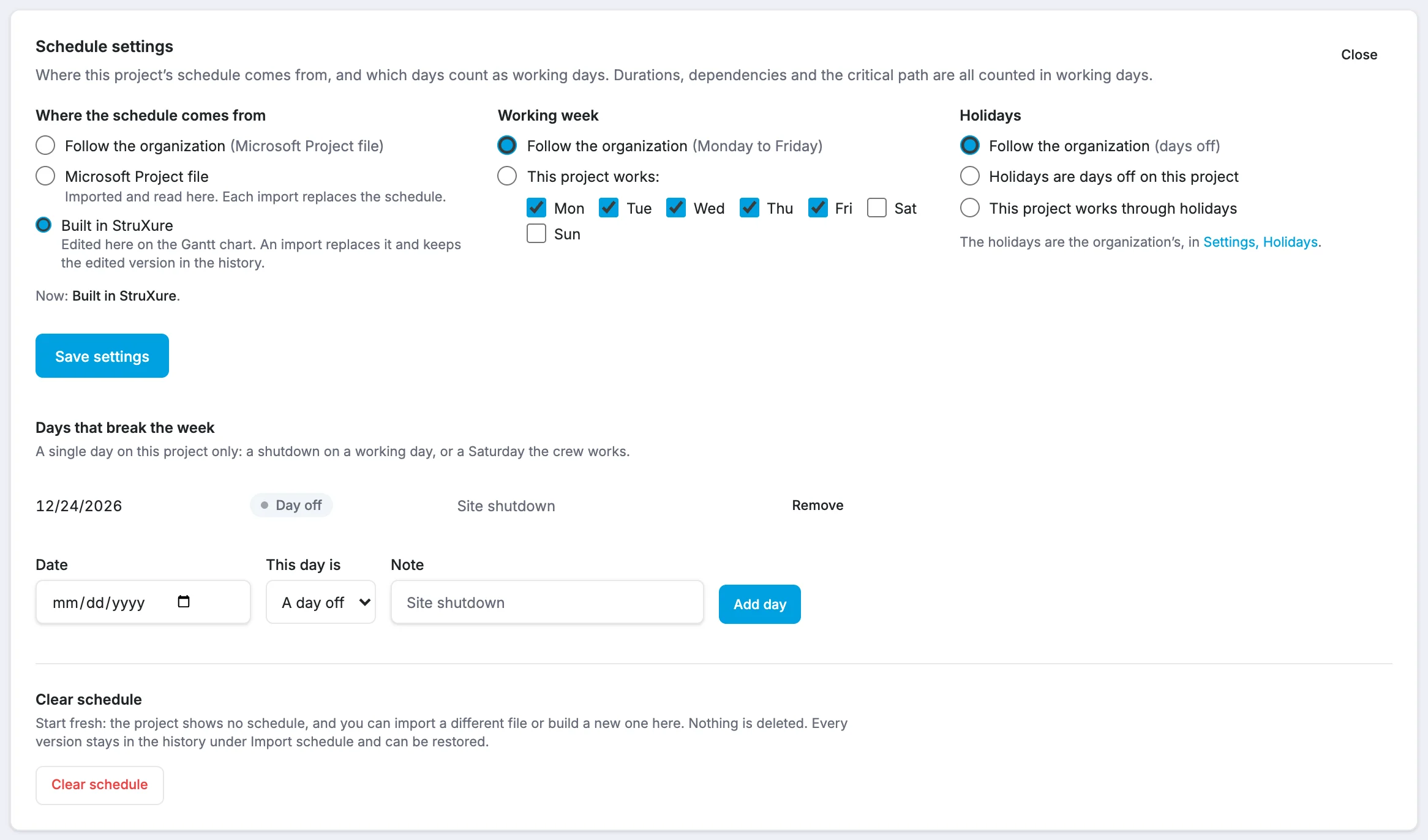
Each choice is either Follow the organization, with the company's setting shown in brackets beside it, or the project's own. Following the organization means the project picks up any later change your company makes.
Change the working week
- Under Working week, choose This project works:.
- Tick the days the project works, for example add Sat for a six-day week.
- Click Save settings.
At least one day must be ticked: "Choose at least one working day of the week." To go back to the company's week, choose Follow the organization and save.
Work through holidays, or not
Under Holidays, choose one and click Save settings:
- Follow the organization: the company decides whether its holidays are days off.
- Holidays are days off on this project
- This project works through holidays
The holidays themselves are the company's list, in Settings › Holidays.
Add a single day off, or a single worked day
For one day that breaks the week, such as a site shutdown on a weekday or a Saturday the crew works:
- Under Days that break the week, set the Date.
- Under This day is, choose A day off or Worked.
- Add a Note if you like, such as "Site shutdown" (up to 120 characters).
- Click Add day.
The day is listed with Day off or Worked beside it. Click Remove to take it off again. A single day here wins over both the working week and the holiday list.
What changes on the schedule
- On a project with full control, the chart counts on the new working days straight away, and the days off are shaded at the Days zoom. Tasks you move or edit from then on land on working days.
- On a read only project, the dates are the file's. The project's working days are used to work out the critical path and any length the file didn't give, the next time a file is imported.
- Inserted templates are dated on the project's working days.
Everyone with access to the schedule can open the chart, but only people with Edit / Import Schedules see Schedule settings.
Emails on days off
Update emails about the project's records wait over its days off and arrive at 6 am on its next working day. Issued RFIs and submittals, transmittals and Distributions still go straight away.