
The Calendar and Milestones tabs show the same schedule as the Gantt chart, in two other shapes.
The calendar
- Open the project's Schedule and click the Calendar tab.
- Each activity appears as a band across the days it runs. Milestones are green.
- Use the arrows beside Today to go back or forward a month, and Today to come back to this month. The calendar opens on the month the schedule starts.
- When a week has more than four bands, the rest are behind +N more. Click it to list them, with their dates.
- Click any band to open that activity on the Gantt chart.
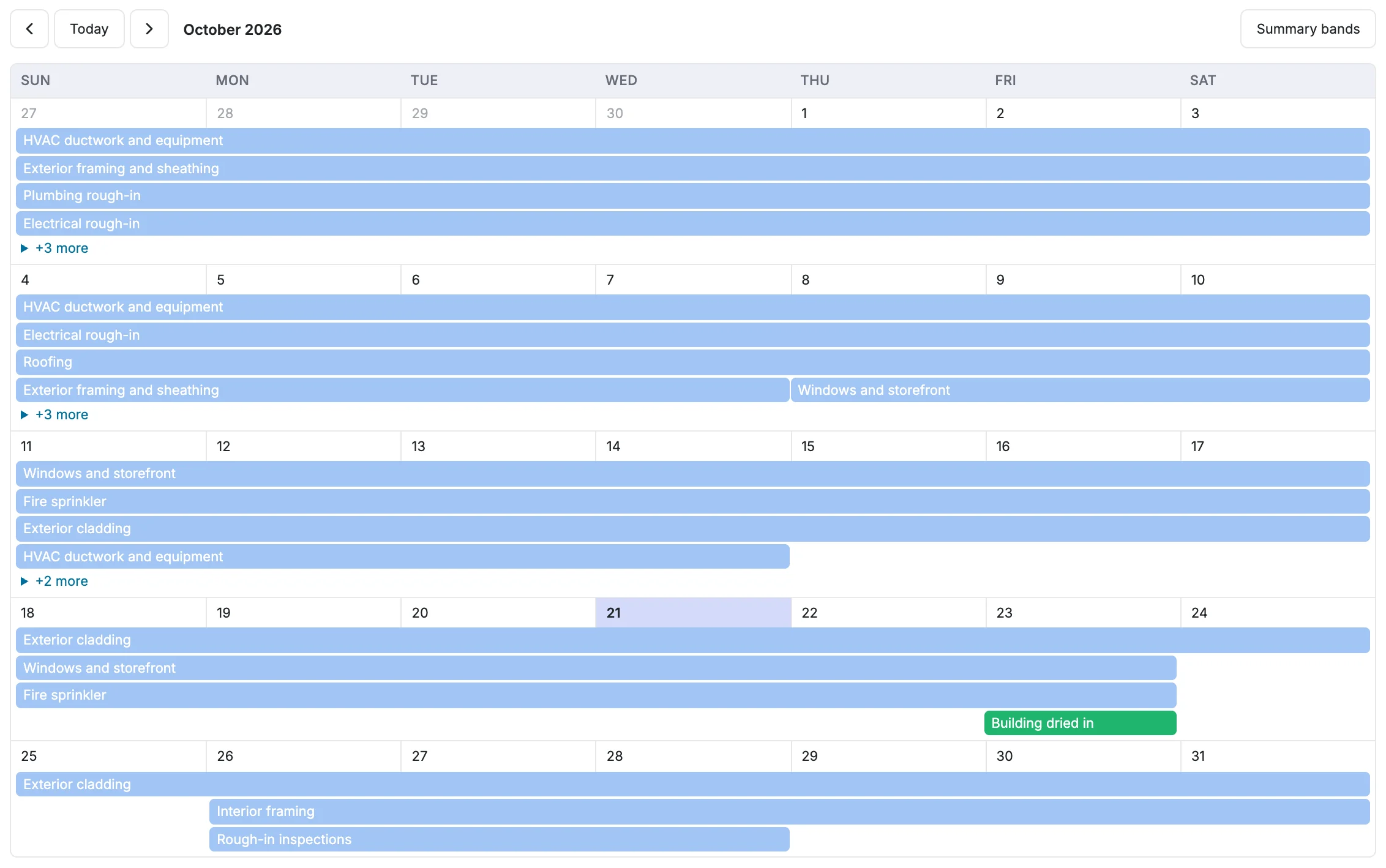
Summary rows are left off the calendar, because they repeat the activities under them. Click Summary bands to show them too, and again to hide them.
The milestones list
- Click the Milestones tab.
- Each milestone is listed with its Target date, the Predecessor it waits on, and when that predecessor finishes (Predecessor finishes).
- Click a column heading to sort by it, and click it again to reverse the order. The list starts sorted by target date.
- Click a milestone's name to open it on the Gantt chart.

The number of milestones is shown under the list. If the schedule has none, the list says "This schedule has no milestones in it."
Tip
Each tab, month and sort is part of the page address, so you can copy the link and send someone exactly the view you're looking at.