
You don't need Microsoft Project to have a schedule. A project's schedule can be built and edited right here on the Gantt chart. These buttons appear only when your company allows full control of schedules.
Start an empty schedule
- Open the project's Schedule. A project with no schedule shows "No schedule has been imported for this project. Import one from Microsoft Project or Primavera P6."
- Click Build a schedule.

The page says "An empty schedule is ready. Add the first task with Add task; changes save as you make them." Carry on with Add and arrange tasks.
Start from a template
- On a project with no schedule, click Start from a template.
- An empty schedule is made and the Insert template dialog opens. Pick a template and a start date, then click Insert.
See Insert a schedule template.
Take over an imported schedule
If the project's schedule was imported from Microsoft Project and you want to keep it up to date here from now on:
- Open the project's Schedule and click Switch to full control at the top.
- Read the confirmation and click Switch to full control.
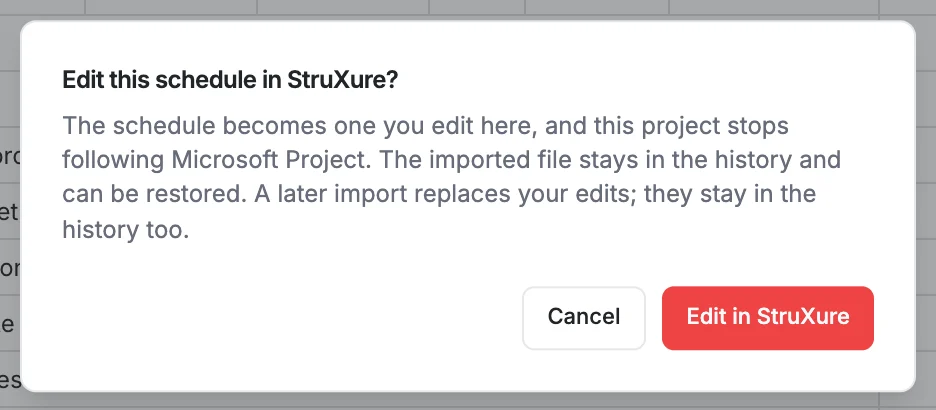
The schedule becomes one you edit here on the Gantt chart, and the project is no longer read only. The page says "This schedule now has full control: edit it here on the Gantt chart." The imported file stays in the history, so you can restore it later.
After this, importing a file still works, but it replaces your edits with the file. Your edited version stays in the history and can be restored. See Restore an earlier version.
You can also make this choice in Schedule settings, under How the schedule is changed. See Choose read only or full control.
Who can edit it afterwards
Once the project has full control, anyone with Edit or Edit / Import Schedules on the schedule sees the editing toolbar on the Gantt chart. Everyone else sees the chart read only.