
When a project has Full control of its schedule and you have Edit access, the Gantt chart has an editing toolbar above the zoom buttons, and you can change the schedule directly in the chart.
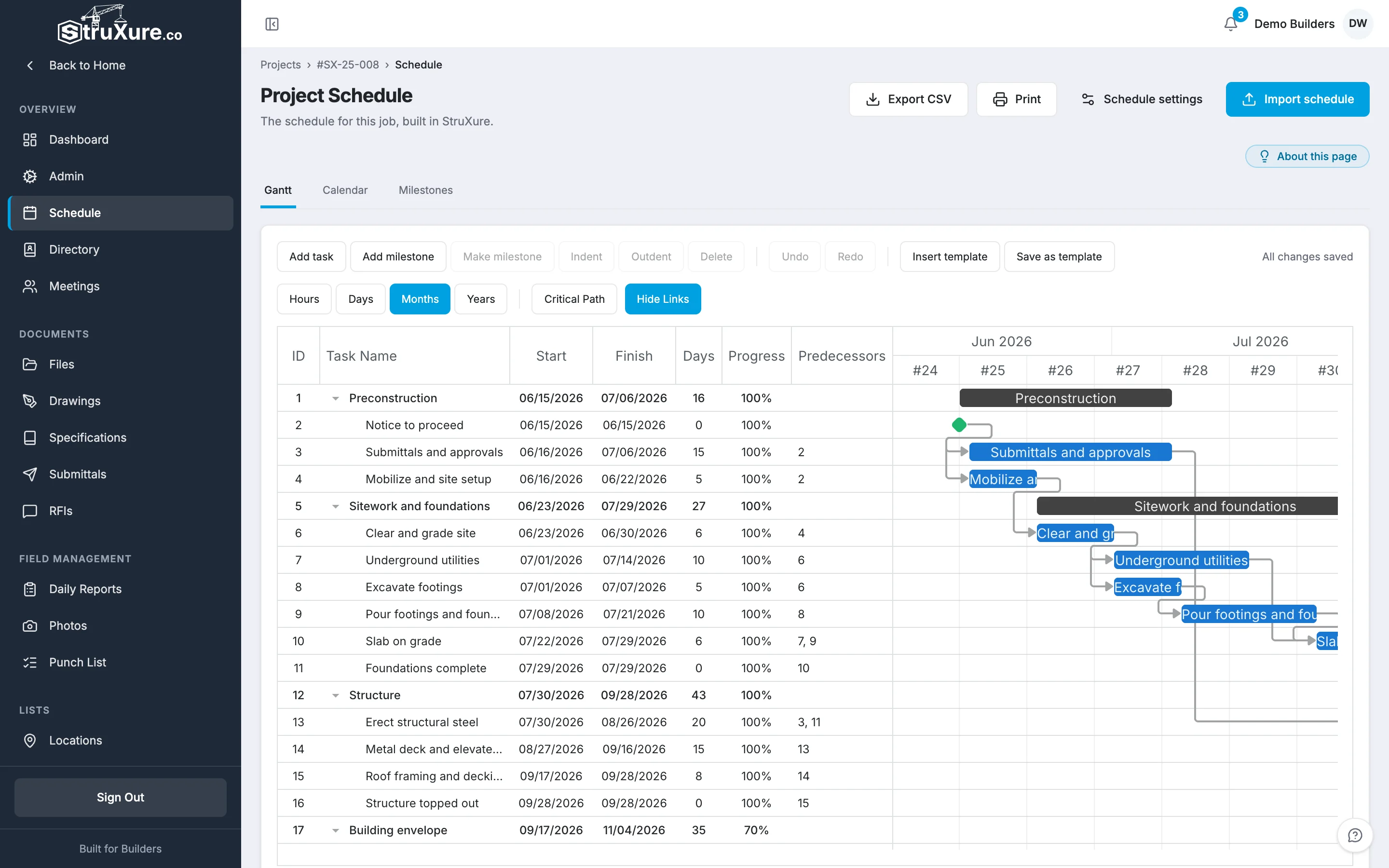

Add a task or milestone
- Click the row you want the new one to follow. With no row selected, it goes at the end.
- Click Add task or Add milestone.
- Type its name and press Enter.
A new task is one working day long and starts on the same day as the row above it (or today, at the end of the schedule). A new milestone is a single day with no length.
Use the right-click menu
Right-click a row or its bar for a menu of what you can do with it:
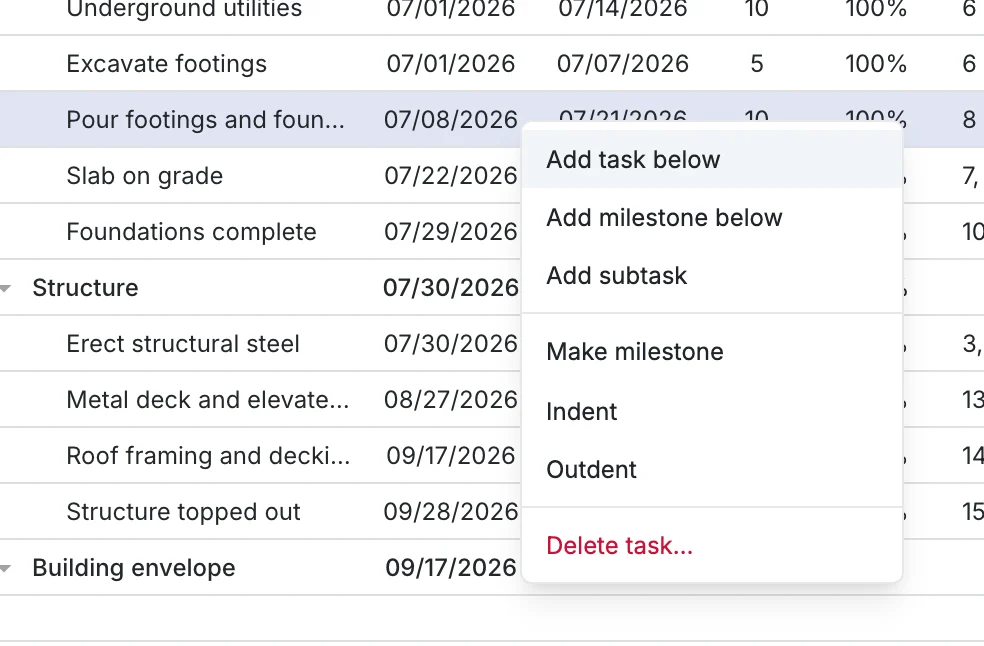
- Add task below and Add milestone below add a row after this one, at the same level.
- Add subtask adds a task under this one. The row becomes a summary row.
- Make milestone (or Make task on a milestone) switches the row between the two.
- Indent and Outdent move the row in under the row above it, or back out a level.
- Delete task… asks before it deletes.
Right-click an empty part of the chart to add a task or milestone at the end.
Change names, dates, length and progress
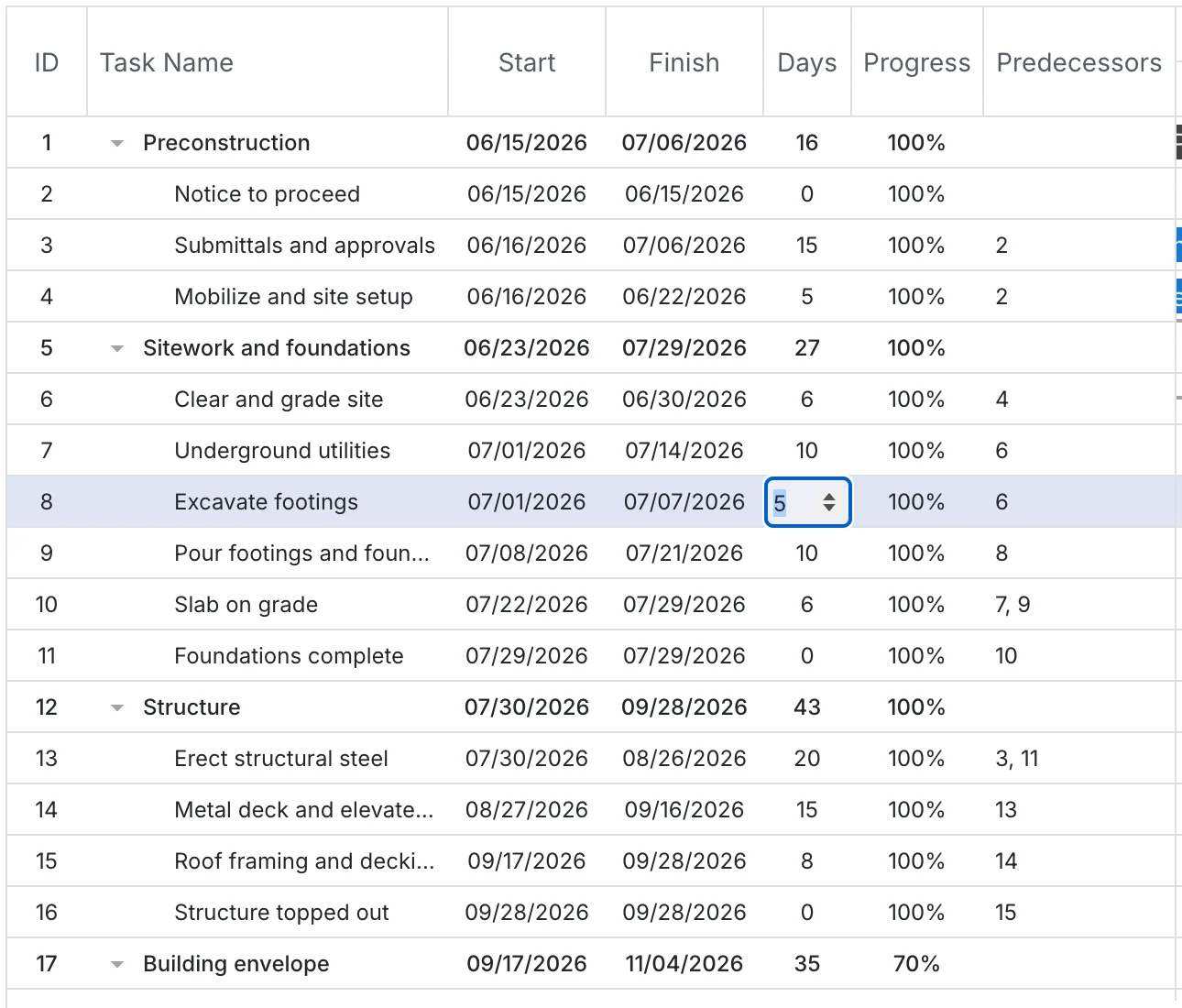
Double-click a cell in the list to change it, then press Enter:
| Cell | What happens |
|---|---|
| Task Name | Renames the row. |
| Start | Moves the task, keeping its length. |
| Finish | Changes the last day worked. The task gets longer or shorter. |
| Days | Changes the length in working days. Type 0 to make it a milestone; give a milestone a number of days to make it a task again. |
| Progress | Sets the percentage complete, 0 to 100. |
A summary row's dates, length and progress come from the rows under it, so only its name can be changed.
You can also work on the bars:
- Drag a bar to move the task.
- Drag either end of a bar to make it longer or shorter.
- Drag the progress handle along a bar to set progress.
Dates land on working days. A task that ends up starting or finishing on a day off is moved to the next working day.
Move tasks around
- Drag a row in the list up or down to reorder it, or onto another row to put it under that row.
- Indent and Outdent on the toolbar work on the selected row. Indent puts it under the row above; a milestone can't have rows under it.
- A row that gains rows under it becomes a summary row, and goes back to a task when it has none.
Work on several rows at once
Hold Ctrl (or Cmd on a Mac) and click to add rows to the selection, or hold Shift and click to select a range. Make milestone, Make task and Delete then act on all of them.
Delete
- Select one or more rows and click Delete, press Delete, or right-click and choose Delete task….
- A red bar in the toolbar says what will go, including how many rows are under it. Click Delete to confirm, or Cancel.
Deleting a summary row deletes everything under it.
Undo, redo and saving
- Undo and Redo step back and forward through your changes, including deletes and inserted templates. The keyboard works too: Ctrl+Z to undo and Ctrl+Y to redo (⌘Z and ⇧⌘Z on a Mac). While you're typing in a cell, those keys undo the typing instead.
- Every change saves on its own a moment after you make it. The right end of the toolbar says All changes saved, or Saving… while it works. There is no Save button.
- If the connection drops, the toolbar says so and keeps your changes until it's back. If you try to leave while a change is still saving, your browser asks first.
- If someone else saved the same schedule while you were working, the chart stops taking changes and says "Somebody else saved changes to this schedule since you opened it. Reload to see them; your last change was not saved." Reload the page, then make your last change again.
- If someone imported, restored or cleared the schedule while you were working, it says "This is no longer the schedule being edited on this project. Reload to see the current one."
- A schedule can hold up to 20,000 tasks.