
Importing replaces the whole schedule with what's in the file. Nothing is merged, and nothing is lost: the schedule it replaces stays in the history and can be restored.
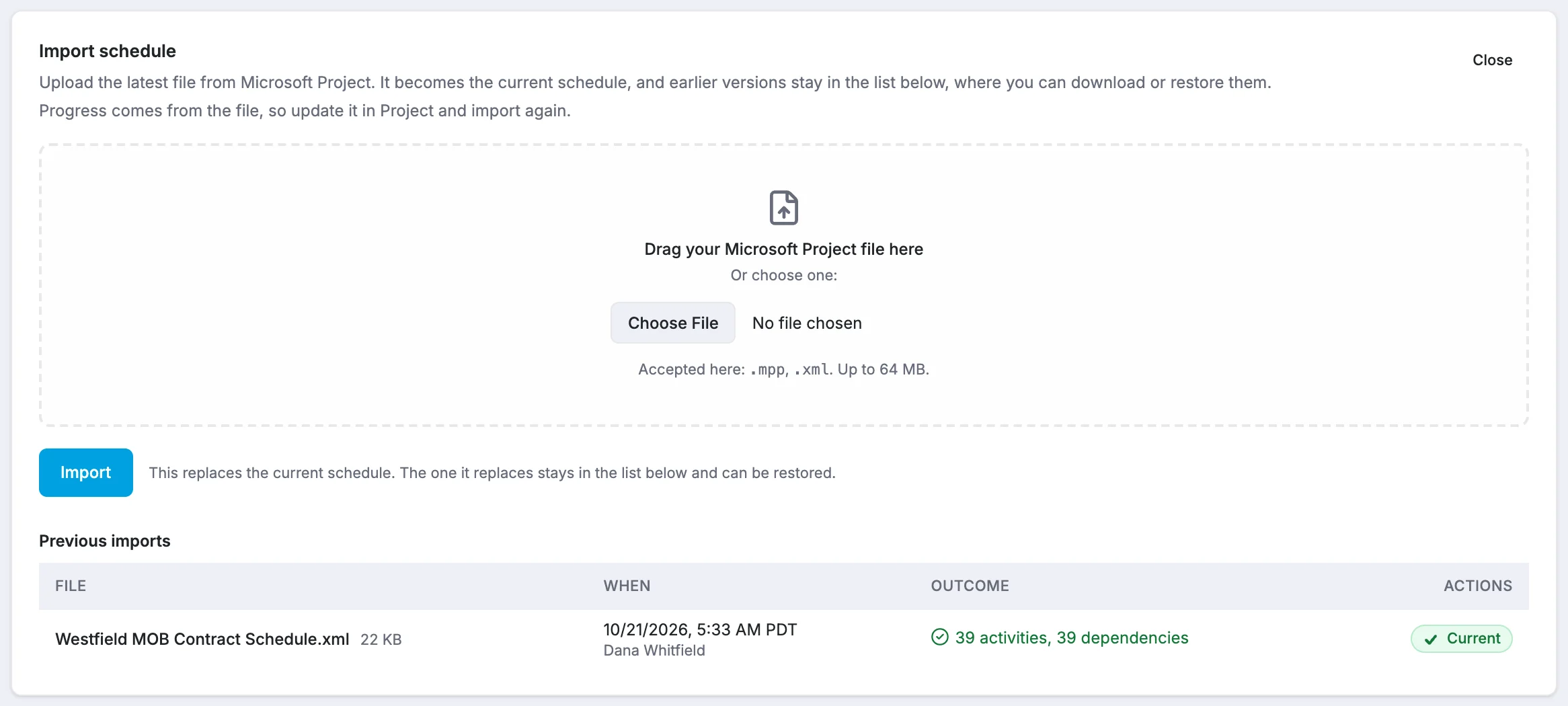
- Open the project's Schedule and click Import schedule at the top right. (On a project with no schedule, the button is also in the middle of the page.)
- Drag your schedule file onto the dashed box, or click Choose File and pick it. You can import an .mpp file or a Microsoft Project .xml file, or a Primavera P6 .xer or .xml export, up to 64 MB, one file at a time.
- Check the line under the box. It names the file that's ready, and, if the project already has a schedule, says what the import will replace.
- Click Import.
While it works, the panel shows the upload's progress, then "Reading the schedule and loading its activities…" with the time so far. Keep the page open until it finishes; if you try to close or reload it, your browser asks first.
When it's done, a green line at the top of the panel says how many activities and dependencies were imported and that it is now the current schedule. Click Close to go back to the chart.
Records linked to activities
RFIs, submittals and change events can name activities in the schedule. A new import keeps those links: each one moves to the same task in the new file, matched by the task's ID in Microsoft Project or Primavera P6, so it doesn't matter if the task's name, dates or row number changed.
If a linked task isn't in the new file, because it was deleted or the file gave it a new ID, a box under the green line lists each record that names it and what the task was called. Open each record and pick its activity again. Nothing is matched by name. If you import a file that has the task again, or restore a schedule that has it, the link works again.
Updating progress
On a Read only project, nobody edits the schedule here. To change dates or progress, update the schedule in Microsoft Project or Primavera P6 and import it again.
Importing from Primavera P6
Import a Primavera P6 .xer file or a P6 .xml export the same way as any other schedule file. A P6 XML file ends in .xml like a Microsoft Project XML file; you don't need to rename it or say which it is. The schedule comes in the same way as one from Microsoft Project:
- The project itself is the top summary, and each WBS element becomes a summary under it, with its activities under that.
- Start and finish milestones become milestones.
- Relationships (FS, SS, FF and SF) and their lags become dependencies.
- Activities keep their names but not their P6 Activity IDs.
A file with several projects
A P6 export can hold more than one project. When it does, nothing is imported yet: the panel says how many projects the file holds and lists them, each with its P6 ID and name.
- Find the project you want in the list under "Choose the project to import from …".
- Click Import next to it (for example, Import OFFICE-3).
The project is imported from the file you already uploaded, so you don't upload it again. It gets its own line in the history, and the file stays downloadable from both lines.
If that project can't be imported (for example, the reason says the schedule converter didn't answer), the list is shown again under the reason. Click Import next to the project to try again, still without uploading the file.
Importing on a project with full control
If the project has Full control, an import still replaces it: the file becomes the new schedule you edit here, and the version you had been editing stays in the history. The panel warns you before you click Import: "This replaces the schedule being edited here. The edited version stays in the list below and can be restored."
If the import doesn't work
A file that can't be imported is refused with a reason, and the current schedule is left as it was. The common ones:
| Message | What to do |
|---|---|
| "… is not a schedule file. Accepted here: .mpp, .xml, .xer." | Choose the file saved from Microsoft Project or exported from Primavera P6. |
| "… is over the 64 MB limit for a schedule file." | Save a smaller file, or save it as XML. |
| "… is XML, but not a Microsoft Project file …" | The .xml file came from another program. In Microsoft Project, use Save As and choose XML. |
| "The dependencies in this file form a loop …" | Two or more tasks wait on each other. Fix the loop in Microsoft Project and import again. |
| "… was stored but not read: .mpp conversion is not enabled on this server …" | Save the schedule from Microsoft Project as XML and import that instead, or ask your administrator. |
| "… was stored but not read: Primavera P6 conversion is not enabled on this server …" | Import a Microsoft Project XML export of the schedule instead, or ask your administrator. |
| "… could not be read as a schedule: it is not a Microsoft Project or Primavera P6 file …" | Ask whoever sent the file for a fresh export. |
| "… holds 2 projects …, and only one can be imported at a time …" | Pick the project from the list under the message. See A file with several projects. |
| "… does not hold the project that was chosen …" | Pick one of the projects listed under the message. |
A failed import is listed under Previous imports with its reason, so you can see what happened. Someone with the same access can remove it from the list. See Restore an earlier version.
If the import says some activities have no name or no dates, it still imported. Those rows show dashes on the Gantt chart and have no bar.