
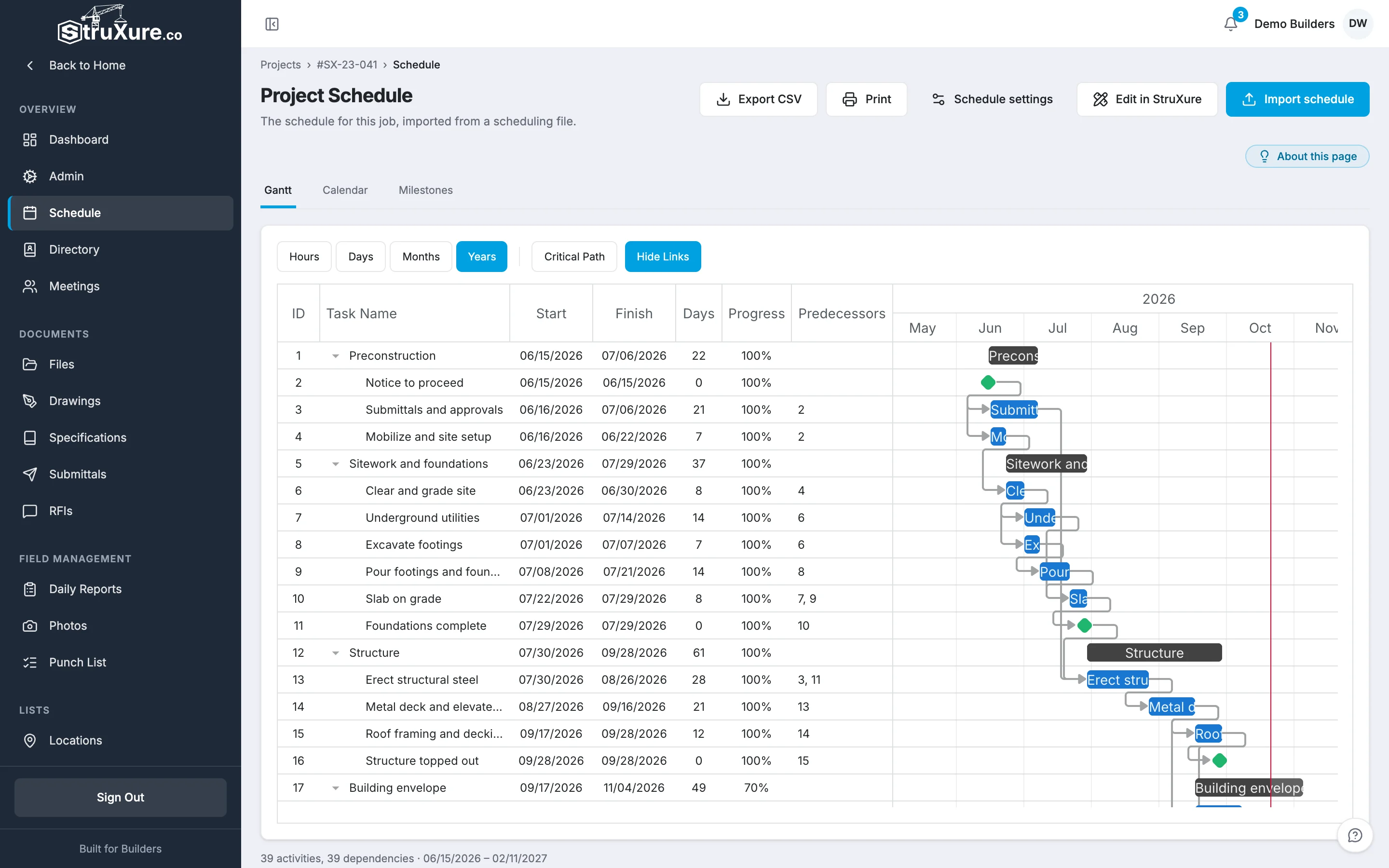
Each project has one current schedule: the job's activities, their dates, how far along each one is, and the dependencies between them. Open it from Schedule under Overview in the project sidebar. The page is called Project Schedule.
Read only or full control
A project's schedule is kept one of two ways. Your company picks one for new projects, and each project can choose its own.
| Setting | What it means |
|---|---|
| Read only | Your scheduler keeps the schedule in Microsoft Project or Primavera P6 and imports it here (.mpp, .xml or .xer). Nobody edits it here. Each import replaces the schedule, and progress changes by importing the updated file. |
| Full control | The schedule is built and edited here, on the Gantt chart: tasks, milestones, subtasks and dependencies. You can still import a file into it, and you can start from a schedule template. |
The page says which one you are looking at, under its title: "The schedule for this job, imported from a scheduling file." or "The schedule for this job, built in StruXure."
A project with no schedule yet shows "No schedule has been imported for this project." If you can manage the schedule, it adds "Import one from Microsoft Project or Primavera P6." and the same card offers Import schedule, Build a schedule and Start from a template.
Three views
The tabs above the schedule show the same activities three ways:
- Gantt: the activity list beside a bar chart, with dependencies, the critical path and a line for today. See Read the Gantt chart.
- Calendar: a month grid with each activity as a band across its days.
- Milestones: a sortable list of the schedule's milestones and their target dates.
See Use the calendar and milestones views. Under the schedule, a line totals it up: the number of activities and dependencies, and the first and last dates.
Working days
Durations, dependencies, lags and the critical path are all counted in working days. Which days are working days comes from your company's working week and holiday calendar, and each project can change both and add its own single days off or worked days. See Set the project's working days.
Nothing is lost
An import never overwrites the schedule before it. Every file imported and every version edited here stays in the project's history, and someone who manages the schedule can restore any of them. See Restore an earlier version.
Where else the schedule shows up
- The project Dashboard has two schedule cards: Today's Tasks (activities in progress today and not yet at 100%) and Pending Milestones (milestones not yet complete, soonest first).
- A submittal can name its Schedule activity. Clicking it opens the Gantt chart with that activity selected.
Times and dates
Times on the schedule show in the project's time zone. If you're in a different time zone, each time shows the project's zone after it, for example 2:00 PM MST; point at it to see the time where you are. Today on the schedule is the project's today.
Who can do what
The schedule has three levels of access: Read, Edit, and Edit / Import Schedules. People without any schedule access don't see Schedule in the sidebar. See Who can do what on the schedule.