
A dependency says one task waits on another: for example, "Pour footings" can't start until "Excavate footings" is finished. Once tasks are linked, moving the first one moves the ones that depend on it.
Draw a dependency
- Point at the first task's bar. A small circle appears at each end.
- Drag from a circle to an end of the second task's bar, and let go.
Which ends you join sets the type. From the end of the first bar to the start of the second is the usual Finish-to-Start. The arrow appears, and the second task's Predecessors cell shows the first task's ID.
Change a dependency's type or lag
- Double-click the arrow, or right-click it and choose Edit dependency….
- In the Dependency dialog, choose the Type:
- Finish-to-Start (FS): the second task starts after the first finishes.
- Start-to-Start (SS): the second task starts when the first starts.
- Finish-to-Finish (FF): the second task finishes when the first finishes.
- Start-to-Finish (SF): the second task finishes when the first starts.
- Enter the Lag (working days): the gap between the two. Use a negative number for a lead, for example -2 to start two days early.
- Click Save.
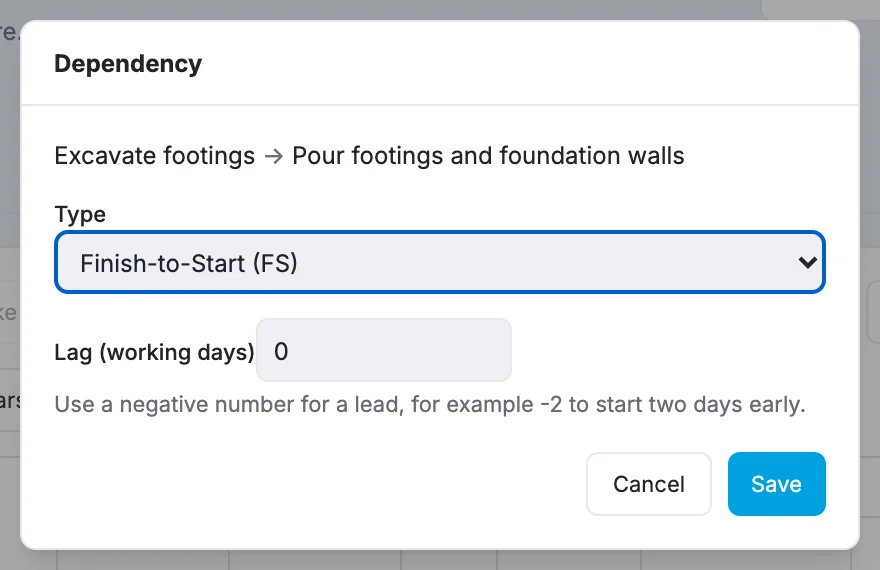
The second task moves to suit the new type and lag. The Predecessors column then reads, for example, 8FS+3d. See Read the Gantt chart for the notation.
Delete a dependency
Right-click the arrow and choose Delete dependency. Undo brings it back.
How tasks move
- When you move or lengthen a task, every task that depends on it moves along its dependencies, as far as it needs to and no further. Gaps you've left between tasks are kept.
- All lags and lengths are counted in working days, so weekends, holidays and the project's days off are skipped. See Set the project's working days.
- The critical path is worked out again each time the schedule saves. Click Critical Path on the toolbar to see it.
- Two tasks can't wait on each other. A loop of dependencies can't be saved.