
Every update about a record you're on goes into your Inbox. Your Email Level decides which of those updates are also emailed to you straight away, and which wait for one Daily Summary at the end of the day.
Set your Email Level
- Click your picture or initials in the top bar to open your profile.
- In Email Level, choose a level.
- Click Save Email Level.
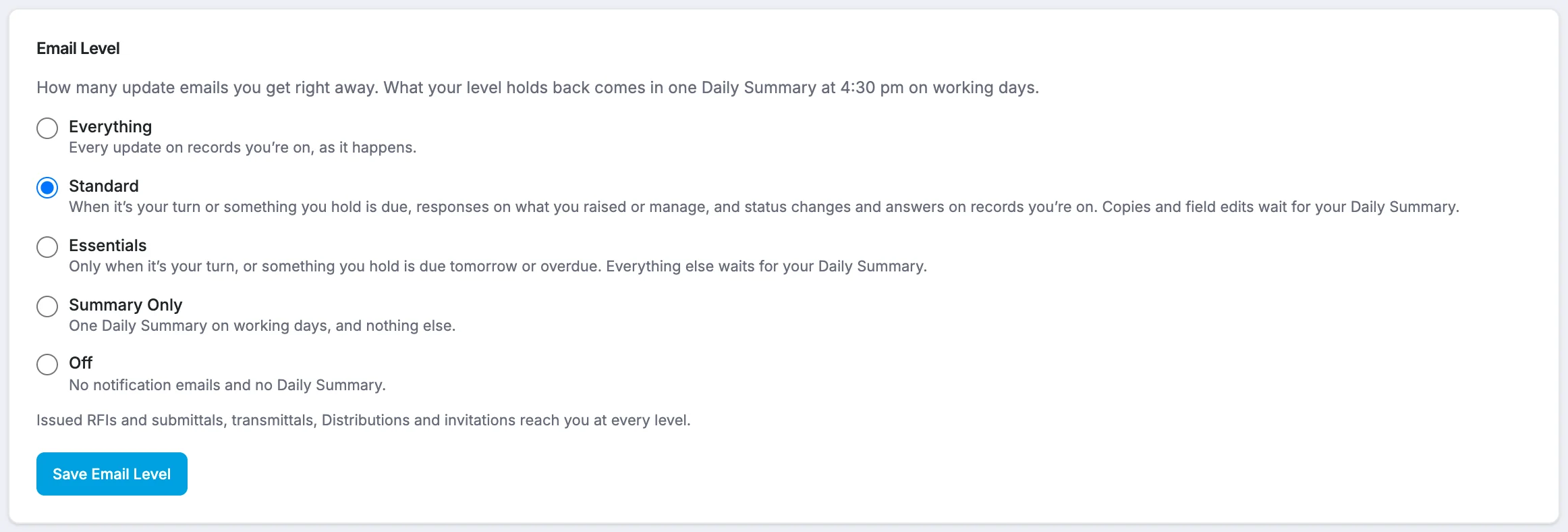
| Level | What you get by email |
|---|---|
| Everything | Every update on records you're on, as it happens. |
| Standard | When it's your turn or something you hold is due, responses on what you raised or manage, and status changes and answers on records you're on. Copies and field edits wait for your Daily Summary. |
| Essentials | Only when it's your turn, or something you hold is due tomorrow or overdue. Everything else waits for your Daily Summary. |
| Summary Only | One Daily Summary on working days, and nothing else. |
| Off | No notification emails and no Daily Summary. |
Whatever your level, issued RFIs and submittals, transmittals, Distributions and invitations always reach you. They're the business itself, not updates about it.
When emails arrive
- The Daily Summary comes at 4:30 pm your time on your company's working days, listing what your level held back that day. If there's nothing to report, it doesn't come. Anything held back on a weekend or holiday goes in the next working day's summary.
- Quiet hours: between 8 pm and 6 am your time, and all day on a day the project doesn't work (a weekend or a holiday), update emails wait. They arrive together at 6 am on the project's next working day, showing each record as it is then.
- Quick changes to the same record are grouped into one email rather than one email each.
Reduce Emails from any email
Every notification email has a Reduce Emails link at the bottom. It opens Your Email Level without signing in.
- Click Reduce Emails to … to drop one level (it stops at Summary Only). The page says what you'll now get, with Undo if you change your mind.
- Or, under Or choose a level, pick any level and click Save.
Mute one project
To hear less from one project without changing your level everywhere:
- Open the project's dashboard.
- Click ⋯ at the top right, next to the project's status.
- Under Emails from this project, choose:
- My Email Level to follow your usual level,
- a different level just for this project, or
- Mute this project for no notification emails about it, and nothing in your Daily Summary.
- Click Save.
The ⋯ menu is only there on projects where you're in the project's directory. Issued RFIs, submittals and Distributions from a muted project still arrive, and so do Mentions.
Mute or follow one record
On an RFI, submittal, punch item or observation you're on, use the buttons on its page:
- Mute stops notification emails and Inbox updates about that record. The button then reads Muted · Unmute.
- Follow appears when you're only copied on a record. Following it means you hear about it as if you were named on it. Following · Unfollow turns it off.