
StruXure keeps a construction company's projects in one place: drawings, RFIs, submittals, daily reports, punch lists and the people working on them. Everything belongs to a workspace, which is one company's own space in StruXure. If you work for a general contractor you probably have one workspace. If you're a subcontractor, architect or owner's rep, you may belong to several, one for each general contractor you work with.
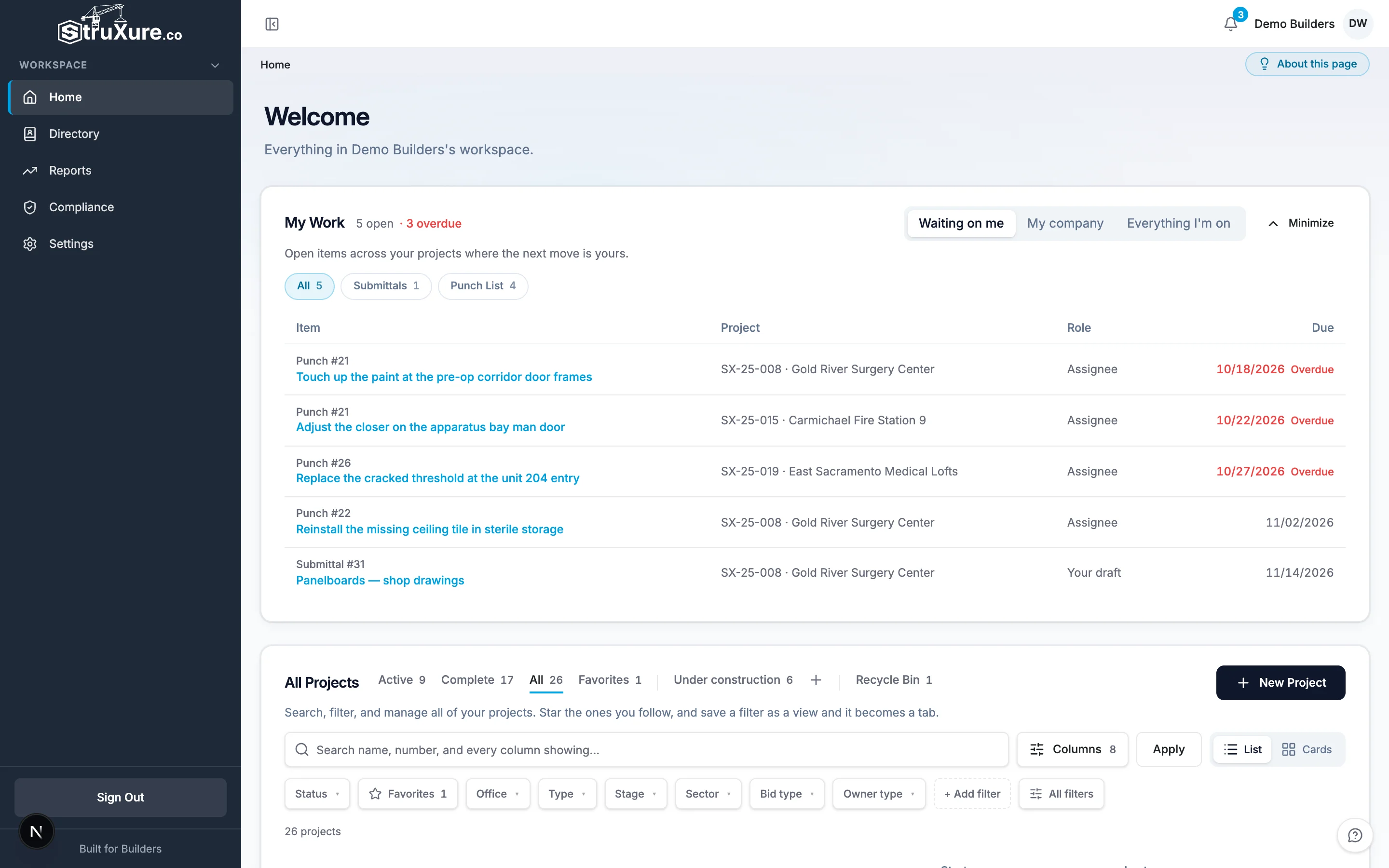
The parts of the screen
| Part | Where | What it's for |
|---|---|---|
| Sidebar | Left edge | Moves you between pages. Outside a project it shows the workspace pages; inside a project it shows that project's modules. Sign Out is at the bottom. |
| Top bar | Across the top | The button that folds the sidebar, Search, the Inbox bell, the name of the workspace you're in, Switch if you belong to more than one, and your picture or initials, which open your profile. |
| Breadcrumbs | Above each page title | Where you are, such as Projects › #SX-24-018 › Punch List. Click an earlier crumb to go back up. |
| About this page | Right end of the breadcrumb row, on many pages | Opens a short card that says what the page is for. See Get help while you work. |
| Talk to us | Round button, bottom right | A message box to the StruXure team. |
Workspace pages
Outside a project, the sidebar has one group, Workspace:
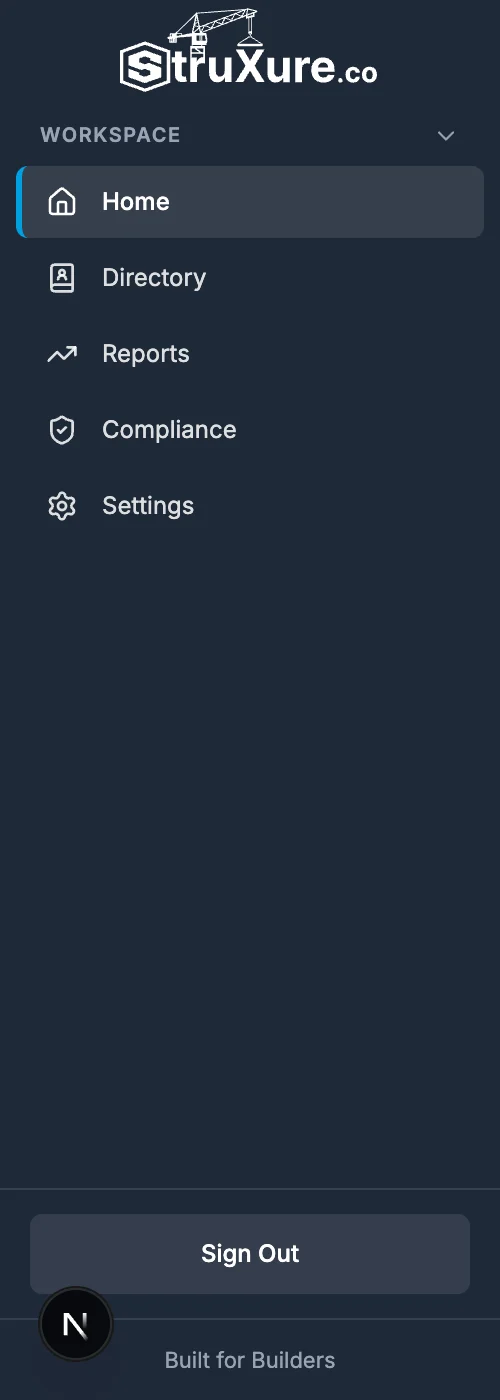
- Home: your My Work card and the list of projects. See Home and My Work.
- Directory: the companies and people your company works with.
- Reports: reports across all your projects.
- Compliance: every vendor's compliance across your projects, and whether each is clear to pay. Only if your company has Financials. See See compliance across every project.
- Approvals: the financial documents waiting on you across your projects. Only if your company has Financials. See Approve, issue and execute from the Approvals list.
- Accounting: what is left to do in your accounting system, and what became of the rest. Only if your company has Financials and you can view accounting. See Check what reached accounting.
- Implementation: the page where StruXure keeps you up to date while your company moves onto StruXure. Only if you were given access. See How the Implementation page works.
- Settings: your company's settings.
You only see the links you have access to. Most people outside the general contractor's own company see Home and nothing else here, and that's expected.
Project pages
Open a project from Home and the sidebar changes to that project's modules, grouped under Overview, Documents, Field Management and Lists. Back to Home at the top takes you out of the project again.
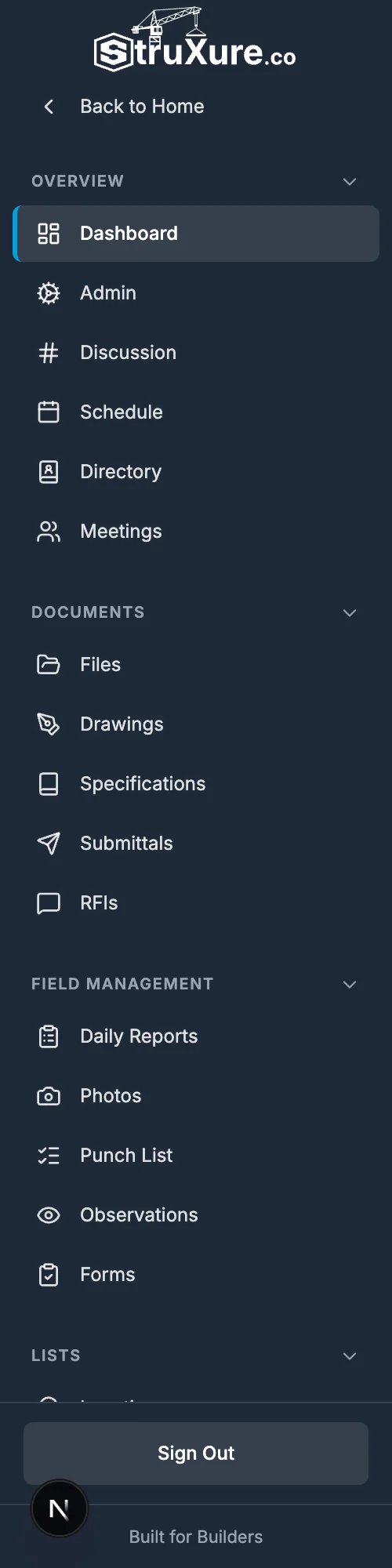
| Group | Modules |
|---|---|
| Overview | Dashboard, Admin, Discussion, Schedule, Directory, Meetings |
| Documents | Files, Drawings, Specifications, Submittals, RFIs |
| Field Management | Daily Reports, Photos, Punch List, Observations, Forms |
| Lists | Locations, Equipment |
Again, you only see the modules you can open, and your company can switch modules off for every project. If a module you expect is missing, ask whoever manages access at your company.
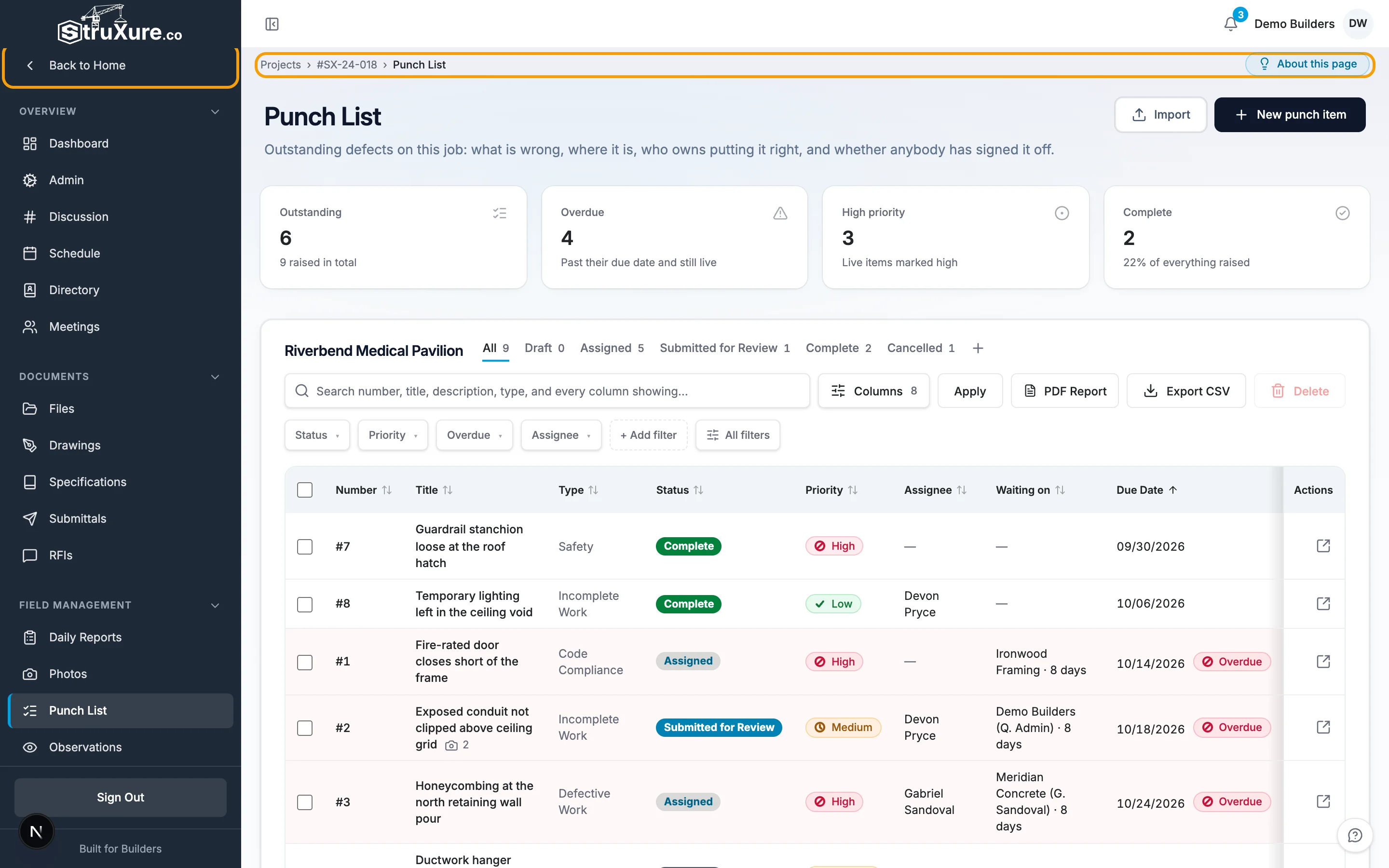
Close a group
Click a group's heading, such as Lists, to close it, and click it again to open it. A closed group still shows the page you're on. StruXure remembers which groups you closed on that browser, in every project.
Fold the sidebar
Click the panel button at the left end of the top bar to fold the sidebar into a narrow strip of icons. Point at an icon to see its name. Click the button again to open it back up. StruXure remembers your choice on that browser.
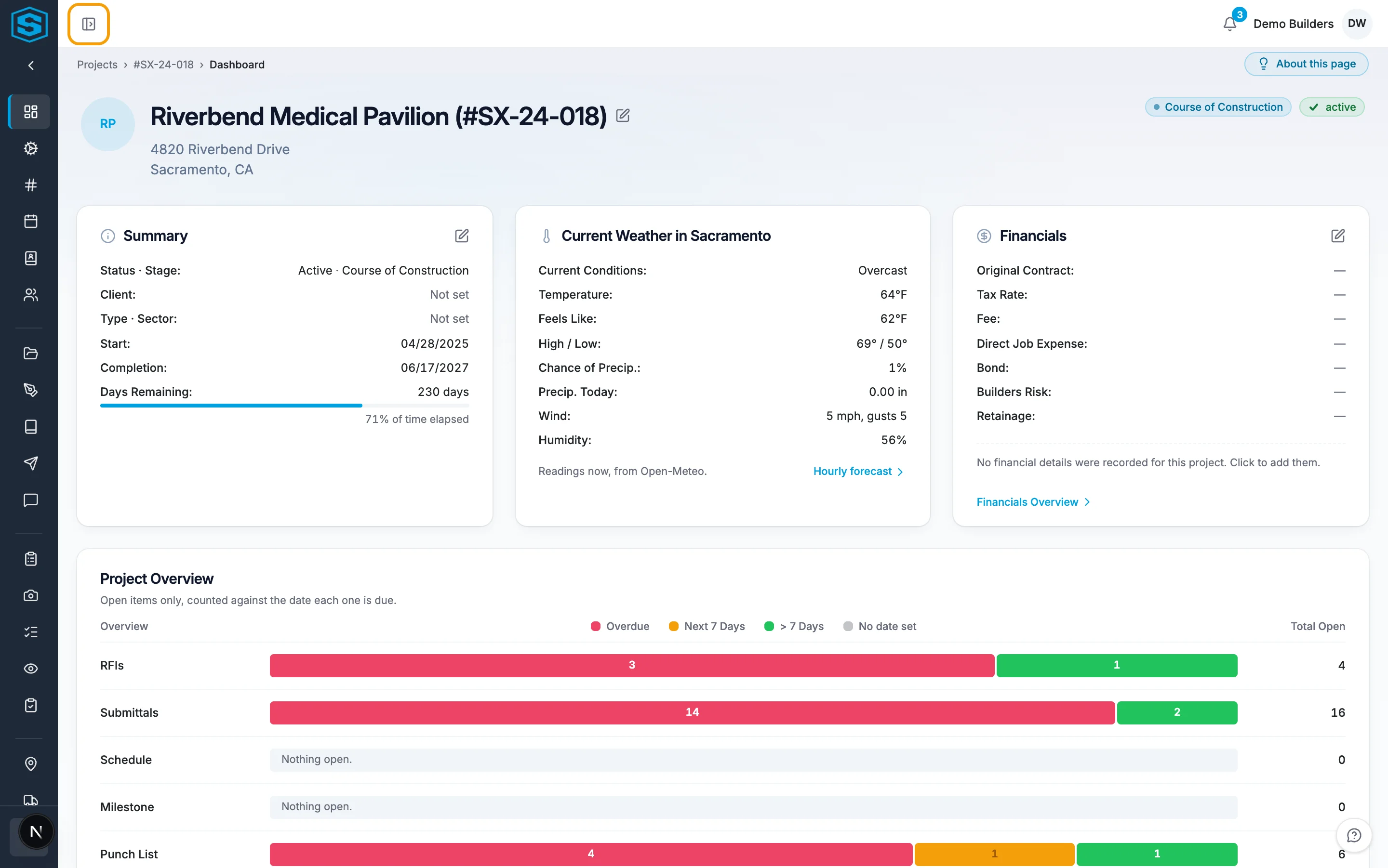
The sidebar appears on wide screens. On a narrow window or a phone it isn't shown.