
The All Projects list on Home shows every project you're on. It works like a small report: you can search it, filter it, sort it, pick its columns, and save the result as a view.
Status tabs
The tabs across the top of the list narrow it by status. Each shows a count.

| Tab | Shows |
|---|---|
| Active | Projects that are under way. |
| Complete | Projects marked complete. |
| All | Every project you're on. |
| Drafts | Projects another system sent that nobody has finished setting up. Only people who set up projects, and a Draft's Project Admins, have this tab, and only while there is one. Click one to finish it. See Finish setting up a Draft project. |
| Favorites | The projects you've starred. See Star the projects you follow. |
| Your saved views | One tab for each view you've saved. See Save a view of the project list. |
| Recycle Bin | Deleted projects. See Restore a deleted project. |
Search
Type in the search box. The list filters as you type. In the list view, search matches the project name, number and every column that's showing. In the cards view it matches name, number, address and stage. The line under the filters says how many projects match, such as 6 of 8 projects. Click Clear to remove the search and filters.

Filter
Under the search box is a row of filters. Each one shows what it's set to.
- Click a filter, such as Stage.
- Tick the values you want. Each value shows how many projects on this tab have it. (blank) finds projects with nothing set.
- Click anywhere outside the menu. The list updates.

The row starts with Status, Favorites, Office, Type, Stage, Sector, Bid type and Owner type. Favorites switches on as soon as you tick it.
Add a filter
Click + Add filter for more: Client, Team, City, State, and dates (Start date, End date, Warranty start, Warranty end, Last updated).
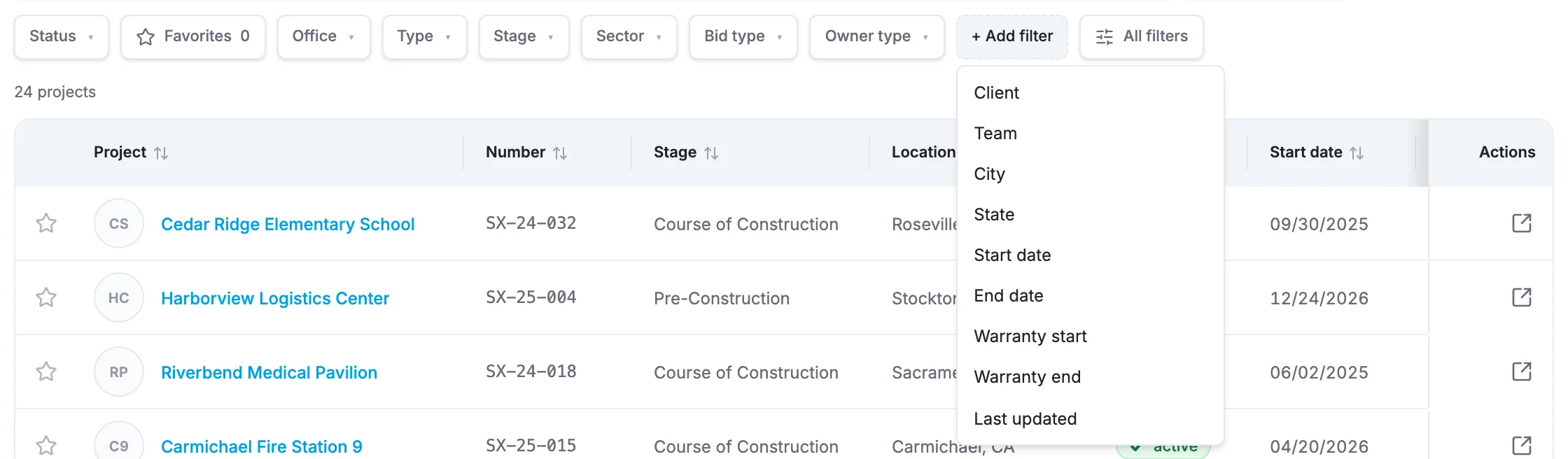
- A date filter lets you choose is before, is after, is between, is blank or is not blank. The second date is only for is between.
- Team finds projects by who is on them: choose a Role, then tick people (none ticked means anyone in that role). Tick Only the primary person for the role to match only the main person.
All filters
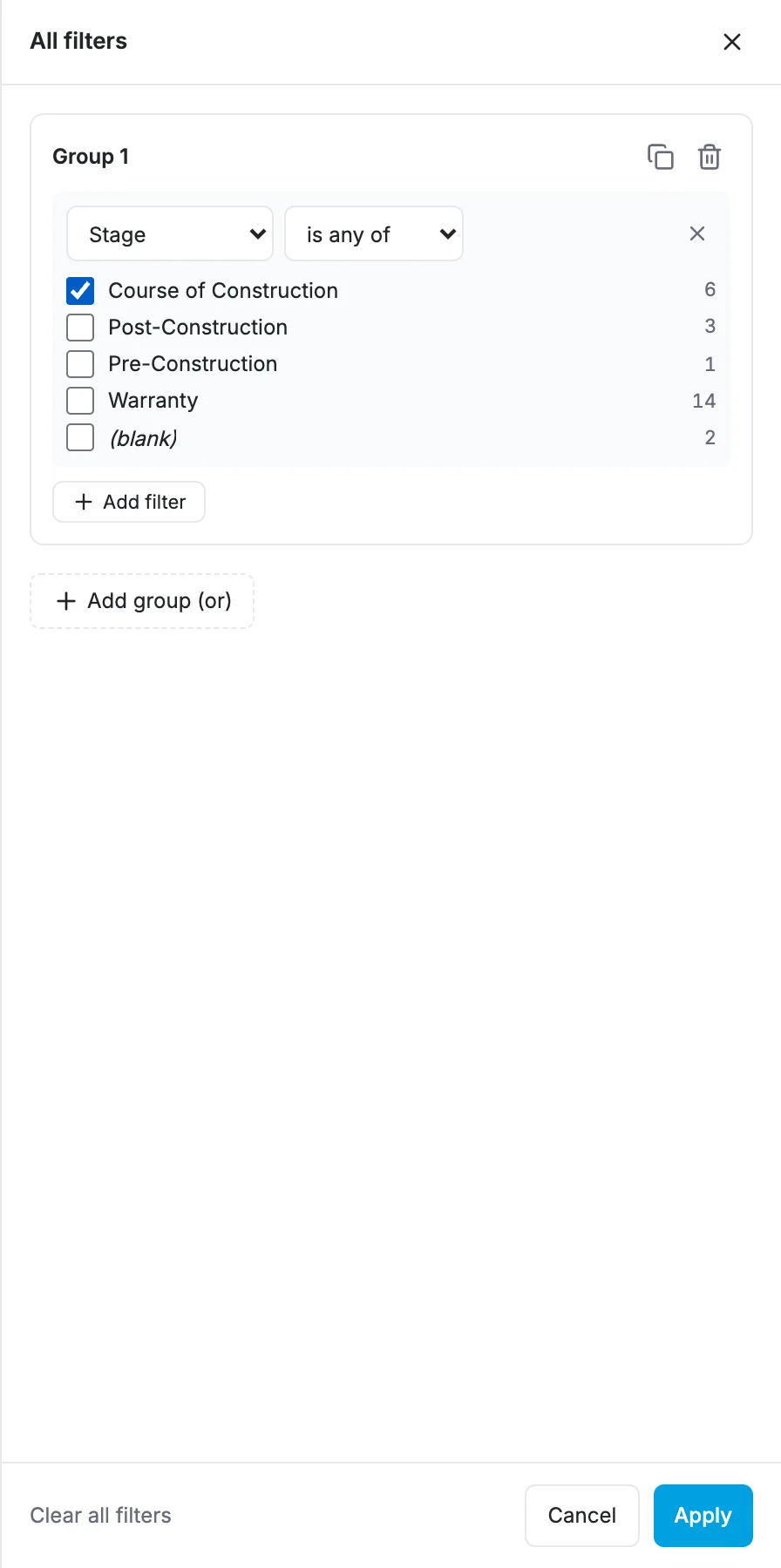
For filters the row can't show, such as "is none of" or two sets of conditions joined by "or", click All filters.
- Each Group holds conditions that must all be true. Choose a field, a condition (such as is any of or is none of) and the values.
- Click Add filter inside a group for another condition.
- Click Add group (or) to match projects that meet either group.
- Use the icons on a group to duplicate or delete it.
- Click Apply. Clear all filters removes them all; Cancel closes without changing anything.
If a condition has no value, the panel says Every condition needs a value, or take it off.
Choose columns
In the list view, click Columns and tick the columns you want. Each one shows, or hides when you untick it, straight away, with the menu still open. To move a column, drag it up or down the list, or press ↑ or ↓ on its handle. The project name always shows, and moves like the others. Reset to the default columns puts back the standard set: Number, Stage, Location, Status, Start date, End date and Last updated.
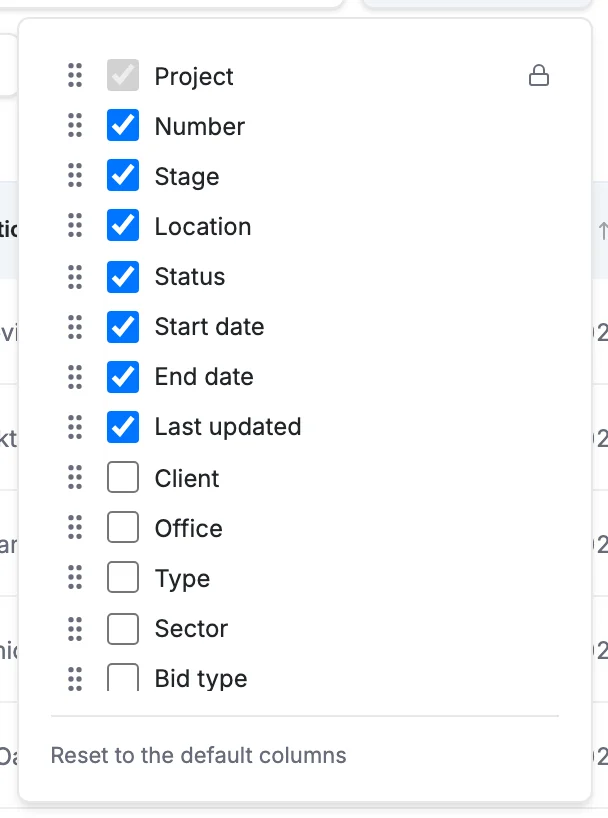
To resize a column, drag the right edge of its heading. Double-click the edge to fit the column to its text. Reset column widths, in the Columns menu, puts them back.
Sort
In the list view, click a column heading to sort by it. Click again to reverse the order, and a third time to go back to the usual order. In the cards view, use the Sort box instead. Unsorted, projects are in order of Last activity.
List or cards
Use List and Cards at the right of the search box. Cards show each project's logo, number, address, stage and status.
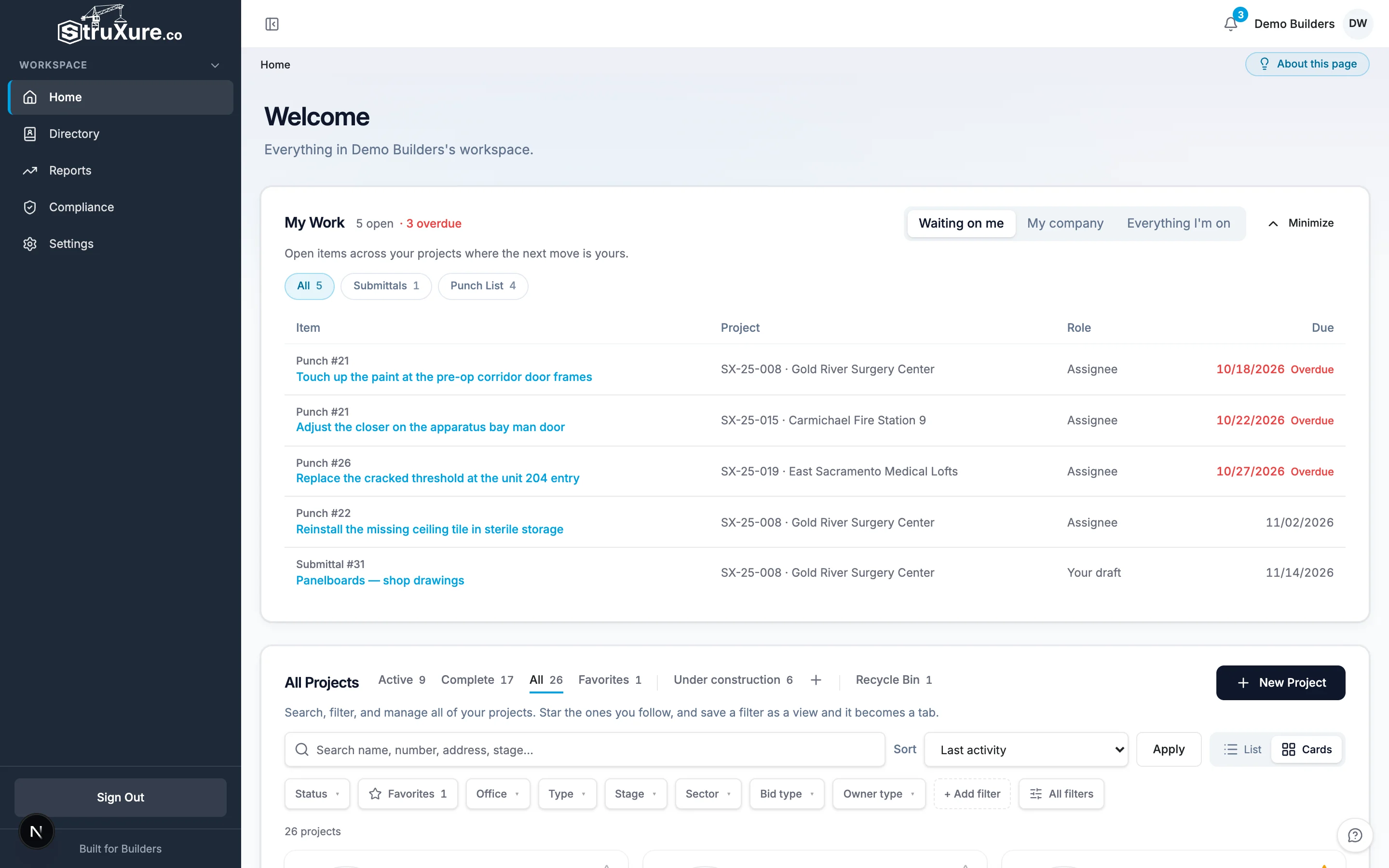
StruXure remembers your view, columns, their order and widths, and sort for the next time you open Home, on any computer you sign in on. The page address holds the whole list, so you can bookmark it or send it to a colleague.