
Whenever something changes on a record you're on, StruXure tells you in your Inbox, whatever your email settings. The bell in the top bar opens it. The number on the bell is how many records have something you haven't read. What's waiting on you is in My Work: the Inbox says how many items that is at its top.

Read your Inbox
- Click the bell.
- The line at the top says how many items are waiting on you, such as Your turn: 3 items in My Work, or Nothing is waiting on you. It's the same number as Waiting on me on the My Work card on Home. Click it to go to Home. See Home and My Work.
- Each row is one record, such as Punch #21: Touch up paint, with its project and one line about what happened and who did it. A Mention comes first, with an @ sign, then what's waiting on you, such as Your turn. If more happened, the line ends with +2 more. Rows with something unread have a blue dot.
- Click the record to open it. Opening a record marks everything about it as read.
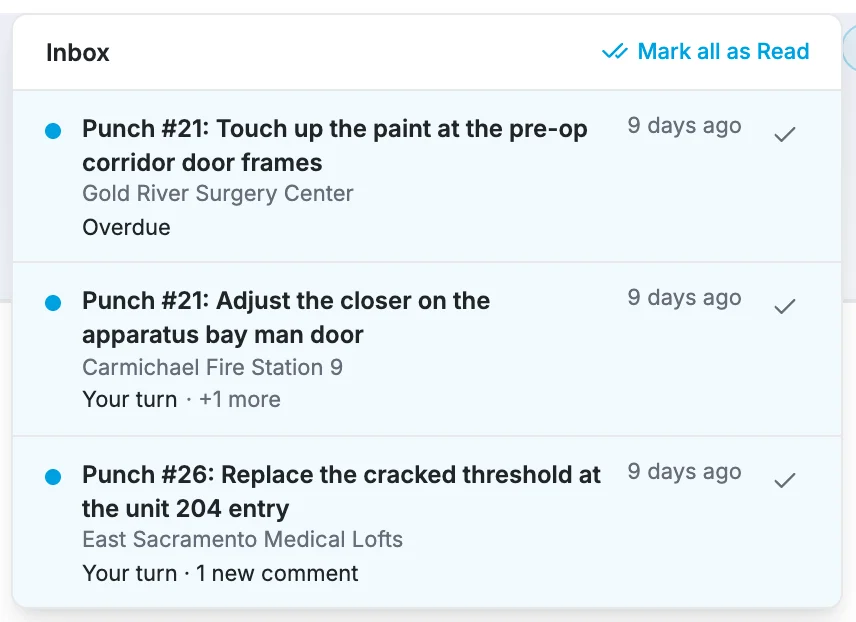
You don't have to clear the Inbox. To tidy it up without opening records:
- Click the check mark at the end of a row to mark that record read.
- Click Mark all as Read at the top.
Press Esc or click outside the Inbox to close it. Updates are kept for 90 days.
See your whole Inbox
The bell shows your 50 most recent records. To see everything, or one project's updates:
- Click the bell, then See all at the bottom.
- The Inbox page lists the same records under a heading for each project, newest first.
- To see one project, choose it under Project. Choose All projects to see everything again.
- If there are more records, click Older at the bottom. Newer takes you back.
The project you chose stays in the page's link, so it's still chosen when you reload the page, and a colleague you send the link to sees that project in their own Inbox.
Read and unread work the same as in the bell: open a record, click the check mark at the end of its row, or click Mark all as Read. With a project chosen, Mark all as Read marks only that project's updates.
What lands in your Inbox
- Updates on RFIs, submittals, punch items and Daily Reports you're on: your turn to act, something due or overdue, a status change, a response or a new comment.
- Records sent to you, such as an issued RFI or submittal or a Distribution.
- Mentions, where someone named you with @. These say Mention and have an @ sign.
- Infected files: when a file you added, or one in a module you administer, is found to contain malware. The update names the file and says Infected: it can’t be opened or downloaded; clicking it opens the record the file is on.
If you mute a project or a record, its updates stay out of your Inbox. See Choose how much email you get.
Mention someone
You can mention people in a Comment on an RFI, a submittal or a punch item, in a Topic or reply in Discussion, and in drawing markup.
- In the comment box, type @ and the start of a name.
- A list opens of the people who can already see the record, under People, then the project's distribution groups under Groups and its companies under Companies. Each group or company shows how many people it will mention and lists them by name. Those are only its people who can see the record and can sign in.
- Pick a name with the arrow keys and Enter or Tab, or click it. The name is written into your comment.
- Post the comment as usual.
A reply in Discussion starts with a Mention of the last person who commented, so you don't have to type it.
Everyone you named, or everyone in the group or company you named, gets a Mention in their Inbox. If a group or company would reach more than 8 people, the box says This will notify N people. before you post.
A comment waits 5 seconds before it's sent, so you can Undo it. Nobody is mentioned until then. If you Unsend a comment later, the people it mentioned no longer see it in their Inbox. See Take back a Comment.
A Mention asks for attention, not an answer: it doesn't change who a record is waiting on.
An AI assistant someone connected to StruXure can mention people too, in a comment the person approved word for word. It mentions only people who can see the record, and its comment, Inbox update and email say who posted it via which assistant, such as Dana Reyes via Claude.
When a Mention is emailed
If you haven't read a Mention 10 minutes after it was made, StruXure emails it to you. It comes at every Email Level except Off, even on a project or record you muted. Between 8 pm and 6 am your time, or on a day the project doesn't work, it waits until 6 am on the project's next working day. If you read it first, no email is sent.