
Your profile is your own record in the workspace's Directory, so a change here shows wherever your name does. Everyone can edit their own profile; no permission is needed.
Open your profile
Click your picture or initials at the right of the top bar.

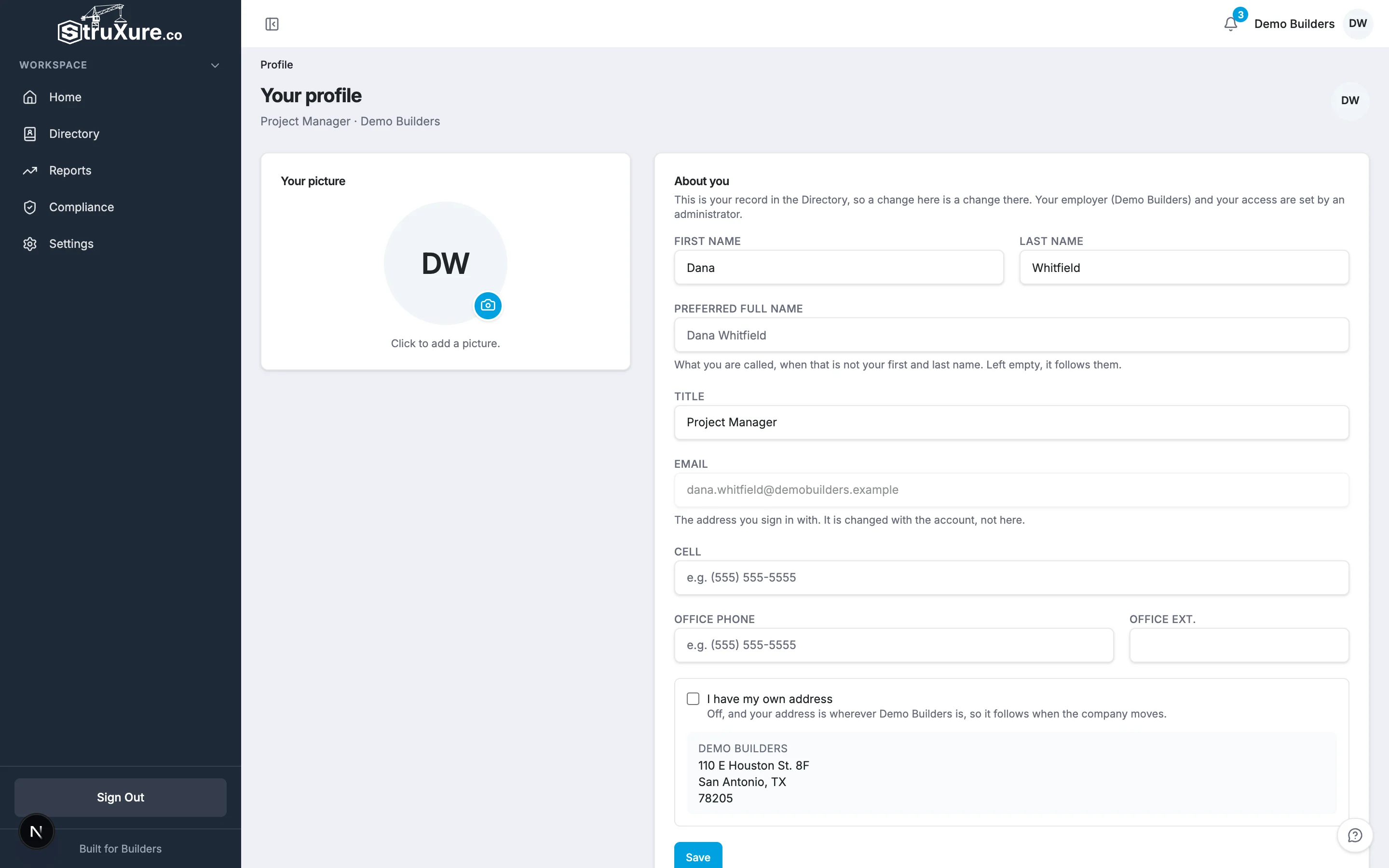
Change your details
- In About you, change any of: First name, Last name, Preferred full name, Title, Cell, Office phone and Office ext.
- Click Save. The page says Saved.
- Preferred full name is what you're called when that isn't your first and last name. Leave it empty to use them.
- First and last name are both required: without them you'll see Your first and last name are both needed.
- Email is the address you sign in with. You can't change it here.
- Your employer and your access are set by an administrator, not on your profile.
Your address
By default your address is your company's, and it follows if the company moves. To use your own:
- Tick I have my own address.
- Fill in Street 1, Street 2, City, State and Zip. Suggestions appear as you type the street; pick one to fill in the city, state and zip.
- Click Save.
Untick it and save to go back to your company's address.
Add or change your picture
- In Your picture, click the picture (or your initials).
- Choose a photo. JPEG, PNG, WebP, GIF, AVIF and HEIC all work, up to 10 MB.
- Drag the photo and use Zoom to fit the part you want in the circle, then click Use this photo.
The picture saves straight away and the page says Your picture is up. It shows wherever your name does.
To remove it, click Remove picture and confirm. Your initials take its place.
Your Connected Agents
If you've connected an AI assistant, such as Claude or ChatGPT, to StruXure, your profile has a Connected Agents card. It lists each one in every workspace you've connected it to: the assistant, the workspace, when you connected it, when it was last used, and its status.
To disconnect one, click Revoke and confirm. The assistant stops working with StruXure straight away. To use it again, connect it again from the assistant.
A connection also ends on its own:
- Lapsed: it hasn't been used for 30 days.
- Revoked: you or an admin revoked it, your company turned Connected Agents off, or you were removed from the workspace.
Ended connections stay on the list for 90 days, with when they ended. The card appears once you've connected an assistant. Its How Connected Agents work link opens Connect an AI assistant.
If your profile is empty
If you see There is no Directory record linked to your login yet, the workspace's Directory has no person with your sign-in email. Ask an administrator to add you to the Directory with that address.