
About this page
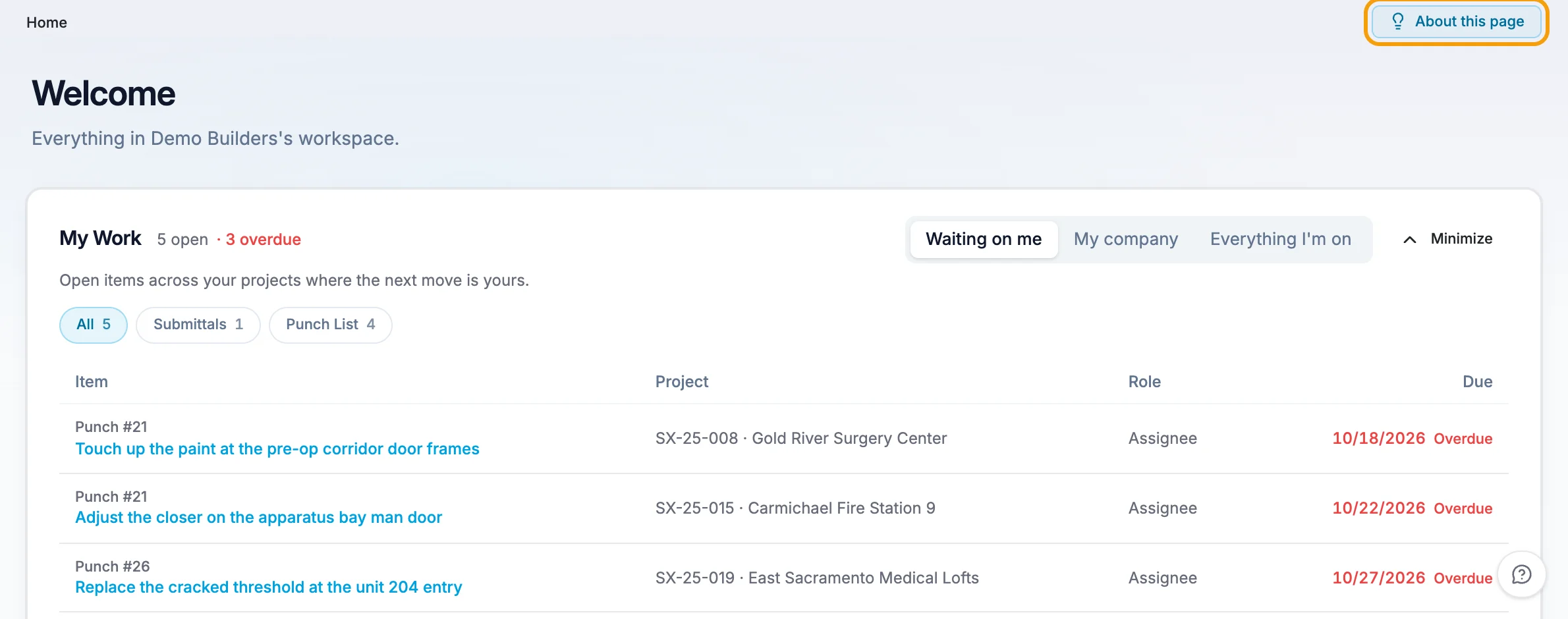
The first few times you open a page such as Home, Drawings or the Punch List, a blue card at the top says what the page is for and how to start, with buttons for the first steps. What it says depends on what you can do on that page.

- Click Got it (or the ×) to put the card away. It also goes away by itself once you've used the page.
- After that, an About this page button stays at the right end of the breadcrumb row. Click it to see the card again.
Turn the cards off for yourself
- On any card, click Turn off all helpers. The cards and the About this page button go away on every page, in every workspace you belong to, for you only.
- To bring them back, open your profile (your picture or initials at the right of the top bar).
- Under About this page, tick Show About this page cards and click Save.
Your company can turn these cards off for everyone, under New User Training Helpers in Settings. While they're off for everyone, your profile doesn't show the setting.
Talk to us
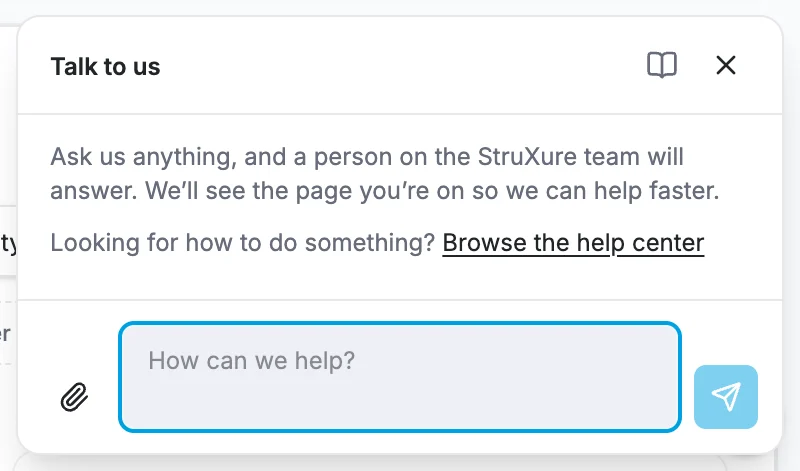
The round button at the bottom right of every page opens Talk to us, a message box straight to the StruXure team. A person answers, and they can see which page you were on.
- Click the round button at the bottom right. Its name, Talk to us, shows when you point at it.
- Type your question in How can we help?
- To add screenshots or PDFs, click the paper clip or paste an image into the box: up to five at a time, 10 MB each. A file named like a program or script, such as .exe, can't be attached.
- Press Enter or click the send arrow.
While you wait, the panel says when to expect a reply: usually within a few minutes during the team's hours, or when they're back if they're out. Replies appear in the panel. If you've closed it, you get an email, and its link reopens the conversation.
- This is urgent alerts the team at once, including whoever is on call out of hours. You can use it once per conversation.
- Mark resolved tells the team you have what you need. Writing again reopens it.
- Earlier conversations lists your past conversations to read back.
- The book icon at the top of the panel opens the StruXure help center in a new tab, for how-to articles you can read without waiting for a reply.
Press Esc or click × to close the panel. It doesn't cover the whole page, so you can keep working while you talk.