
Home is the first page you see after signing in. Click Home in the sidebar, or Back to Home inside a project, to come back to it.
It has two parts:
- My Work, the open items across all your projects that are waiting on you.
- All Projects, every project you're on. See Find a project.
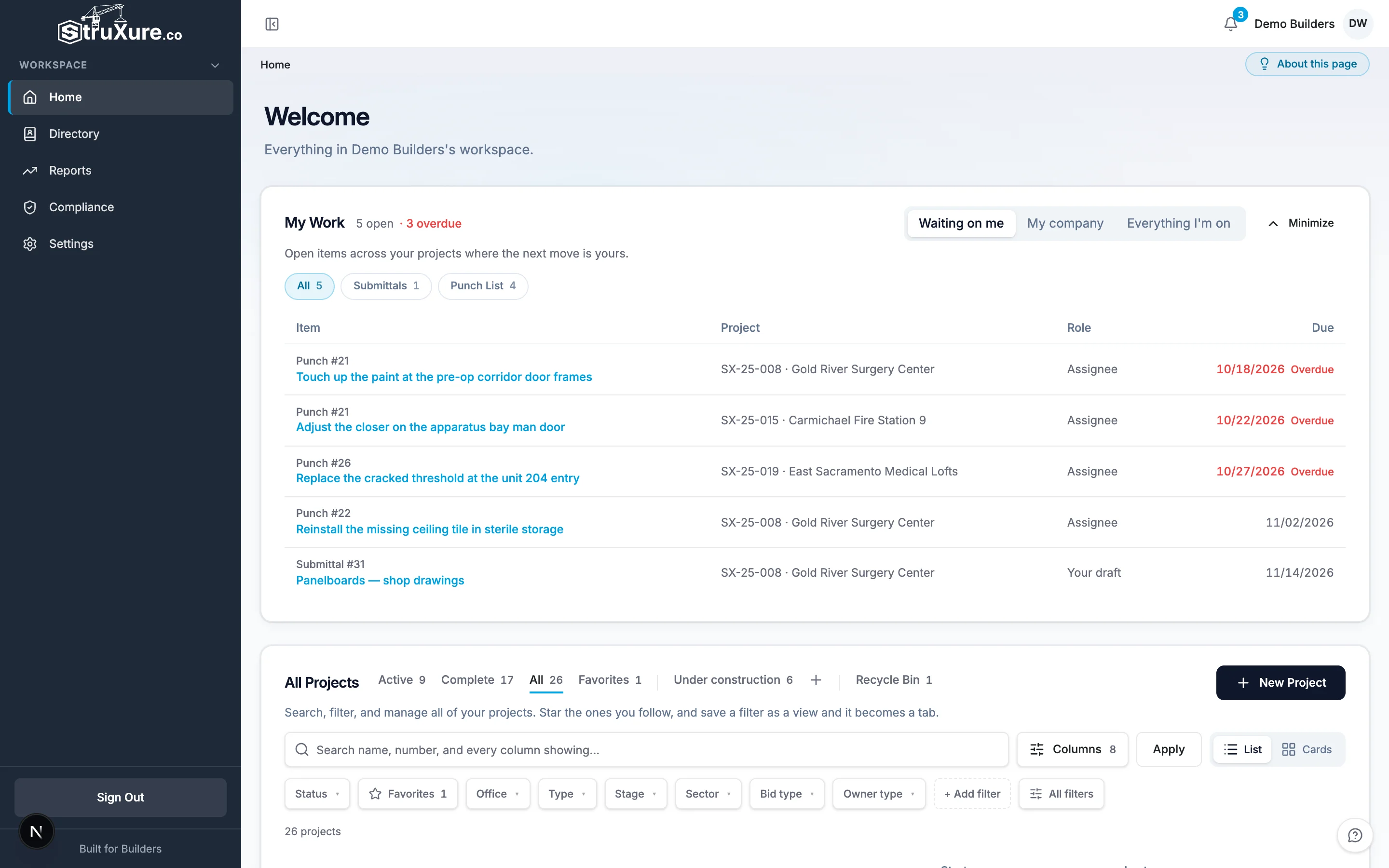
If you haven't been added to any projects yet, Home shows the My Work card and says You have not been added to any projects yet. Projects appear as soon as someone adds you to one.
My Work
The My Work card lists RFIs, submittals, punch items, observations, meeting agenda items, Daily Reports and forms that are open and name you, from every project you can see. A form is yours while you're filling it in (a Draft, or Sent Back to you) and while it waits on you as its Reviewer.
If your company has Financials and you work accounting, Waiting on me also lists your Manual Tasks: records to key in accounting by hand, and records your accounting system refused, which read Not sent to accounting. See Key a record in accounting by hand and Check what reached accounting.
If you keep compliance on a project, Waiting on me also lists each vendor's compliance that is expiring or has expired there, as Compliance · Expiring or Compliance · Expired, due on its expiry date. It leaves the list once it is renewed or waived. See Keep each vendor's compliance on a project.
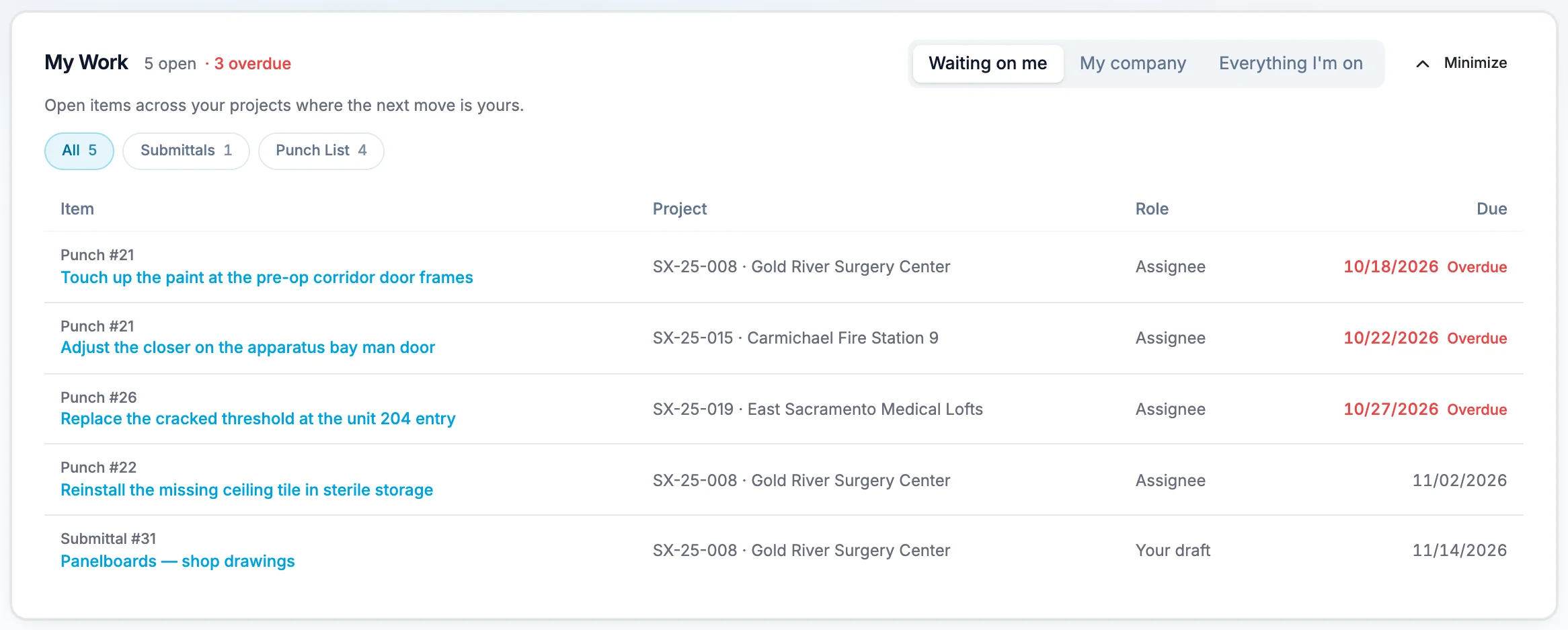
At the top it shows how many items are open and how many are overdue. Each row shows:
| Column | What it shows |
|---|---|
| Item | What kind of record and its number, then its title. Click it to open the record. |
| Project | The project's number and name. |
| Role | Why it's yours: for example Assignee, Approver, Reviewer, Your draft, Passed to you, or, for a form someone else started for you, Assigned to you. |
| Due | The due date. Overdue dates are red and marked Overdue; items due today are marked Today. |
If the list holds more than one kind of item, chips above it filter by kind (for example RFIs or Punch List). The card shows ten rows at first; click Show all to see the rest.
Choose whose work to see
The buttons at the top right of the card change what it lists:
| Button | What it lists |
|---|---|
| Waiting on me | Items where the next move is yours. This is the default. |
| My company | Items assigned to your company, or to someone there. The With column says who has each one. |
| Everything I'm on | Every open item that names you, whoever has it now. |
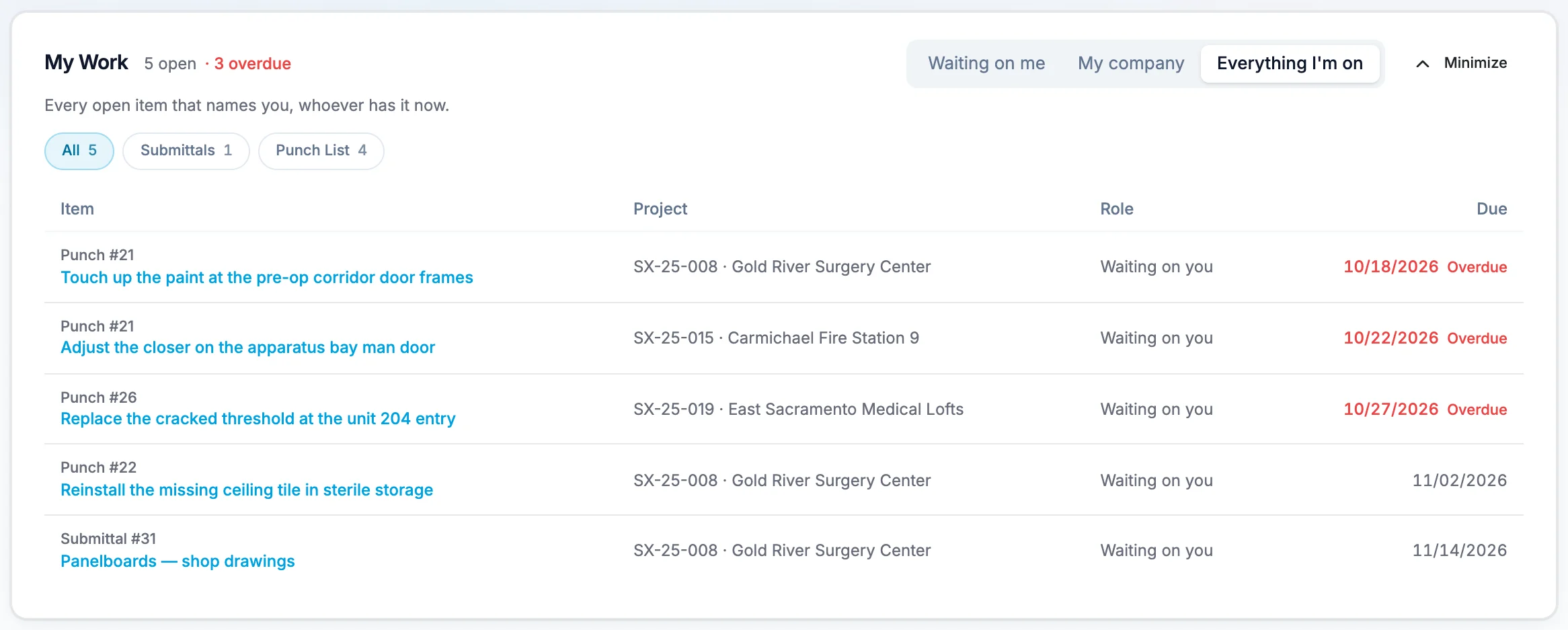
Minimize or hide the card
- Click Minimize to fold the card down to its title and counts. Click Expand to open it again. StruXure remembers this for you.
- To take the card off Home altogether, open your profile and click Hide My Work in the My Work section. Show My Work on Home brings it back.
When nothing is waiting
The card is always on Home. When nothing is waiting on you, it says Nothing is waiting on you. Items assigned to you or your company will show here. My company and Everything I'm on each say so in their own words when they have nothing to list.
The Inbox under the bell in the top bar shows the same number at its top, as Your turn: N items in My Work, the count of Waiting on me. Click it to come back to Home. When you act on an item, it leaves both the next time a page loads. See Your Inbox and Mentions.
My Work can also come to you by email, weekly or every working day. See Get My Work by email.
Open a project
In the project list, click the project's name, or the View Project icon at the end of its row. In the cards view, click anywhere on the card. The project opens on its dashboard, and the sidebar switches to that project's modules.