You sign in to StruXure with your work email address. The person who invited you must have used that same address.
Sign in
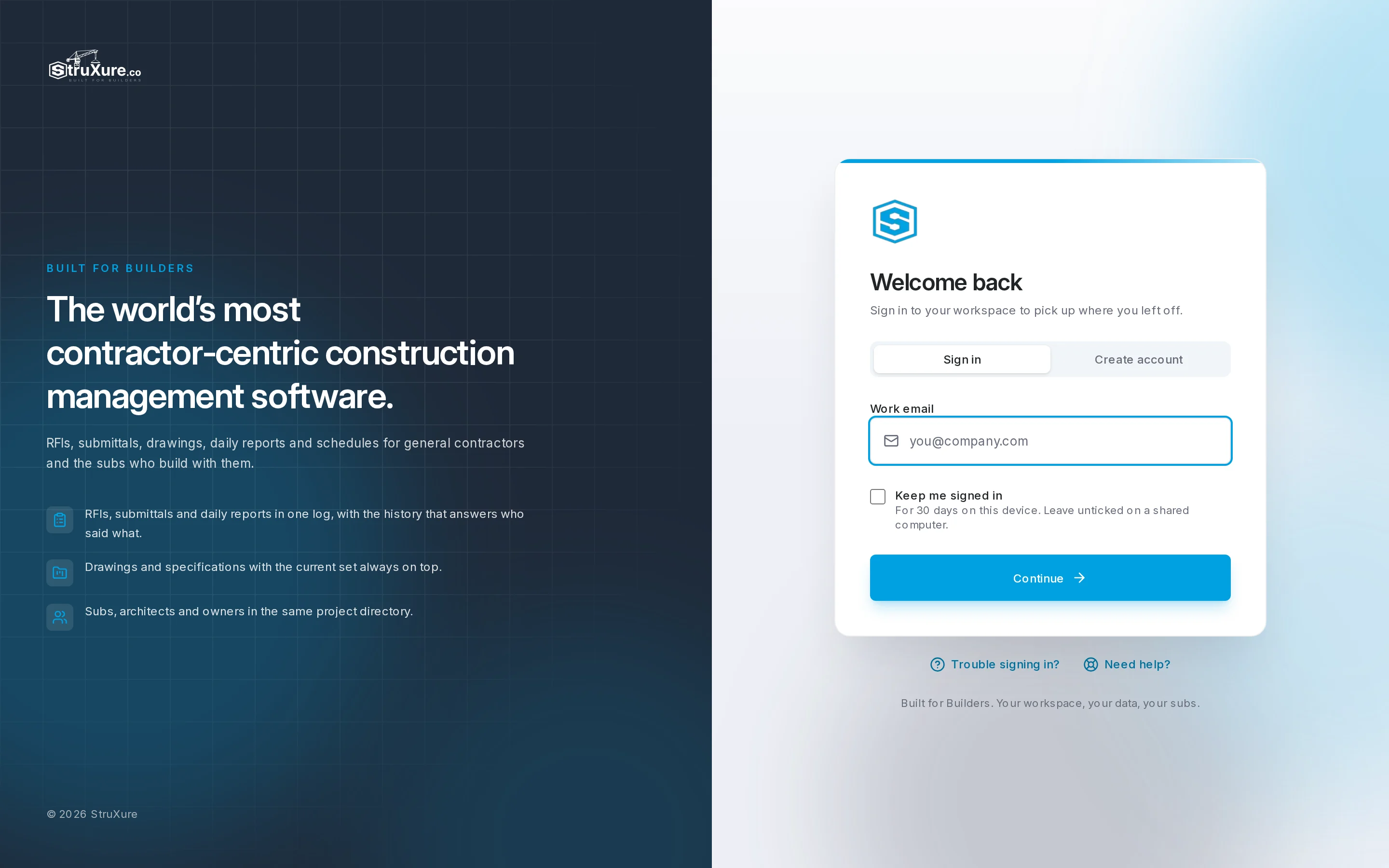
- Go to the StruXure sign-in page. Sign in is selected.
- Type your Work email.
- Tick Keep me signed in if this is your own computer or phone. Leave it unticked on a shared computer.
- Click Continue.
- A Microsoft-hosted page opens. Finish signing in there.
StruXure opens on Home, or on the page a link pointed to if you followed a link from an email.
| Keep me signed in | How long you stay signed in |
|---|---|
| Ticked | 30 days on that device. |
| Not ticked | Until you close the browser, or 12 hours without using StruXure. |
If sign-in doesn't work
| What you see | What to do |
|---|---|
| Sign-in did not complete. Try again. | Start again from the sign-in page. If it happens again, click Trouble signing in? See what to try in the message. |
| That sign-in took too long and expired. Start again. | Start again, and finish the Microsoft page without a long pause. |
| Check your email | An account already exists for your address under a different sign-in. Open the confirmation link StruXure emailed you, then sign in again. The two sign-ins are joined into one account. |
| No access granted yet | You're signed in, but nobody has added you to a workspace yet. Ask your general contractor's admin to add you, then reload the page. |
| You no longer have access | Your access to that workspace has been removed. Contact its administrator if you think it's a mistake. |
| The Microsoft page shows HTTP Error 400. The size of the request headers is too long., or won't finish | Clear the cookies for the Microsoft sign-in site, or sign in from a private window. Click Trouble signing in? under the sign-in box for the steps, or see Trouble signing in?. |
Still stuck? Chat with us
- Click Need help? under the sign-in box.
- Enter Your email and click Email me a code.
- Type the 6-digit code from the email and click Continue. The code works for 10 minutes. If it hasn't arrived, check your spam or junk folder, or click Send a new code.
- Type your question and press Enter. A person on the StruXure team answers in the same box, and you can add screenshots with the paper clip.
If you close the box, we email you any replies you haven't seen. The chat stays open in that browser for a day, so you can come back to it from the sign-in page. To chat as someone else, click Use a different email.
Not getting emails from StruXure at all? Click Not getting our emails? Send a message instead (or Didn't get it? Send a message instead on the code step), enter Your email and Your message, and click Send. A person on the StruXure team replies by email.
Create an account
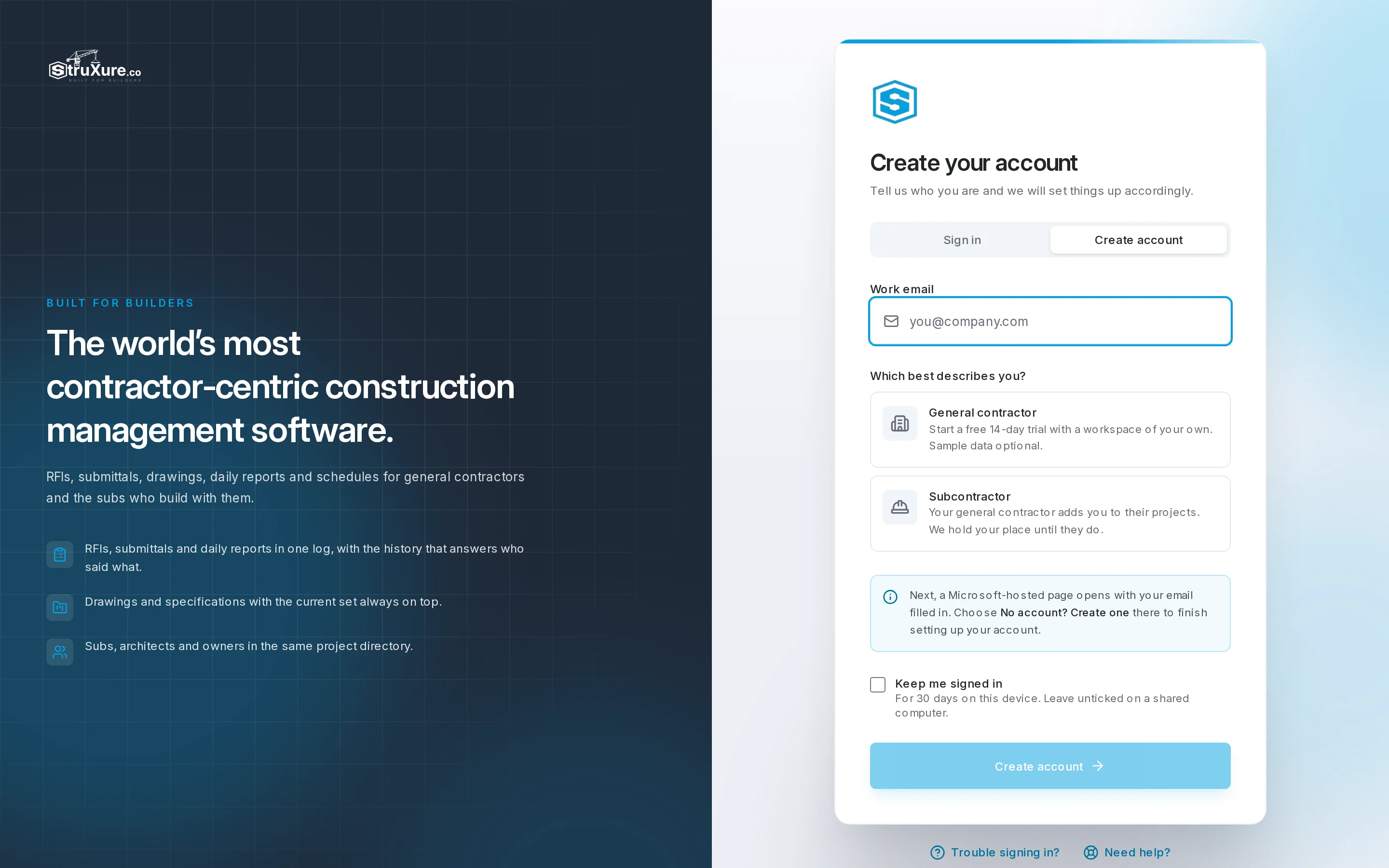
If you don't have an account yet, click Create account on the sign-in page, enter your Work email, and choose what best describes you:
- General contractor starts a free 14-day trial with a workspace of your own.
- Subcontractor holds your place until a general contractor adds you to a project.
Click Create account. On the Microsoft page that opens, choose No account? Create one to finish.
If you were invited by a general contractor, you don't need to choose anything special: sign in or create an account with the address they invited, and their workspace is there. See Your first day as a subcontractor, architect or owner.
Sign out
Click Sign Out at the bottom of the sidebar. When the sidebar is folded, it's the door icon at the bottom.
You're signed out of StruXure, then sent to Microsoft to end its sign-in in this browser too, and brought back to StruXure. If Microsoft asks which account to sign out, pick yours. Once Microsoft has signed you out, the next sign-in asks you to confirm it's you again.
If the Microsoft page shows HTTP Error 400. The size of the request headers is too long. when you sign out, close the tab: you're signed out of StruXure. Before you sign in again, see Trouble signing in?.
Sign out of every device
If you lost a phone or signed in on a computer that isn't yours:
- Click your picture or initials at the right of the top bar to open your profile.
- At the bottom of the page, click See your access, and where you are signed in.
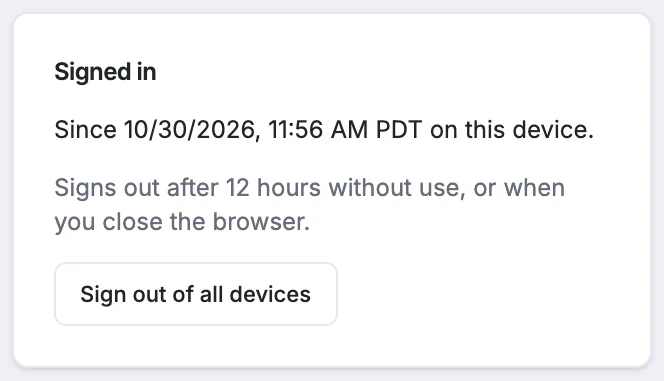
- In Signed in, click Sign out of all devices, then confirm with Sign out everywhere.
You're signed out there at once, and on every other computer and phone within five minutes.