
A saved view is a named tab on Home that remembers the status, filters, search, columns and sort, including the columns' order and widths. Only you see your views.
Save a view
- Set up the list the way you want it. See Find a project.
- Click + after the tabs.
- Type a name, such as "Under construction", and click Save view.
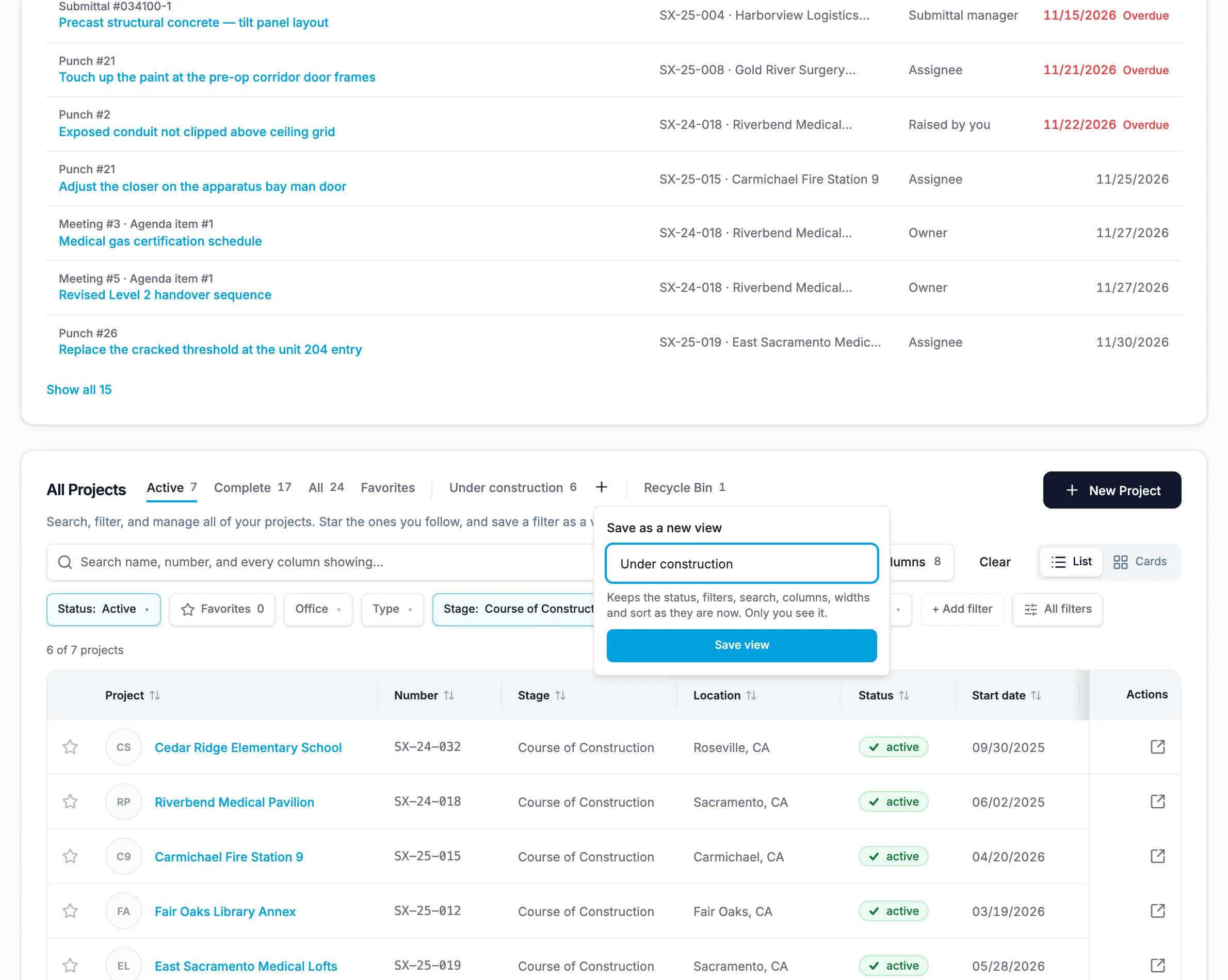
The view appears as a tab, with a count of the projects it shows.
Update a view
If you change the list while a view is open, a dot appears on its tab and a bar says Changed since "…" was saved.

- Save updates the view to match the list.
- Save as new keeps the original and saves the changes under a new name.
- Reset throws the changes away.
Manage your views
Open a view, then click ⋯ beside its name:
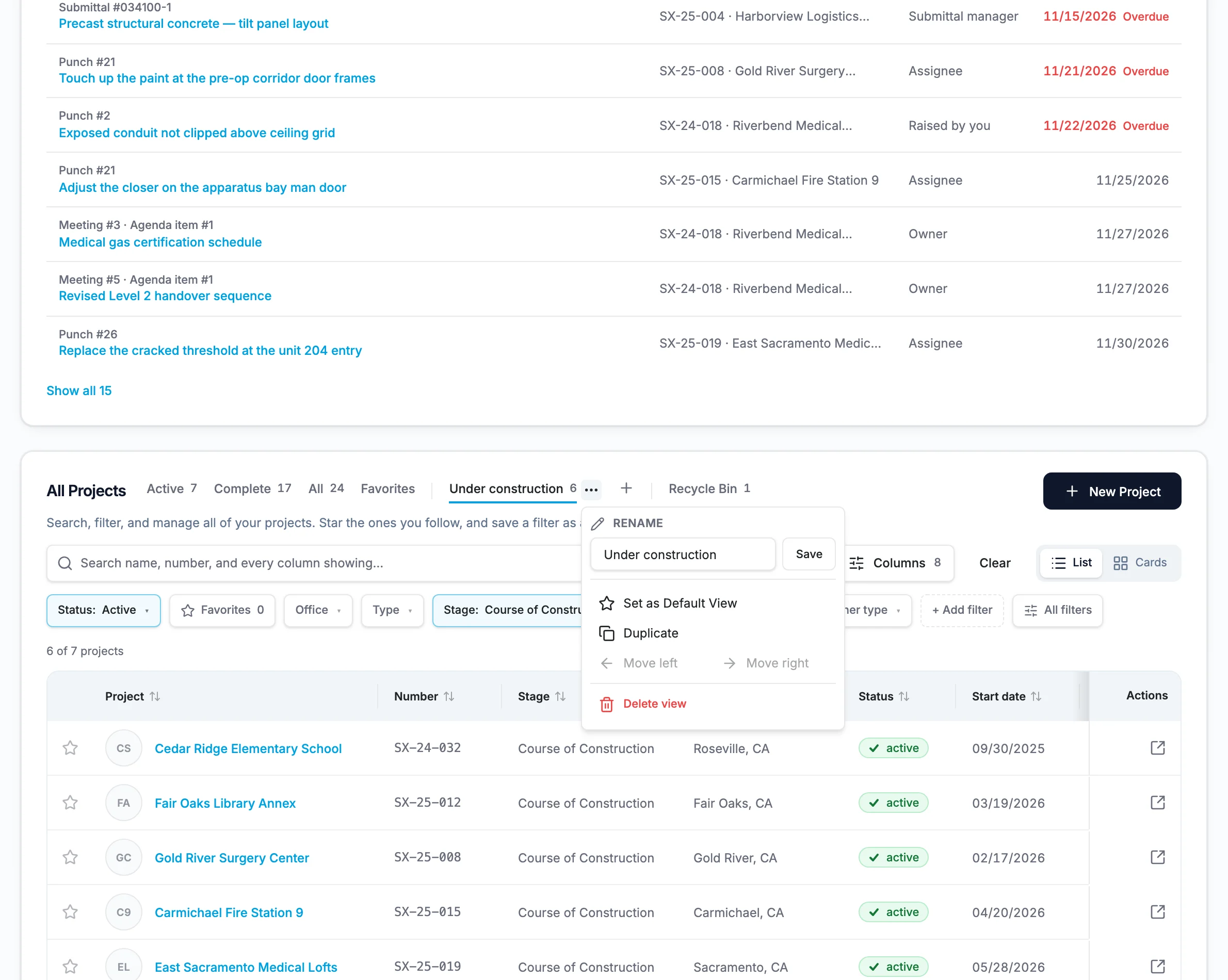
| Option | What it does |
|---|---|
| Rename | Type a new name and click Save. |
| Set as Default View | Home opens on this view whenever you come to it. A star marks it on the tab. Remove as Default View undoes it. |
| Duplicate | Makes a copy named "… copy". |
| Move left / Move right | Reorders your tabs. |
| Delete view | Removes the tab after you confirm. No project is touched, and the view doesn't go to a recycle bin. |
Limits
- Names can be up to 60 characters, and each name must be different. A duplicate is refused with You already have a view called "…".
- You can have up to 30 views on Home.