
Compare lays one PDF over another. What is on the first only shows in green, what is on the second only shows in red, and what is the same on both shows dark.
Open Compare
Any of these opens it:
- In the viewer, click Compare. It opens with this revision on one side and the revision before it on the other.
- In the register, tick one sheet and click Compare: its active revision against its previous one. Tick two sheets to compare them with each other.
- In the register with nothing ticked, click Compare and choose both sides yourself.
Choose what to compare

Each side, Compare and To, has its own source:
- Drawing: pick a sheet and a revision. Any sheet in the register, any revision.
- Project file: pick a PDF from the project's Files. (Only shown if you can see Files.)
- From computer: click Choose PDF… and pick a PDF on your computer. It stays on your computer and isn't uploaded.
For a PDF with several pages, choose the Page on each side. The swap button between the sides swaps them over.
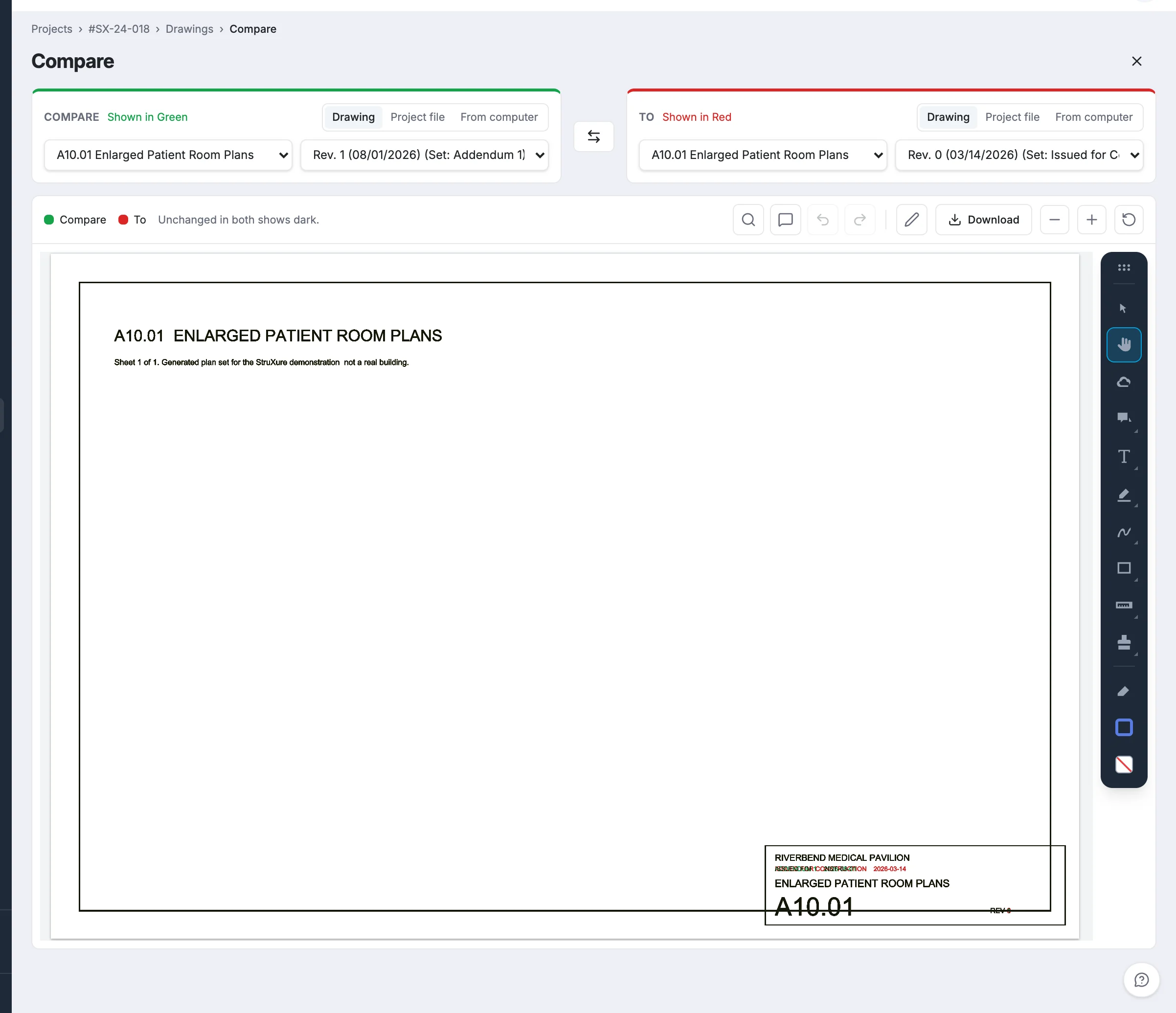
Scroll to zoom in and out at the pointer, and hold Shift and scroll to move up and down.
Mark up a comparison
You can draw on the comparison with the same toolbar as the viewer, for example to cloud the changes. This markup is never saved. Clear Markup (n) removes it. To keep it, click Download to save the comparison, with your markup, as a PDF.
The address of a comparison between two drawings or project files can be copied and sent to someone. A side chosen from your computer isn't included.