
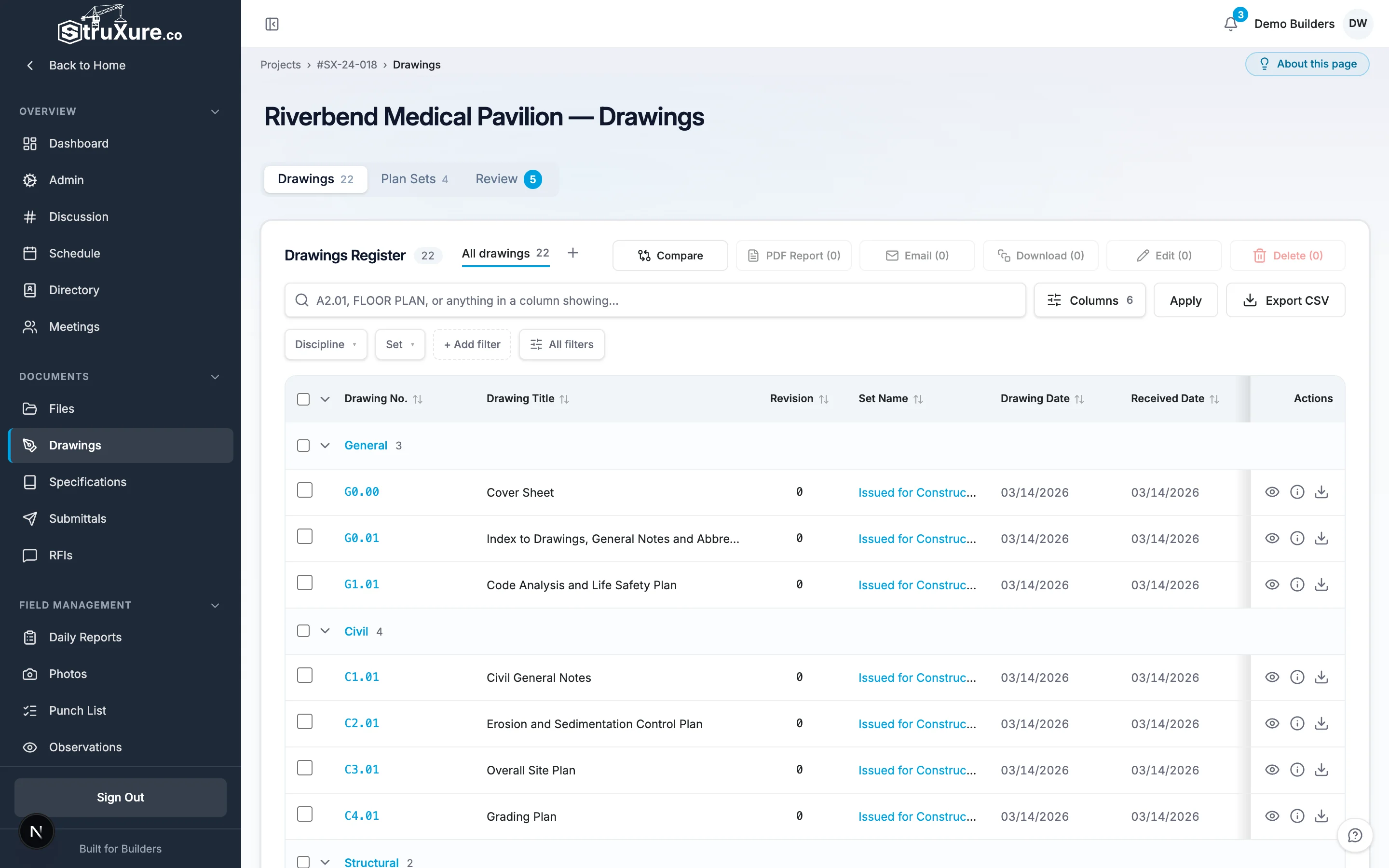
Drawings is where a project keeps its current set: every sheet, which revision of it is current, which plan set it came in, and the markup people have put on it. Open it from Drawings under Documents in the project sidebar.
The words used here
| Term | What it means |
|---|---|
| Plan set | A batch of drawings that arrived together, such as "Issued for Construction" or "Addendum 1". A plan set has a name and a set date, and can hold more than one uploaded PDF. |
| Sheet (drawing) | One drawing, such as A2.01 Level 2 Floor Plan. It has a number, a title and a discipline. |
| Revision | One issue of a sheet, such as revision 0 or revision 1. Each revision has its own PDF, drawing date, received date and plan set. |
| Active revision | The revision the register shows for a sheet. Normally the latest one published. |
| Register | The Drawings tab: every published sheet, with the values of its active revision. |
| Discipline | The group a sheet is listed under (General, Civil, Structural, Architectural and so on), worked out from the sheet number's letters. |
From PDF to register
- Upload a plan set. Someone who can publish drawings uploads the PDF on Plan Sets and names the set. See Upload a plan set.
- StruXure reads the sheets. It splits the PDF into pages and reads each sheet's number and title from its title block. You don't need to wait on the page; a card in the corner follows the work.
- Review what was read. Each page appears on the Review tab. You check the number, title, discipline and dates, then confirm it, and complete the review. See Review the sheets StruXure found.
- Publish. When you complete a review you can publish the sheets straight away, optionally emailing the team, or choose Not now to leave them on the plan set as Unpublished. Nothing changes in the register until they're published. See Publish drawings.
A sheet that is already on the project comes in as a new revision of it. When that revision is published it becomes the active revision, and the register moves to it. The earlier revisions stay on the sheet's Info page.
The three tabs

- Drawings: the register.
- Plan Sets: every set uploaded to the project, with how many of its sheets are published and unpublished.
- Review: appears only while uploaded pages are waiting to be reviewed. The number is how many pages are waiting. Only people who can publish drawings see it.
Published and unpublished
Unpublished sheets are visible only to people who can publish drawings. Everyone else sees only published sheets, in the register and in plan sets. There is no unpublish: once a sheet is in the register, the way to change it is a new revision, or the recycle bin.
Marking up
Anyone who can open a sheet can draw on it. Markup is either published, which everyone who can open the sheet sees, or in your scratch pad, which only you see. See Mark up a sheet and Use your scratch pad.
Times and dates
Times on drawings and their markups show in the project's time zone. If you're in a different time zone, each time shows the project's zone after it, for example 2:00 PM MST; point at it to see the time where you are. A markup's date is the project's day.
Who can do what
There are three levels of drawings access: Read, Markup, and Markup / Publish / Edit / Delete. See Who can do what in Drawings.