
Any mark on a sheet can carry references: links to other sheets, files, RFIs, punch list items, submittals, observations, or a web address. A mark with references shows a badge on the sheet with what it links to, and clicking a link opens that record in a new tab. A hotspot StruXure placed on a drawing number shows an underline instead of a badge.
Add a reference to a mark
- Select the mark.
- Click Add Reference (the link icon) in the bar under it.
- Choose Drawings, Files, RFIs, Punch List Items, Submittals, Observations or URL.
- Search the list, tick one or more records, and click Add. For a URL, enter the Web address (starting with https://), an optional Label, and click Add link.
The list shows only records you can open.
Place a pin or a hotspot
A pin marks a spot; a hotspot marks an area. Both exist only to carry references.
- Pick Pin (Shift+P) or Hotspot (Shift+H) from the toolbar.
- Click the spot for a pin, or drag a box for a hotspot.
- The Add references menu opens. Pick what it links to, as above.
A pin or hotspot that you leave without adding a reference is removed. A pin stays the same size whatever the zoom.
Hotspots StruXure places itself
When a plan set's review is completed, each mention of another drawing's number on a new sheet gets a hotspot that opens that drawing. See Review the sheets StruXure found.
These hotspots have no badge: the drawing number on the sheet is underlined, like a link. Point at it to see the drawing it opens, marked Found automatically. Click it to select the hotspot and open its details, the same as any other.
Each one opens the drawing's active revision, and moves on when a new revision is published or another published revision is made active. A reference you add to it yourself stays on the revision you picked.
If one points at the wrong thing, select it and click Delete, or open its details and click the bin icon beside its only reference. Anyone with Markup access can remove one. A removed hotspot isn't placed again on that revision, even when the sheet is scanned again.
See and remove references
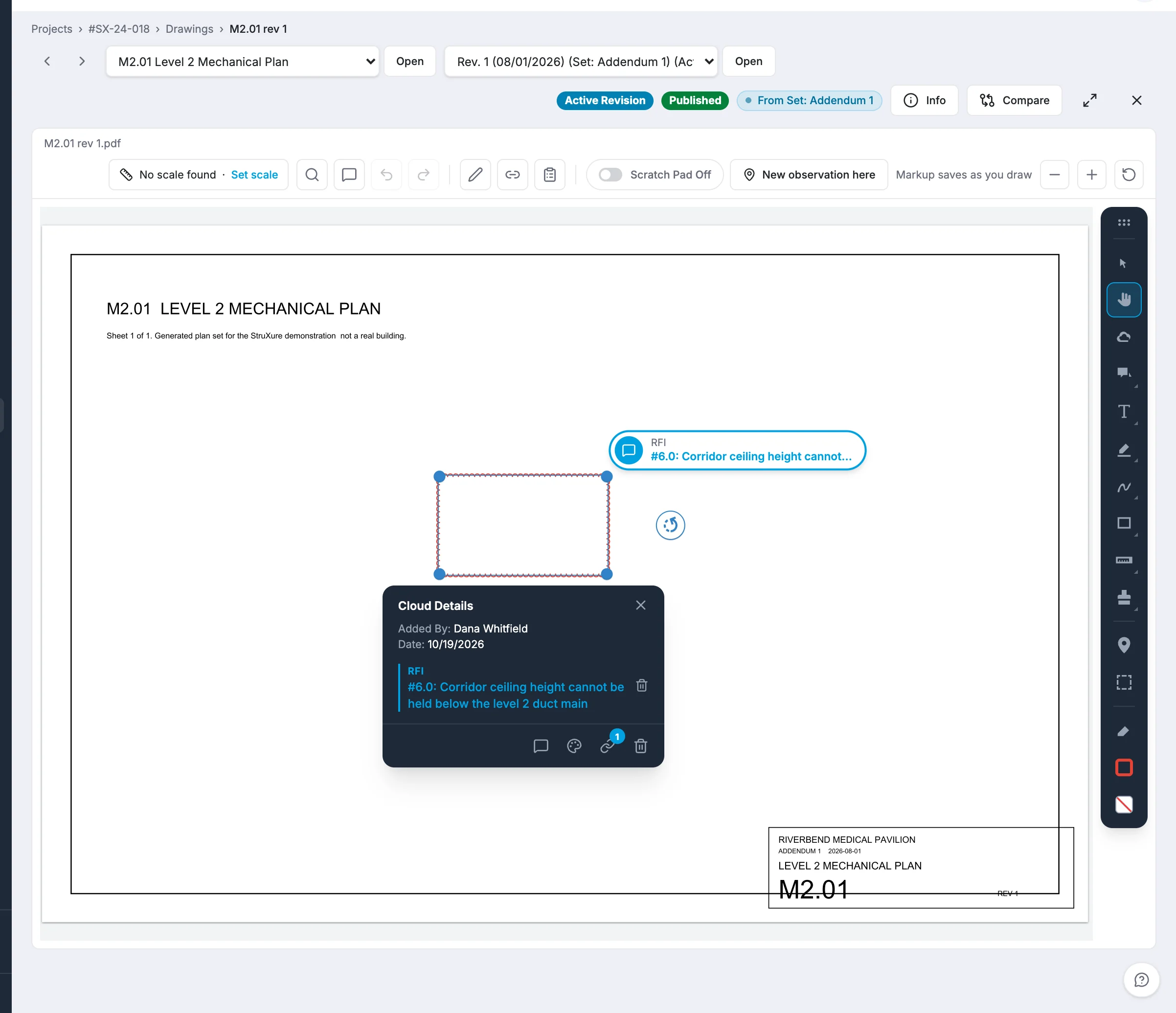
Click a reference badge or an underlined drawing number on the sheet, or select the mark, to open its details: who added it, when, and every reference. Click a reference to open it. The bin icon beside a reference removes it; a pin or hotspot always keeps at least one.
To hide all reference badges, underlines, pins and hotspots for a moment, click Hide Reference Indicators in the bar above the sheet.
What points at this sheet
When markup on other sheets references this revision, or RFIs list it, the bar above the sheet shows Referenced on … sheets and by … RFIs. Click it for the list, with a link to each.
The records you link to show it too: an RFI, file, punch item or submittal referenced from a sheet has a Referenced on drawings card listing the sheets. An observation shows each pin that points at it in its On the drawing card.
To drop a pin and start a new observation on it in one go, see Raise an observation from a drawing.
Good to know
- You need Markup access to add references, pins and hotspots. With Read access, you see them but can't add any.
- A reference on a scratch pad mark is private, like the mark.