
The register groups sheets by discipline, in the project's discipline order (see Manage disciplines), and lists them in sheet order within each group: the order of the plan set each sheet first came in. A later set that revises a few sheets doesn't move them, and a new sheet in it is placed after the sheet before it in that set. The count beside Drawings Register shows how many sheets are shown out of the total.
Click the arrow beside a discipline to collapse its sheets, and again to open them. The arrow in the heading row collapses or opens every discipline. Collapsed disciplines stay collapsed when you sort, search or filter, and when you reload the page. Ticking a collapsed discipline's box selects all of its sheets.
Search
Type in the search box (it says Search sheet number, title…), for example A2.01 or FLOOR PLAN. The register updates when you pause typing; you don't need to press Enter. Search looks at the sheet number and the title, and the text in the other columns shown. It doesn't search dates or counts: use the filters for those.
Filter
Discipline and Set are always in the filter row. Click one, tick the values you want, and the list updates when the menu closes. Each value shows how many sheets have it.
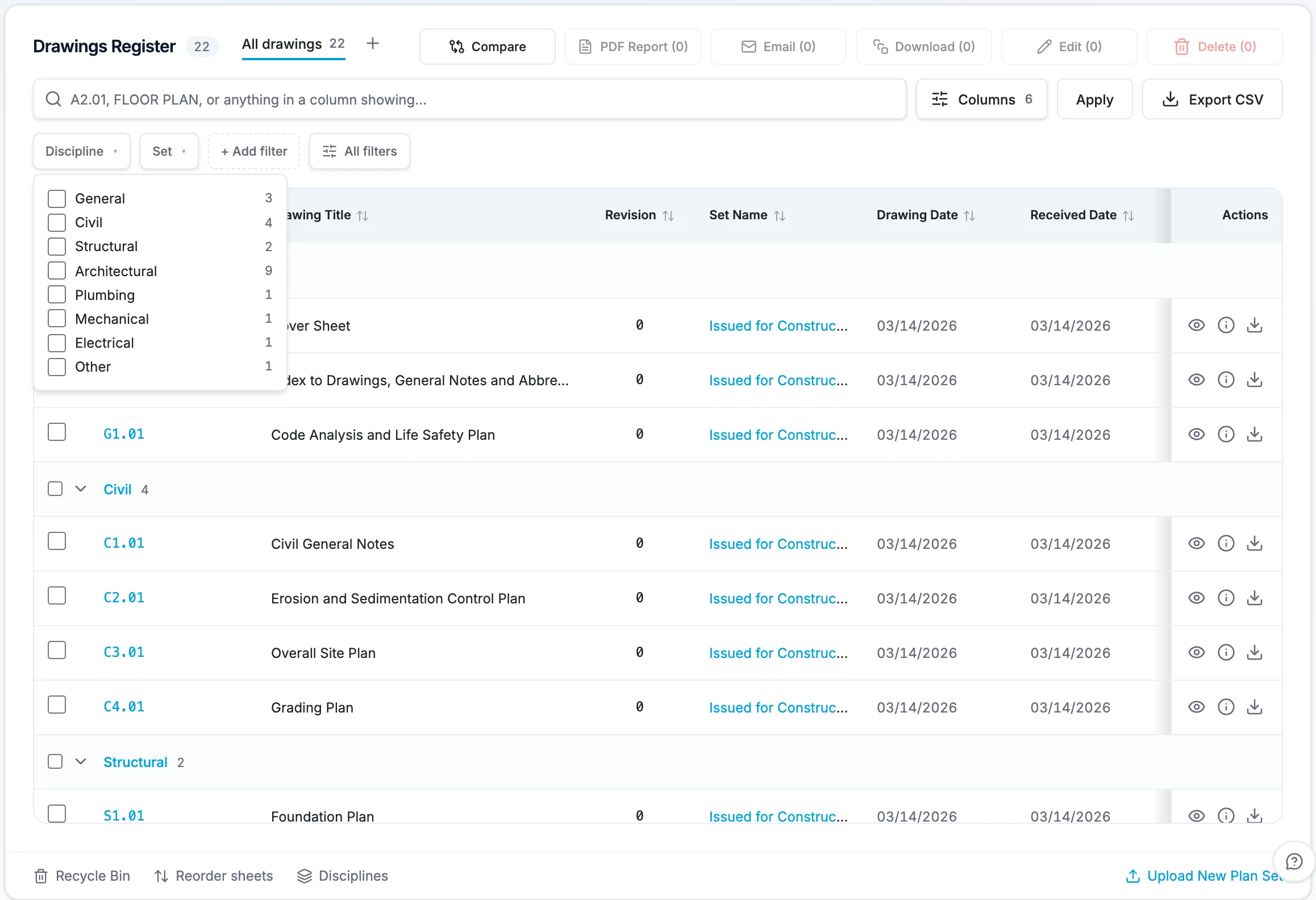
Click + Add filter for Revision, Published, Has markups, Drawing date, Received date or Created. All filters builds "and" and "or" combinations: conditions in a group must all match, and Add group (or) adds an alternative.
Click Clear to take off the search and every filter and see every sheet again. Your columns, sort and collapsed disciplines stay as they are. On a saved view, Clear takes off the view's filters, and the bar offers Reset to bring them back.
On Plan Sets, click a set's Published number to see just those sheets in the register.
Columns and sort
Click Columns to choose what is shown. Drawing No. and Drawing Title are always there. Besides the defaults (Revision, Set Name, Drawing Date, Received Date), you can add Discipline, Revisions, Markups, Published and Created. Each one shows, or hides when you untick it, straight away, with the menu still open. Reset to the default columns puts them back.
To make a column wider or narrower, drag the right edge of its heading. Double-click the edge to fit the column to what's in it. Your widths are kept for next time, and a saved view keeps its own. To go back, click Columns, then Reset column widths. When a value doesn't fit its column, point at it to see it in full.
Click a column heading to sort by it, again to reverse, and a third time to go back to sheet order. Sorting happens within each discipline; the groups stay in order.
Save a view
A saved view is a tab that remembers your search, filters, columns and sort. Only you see your views, and they're on the register of every project.
- Set the register up the way you want.
- Click + next to All drawings.
- Name the view and click Save view.
If you change the register while a view is open, a bar says Changed since "…" was saved. Choose Save, Save as new or Reset. The ⋯ menu on a view's tab lets you Rename, Set as Default View, Duplicate, Move left, Move right or Delete view. View names can be up to 60 characters.
Good to know
- Only published sheets are listed, except for people who can publish drawings, who also see unpublished ones marked Unpublished.
- Any view of the register is a link: copy the address to send someone the same filtered list.