
Publishing is the step that changes what the field builds from. A published sheet goes into the register, and a published revision becomes the sheet's active revision, replacing the one before it.
The quickest way is when you complete a review: choose Publish only or Publish and notify in the Complete Review dialog. See Review the sheets StruXure found. If you chose Not now, publish them from the plan set as below.
Publish every unpublished sheet in a set
- Open Plan Sets and click the set's name. After you complete a review with Not now, you land here.
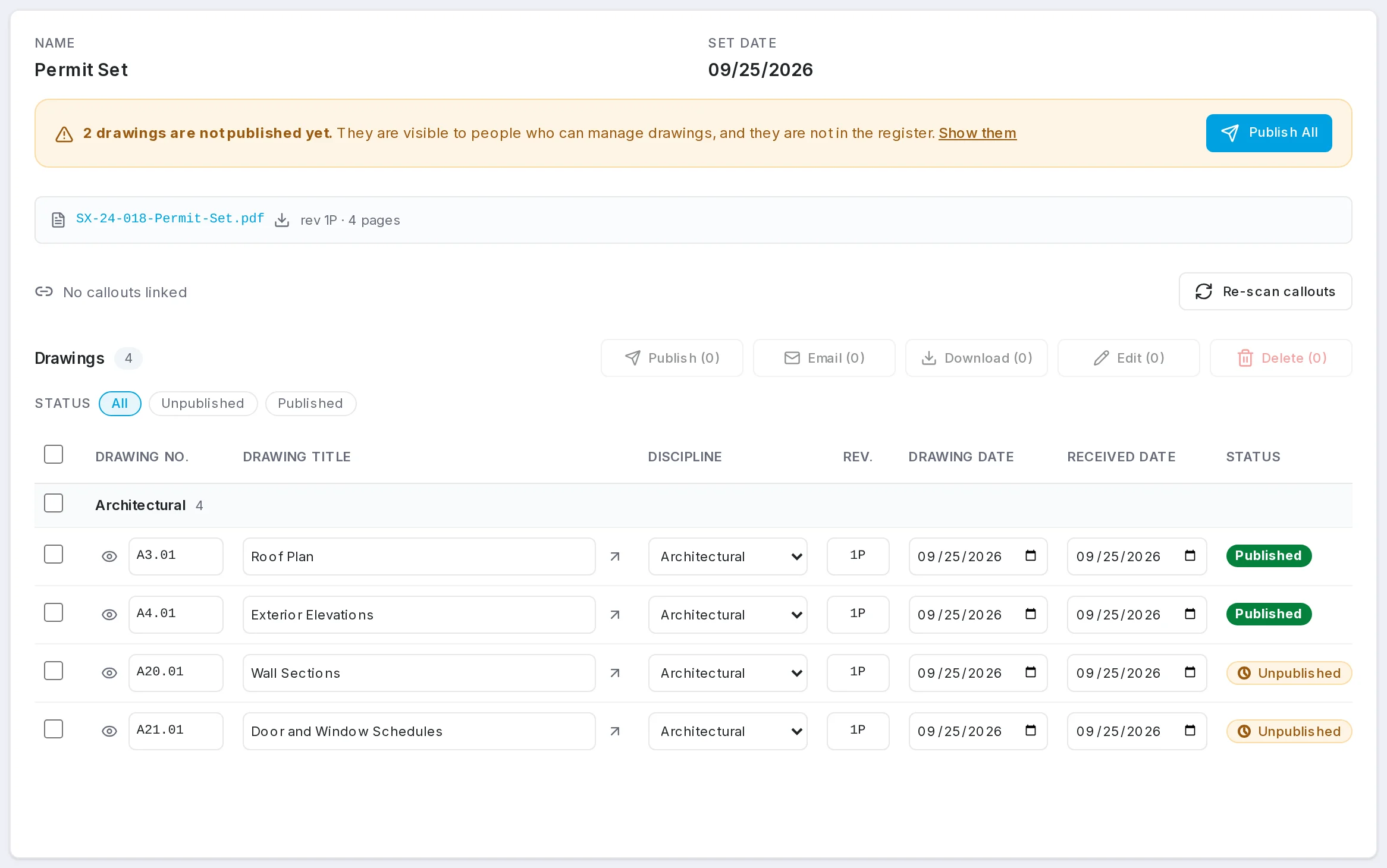
- A banner says how many drawings are not published yet. Click Publish All.
- Choose who to tell (see below), then click Publish only or Publish and notify.
Publish some of the sheets
- On the plan set, tick the sheets to publish. Click Unpublished next to STATUS to see only those.
- Click Publish (n) in the toolbar.
- Click Publish only or Publish and notify.
Publish (n) is unavailable when every ticked sheet is already published.
Publish only, or publish and notify
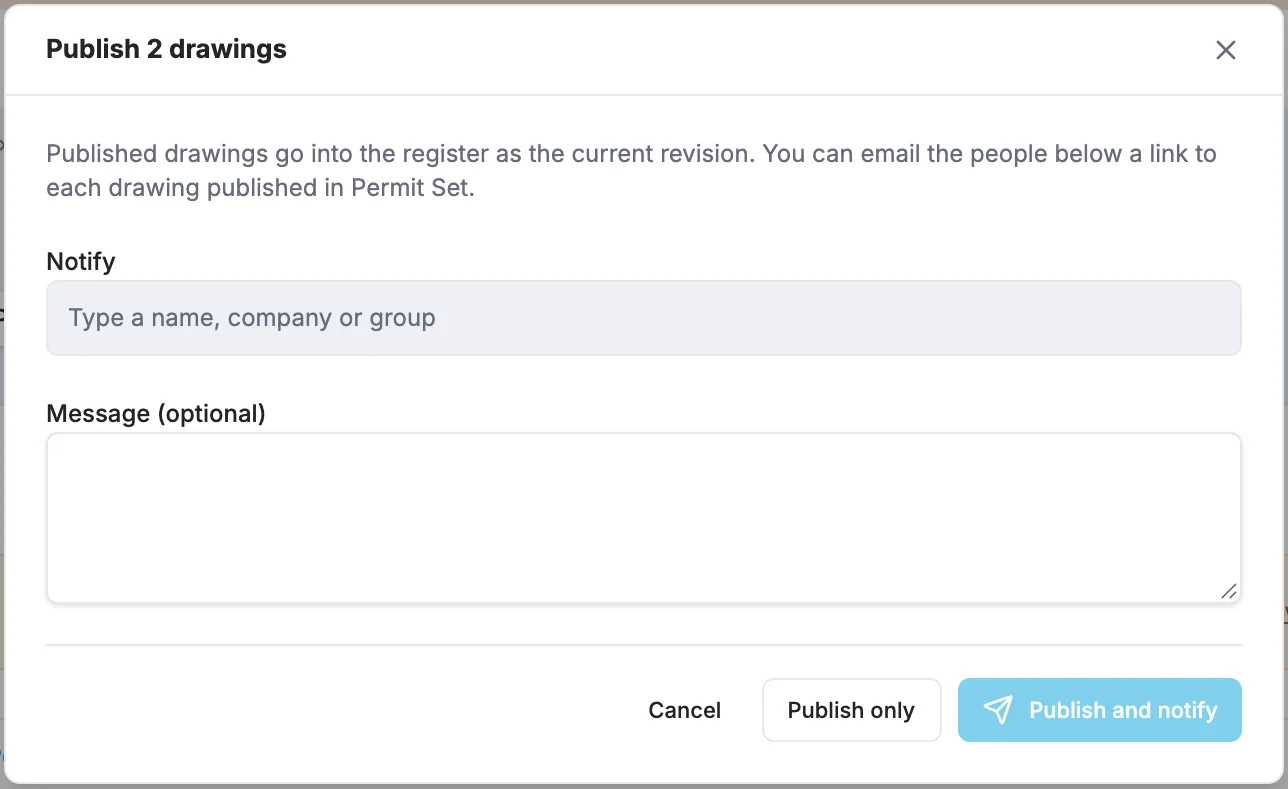
- Publish only publishes the sheets and sends no email.
- Publish and notify publishes them and emails everyone under Notify the drawing register as a PDF. Pick people and groups in Notify; the list starts with the project's default drawing recipients (see Drawing defaults). Add a Message (optional) if you want, up to 2,000 characters. The button is available once someone is chosen.
With Publish only, the plan set then says, for example, 2 drawings published in Permit Set.
Publish and notify runs in the background
Publish and notify can take a minute while the register PDF is made, so it runs in the background. The dialog closes at once and a Publishing Drawings… card appears in the bottom-right corner. You can keep working or go to another page in the project; the card goes with you, and closing the page doesn't stop the publish.
When it's done the card reads Publish complete, says how many drawings were published, for example 2 drawings published, and Email queued to 4 people. Click Open the register to see them. If nobody you chose has an email address, the sheets are still published and the card says no email was sent. If the publish fails, the card says why; click Open to go back to the plan set and try again.
Click Dismiss to close the card. If you dismiss it while the publish is running, it comes back once when the publish ends.
What the email holds
The email has the drawing register attached as a PDF: every published drawing on the project, grouped by discipline, with its number, title, revision, set name, drawing date and received date. The drawings just published are marked New. Each drawing's number and title in the PDF link to the drawing in StruXure.
If the PDF can't be attached, the email lists the drawings just published instead, each with a link.
The links open the sheet in StruXure. People have to sign in, and they see the sheet only if they have access to drawings on the project.
Good to know
- Only publishing sends the email. Publishing sheets that are already published sends nothing.
- There is no unpublish. To replace a sheet, publish a new revision. To take it out of the register, delete it.
- Publishing a revision makes it the active revision. To go back to an earlier one, use Make Active on the sheet's Info page. See Revisions and sheet details.