
Your scratch pad is private markup. Nobody else can see it, not even drawing admins, and it is never in a downloaded sheet, even when you download With markup. Scratch pad marks are always drawn in purple, so you can tell them from published ones at a glance. Like all markup, they belong to the revision you drew them on.
Turn the scratch pad on
In the bar above the sheet, click Scratch Pad Off. It turns purple and says Scratch Pad On, and everything you draw goes into your scratch pad until you turn it off. While it is on, the colour menus offer only the scratch pad purple.

With Read access there is no switch: a purple Scratch Pad label shows instead, and everything you draw is scratch pad markup.
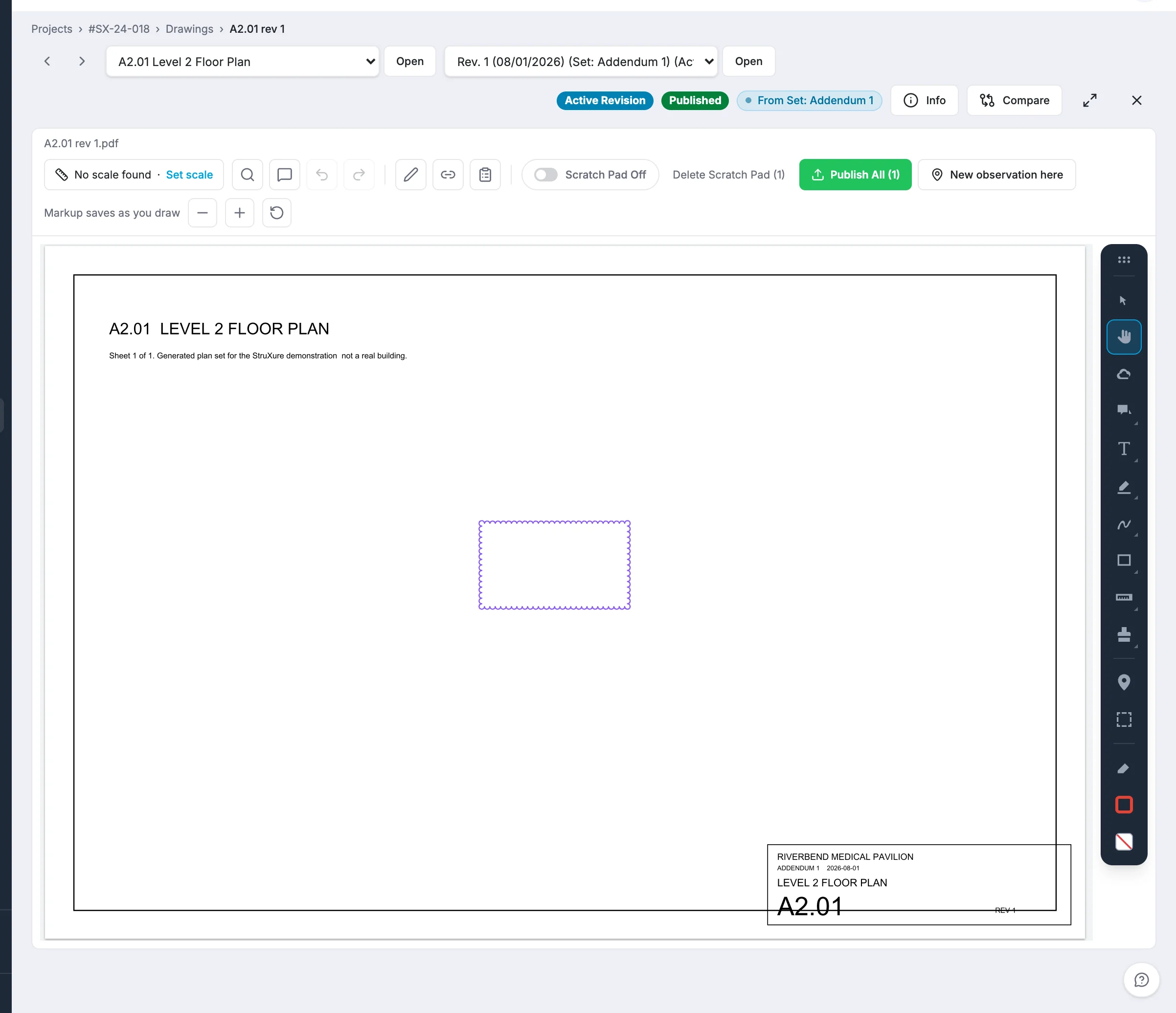
Publish scratch pad marks
You need Markup access to publish.
- One mark: select it and click Publish in the bar under it.
- All of them: click Publish All (n) in the bar above the sheet.
Published marks turn to the normal markup colour and everyone who can open the sheet sees them. Anyone you mentioned with @ is told at this point.
Throw your scratch pad away
Click Delete Scratch Pad (n) in the bar above the sheet, then Delete to confirm. Only your scratch pad marks on this revision are removed.
Hide your scratch pad
Click Hide Scratch Pad Items to look at the sheet without your private marks. Click Show Scratch Pad Items to bring them back. A selected scratch pad mark's details say In your scratch pad. Only you can see it.