
A plan set is uploaded as one PDF, however many sheets it holds. StruXure splits it into pages and reads each sheet's number and title for you to check.
Upload the PDF
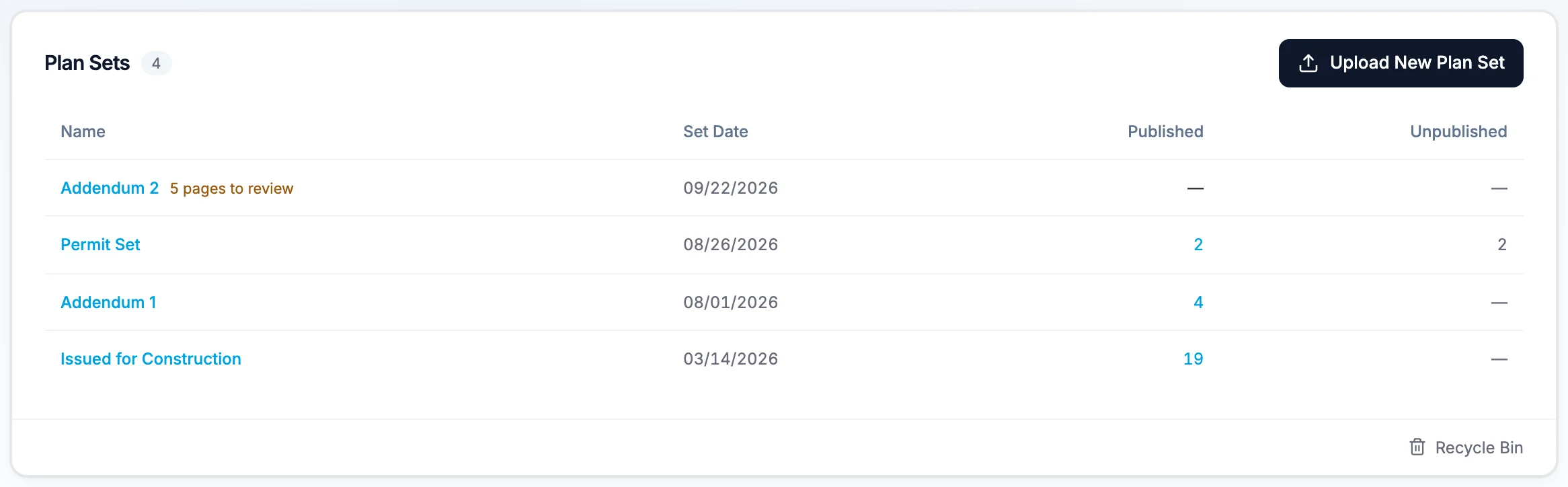
In Drawings, open the Plan Sets tab. (You can also click Upload New Plan Set at the bottom of the register.)
Click Upload New Plan Set.
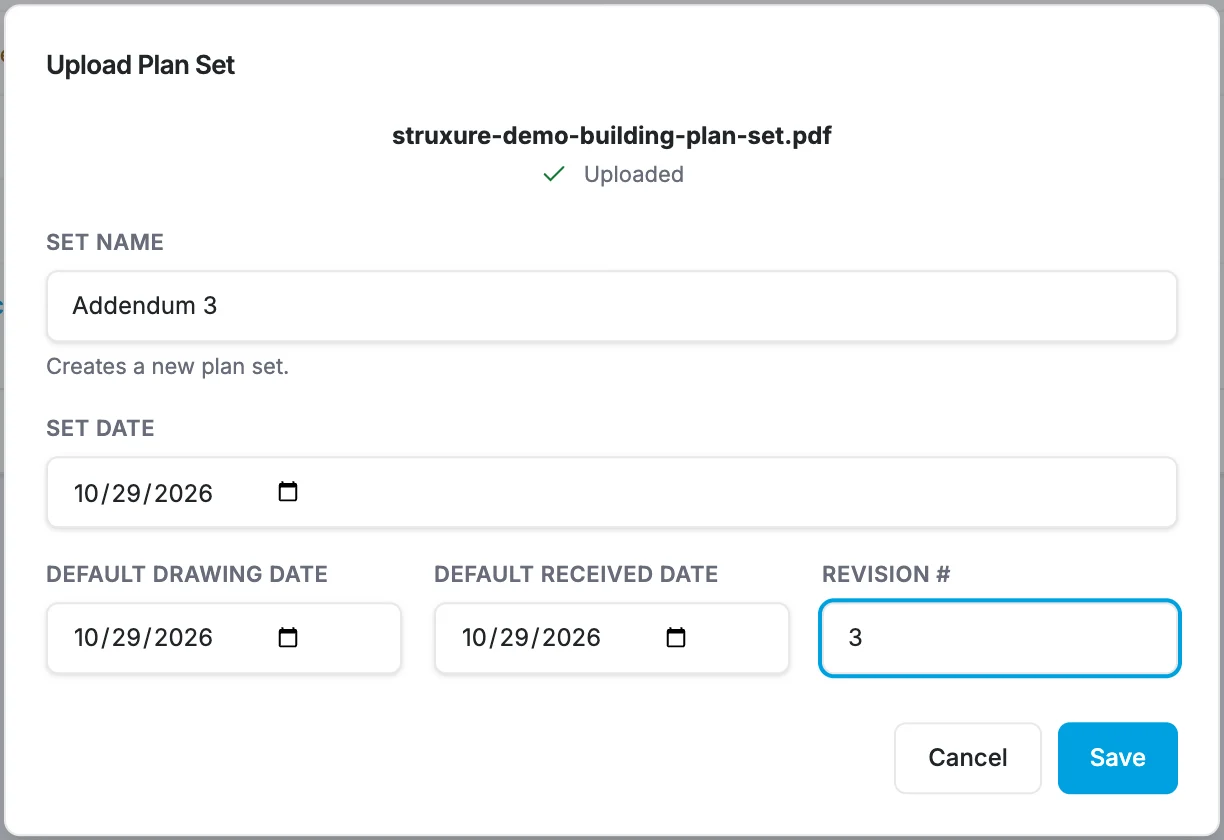
Drag the PDF onto the box, or click Choose File and pick it. The file starts uploading straight away, with a progress bar. When it says Uploaded, fill in the rest.
In SET NAME, pick an existing set from the list or type a new name, such as "Addendum 3". Under the box it says Adds this file to … for an existing set, or Creates a new plan set.
For a new set, check the SET DATE.
Check DEFAULT DRAWING DATE, DEFAULT RECEIVED DATE and REVISION #. Every sheet in the file starts with these, and you can change any of them during review. For a new set the revision starts at 0.
Click Save.
You can also skip the button. Drag the PDF from your computer onto the Drawings register or the Plan Sets tab. When Drop the PDF to upload a plan set appears, let go: the Upload Plan Set dialog opens with the file already uploading. Carry on from step 4.
Click Cancel at any point to stop. The uploaded file is thrown away.
If the upload is refused
| Message | What to do |
|---|---|
| Please select an existing Plan Set, or create a new one. | Fill in SET NAME. |
| Required. under REVISION # | Enter a revision, up to ten characters. |
| A plan set must be a PDF. | Only PDFs can be uploaded. |
| That file is … The limit is … | The file is larger than 500 MB. Split it and upload it as two files to the same set. |
| The upload stalled: nothing has been sent for a minute. Check your connection. | Click Try again. |
What happens next
After Save, StruXure first checks the file for malware: the waiting screen and the corner card show Checking the file for the few seconds this takes. Then it looks through the file for the drawing index and the title block. If malware is found, or the file can't be checked, the screen says so and nothing is read from it.
- If it finds the title block, the sheets are read straight away. You land on the register with the note Beginning drawing extraction. A card in the corner of the screen shows Extracting Drawings… and the page it is on. You can carry on working; when it is done, the card says Extraction complete and offers Review with the number of pages. Only you see the card. Click Dismiss to clear it; if the sheets are still being read, it comes back once when they are done.
- While it is still looking, you see a waiting screen with each page as it is read and how long it has taken. You can leave, click Mark the title block myself, or Cancel upload.
- If it can't find the title block, you are asked to mark it yourself. See Locate the title block.
A PDF exported straight from the design software (Revit, AutoCAD, ArchiCAD) reads in seconds and gets numbers and titles right. A scanned or "flattened" PDF is read with text recognition, which is slower and less accurate, and StruXure tells you when it finds one. To check, open the PDF and try to highlight a sheet number. If the text highlights, it is the better kind.
When the sheets have been read, the Review tab appears with the number of pages waiting. See Review the sheets StruXure found.
Good to know
- One set can hold several files. On the plan set's page, a strip lists each file with its revision and page count, and a link to download the original.
- Uploading creates nothing in the register. Sheets appear there only once they're reviewed and published.
- If you don't see Upload New Plan Set, you don't have permission to publish drawings.