
After a file has been read, every page waits on the Review tab for someone to check it. The goal is to get every sheet confirmed, then complete the review. Completing it makes the sheets, and you choose whether to publish them straight away.
Open the review
Click the Review tab in Drawings. The badge is the number of pages waiting. If one file is waiting, it opens straight away; if several are, pick one from Files awaiting review. You can also start from the card in the corner, or from pages to review beside a set on Plan Sets.
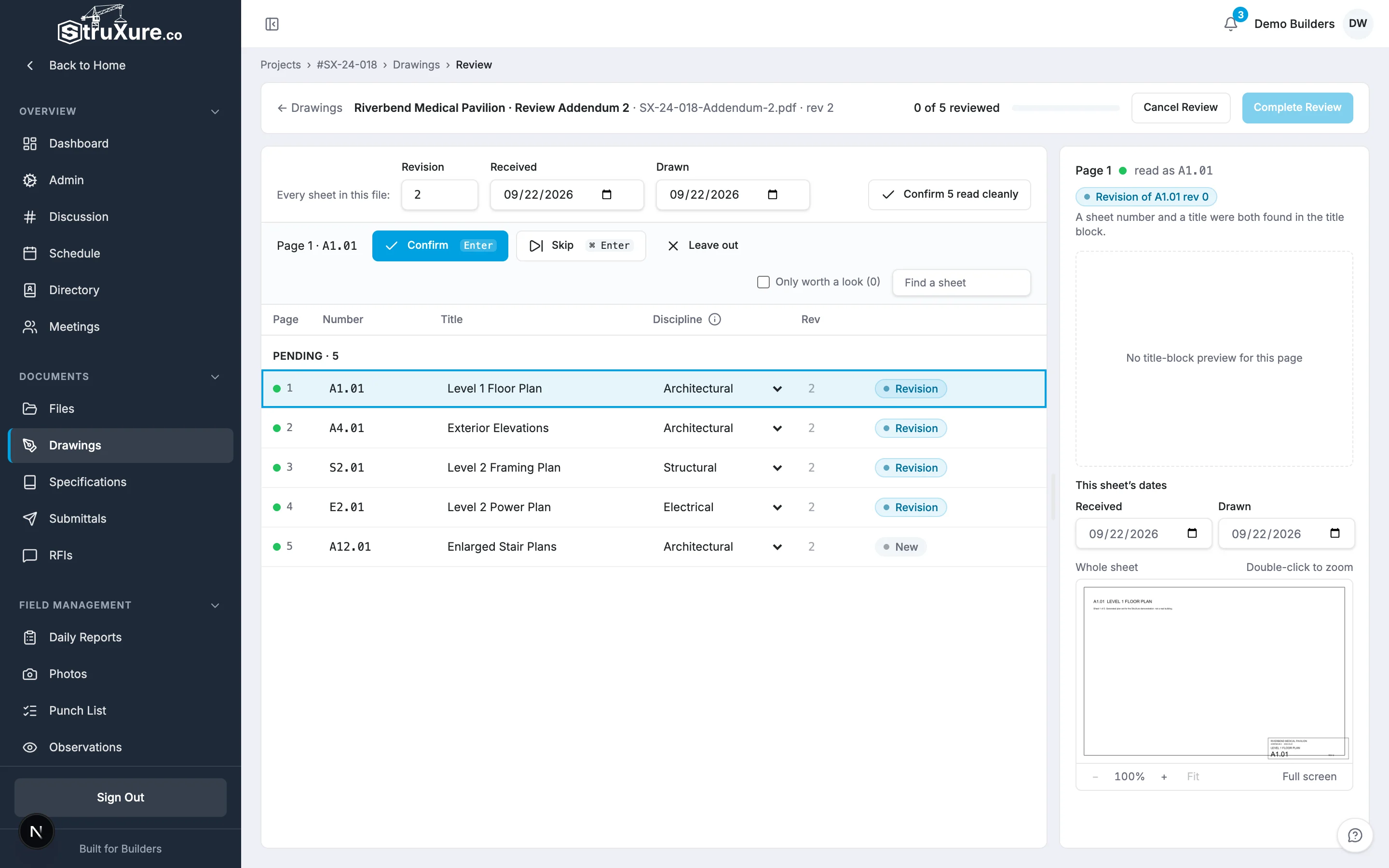
Every page is a row in the table, with its Number, Title, Discipline and Rev. A dot beside the page number shows how well it was read: green for Read cleanly, amber for Worth a glance, red for Needs typing in. The key above the table says the same, and the panel names the colour of the sheet you're on. When the file has a drawing index, a sheet is green only when its title block and the index agree, or the index's title is printed beside the sheet's number. A number read on two pages, or wording read as the title on many sheets, is never green. Each row is marked New for a sheet the project doesn't have yet, or Revision for a new revision of one it has.
A title printed on two lines in the title block's title box, a main line with a smaller line under it, is read as one title with both lines. Text outside the title box, such as the scale or the project name, is left out. When the drawing index lists only the main line, the panel shows how the index lists it, and Use the index title puts that in the row instead.
When the title block was located on a later page, the first page is taken for the set's cover, with Cover as its number and title, unless the drawing index lists the number read from it or its title block calls it a cover sheet. The panel shows what was read, so you can type it back in if the first page is a drawing.
The table has four sections:
- Pending: still to check.
- Skipped · come back to these: pages you set aside.
- Confirmed: tinted green.
- Left out: pages that won't become drawings.
The sheet you're on is outlined at the top of the list. The panel on the right shows it:
- Drawing number and Drawing title: the parts of the page they were read from, zoomed in, so you can compare them with the row. One marked Vertical when the title block was located is turned to read left to right. When the title block wasn't located, the panel shows the title block instead.
- Whole sheet: opens the whole page full screen.
- What was read, and for an amber or red dot, a short reason such as Title mismatch, Duplicate number or Not on drawing index. If the file has a drawing index, a line says how the index lists the sheet. When the index's title is different from the row's, click Use the index title to put it in the row.
- This sheet's dates: see below.
See the whole sheet
- Click the zoomed Drawing number or Drawing title to open the page full screen, zoomed in on that part of it.
- Double-click either of them, or the title block, to open the whole page full screen.
On the full-screen page, double-click, or Ctrl-scroll (⌘-scroll on a Mac), to zoom in, and drag to move around. Click + and − to zoom, or Fit to see the whole page again. Press Esc, or click Close, to go back to the review.
Drag the line between the table and the panel to make the panel wider or narrower. StruXure remembers the width.
Check and confirm each sheet
- Compare the row with the zoomed number and title.
- Correct anything that's wrong by typing in the row. Your change is saved when you leave the field. A number or title that wasn't found reads Not found. Type it in.
- Press Ctrl Enter (⌘ Enter on a Mac), or click Confirm. The row turns green and the next sheet moves to the top.
Use the keys anywhere on the page:
- ↑ and ↓ move between sheets.
- Ctrl Enter (⌘ Enter on a Mac) confirms the sheet you're on.
- Alt Enter (Option Enter on a Mac) skips it for later.
The buttons show the keys for your computer.
The bar above the table also has:
- Skip: set the sheet aside and come back to it. Once Pending is empty, the same keys work through the skipped sheets. On a skipped sheet the button reads Next.
- Leave out: the page won't become a drawing. Use it for pages that aren't drawings, such as a blank page.
- Re-open: bring a confirmed or left-out sheet back to Pending.
- Only worth a look: show only the sheets that weren't read cleanly.
- Find a sheet: search by number or title.
Changing a sheet's Discipline teaches StruXure its prefix: other unreviewed sheets with the same letters move to that discipline too, and a note says how many moved. Click the i beside Discipline to see where the disciplines came from.
Confirm the clean ones at once
Click Confirm N read cleanly to confirm every pending sheet with a green dot. Sheets with an amber or red dot are left for you to check one by one.
Revision and dates
Every sheet in this file above the table sets the Revision, Received and Drawn date for the whole file. A sheet that needs a different revision gets it in its Rev column.
For a sheet with different dates, change them under This sheet's dates on the right. Click Use the file's date to put one back.
Duplicates
A set holds each drawing once. If two pages have the same number, both are marked Duplicate, and the panel says which other page has it.
If you confirm a sheet whose number is already confirmed on another page, it isn't confirmed and the table doesn't move on. The panel says Not confirmed. and names the sheet already confirmed under that number, with its title and page. Click Open page N to look at that sheet. Then renumber this page or leave it out.
Complete the review
- Click Complete Review. The dialog says how many new drawings and revisions the review makes, how many pages were left out, and how many are still pending or skipped. Those won't become drawings.
- Choose what happens next:
- Publish only: the sheets go into the register as the current revision.
- Publish and notify: the same, and the people under Notify get an email, with your message if you add one. Notify starts with the project's Drawings default recipients.
- Not now: the sheets wait on the plan set, unpublished, for you to publish later.
With Publish only, you land on the register, which says how many drawings were published. With Publish and notify, you land on the plan set while the sheets are published in the background: a card in the bottom-right corner shows the progress. With Not now, you land on the plan set.

Callouts become hotspots
After you complete the review, StruXure reads each sheet the review made for the numbers of other drawings in the project, such as a detail callout 3/A-501 or a note SEE A-501. Each number that matches a drawing in the register gets a hotspot that opens that drawing. Case and the characters -, . and spaces don't matter, so A501 finds A-501. This happens in the background, so the hotspots appear a little after the review.
- A sheet's own number, and the drawing index on the cover sheet, get no hotspot.
- A number that two drawings share once
-and.are ignored (A-301 and A3.01) gets none. - A hotspot opens the drawing's active revision. When a new revision of that drawing is published, or another published revision is made active, the hotspot opens that one instead, on every sheet and every revision of it. Hotspots you place yourself keep opening the revision you linked.
- A number that isn't in the register yet gets no hotspot for now. When a later review adds that drawing, the sheets that mention it are read again and get their hotspots.
- While the drawing a hotspot opens is in the recycle bin, the hotspot has no link. Restore the drawing and the link comes back.
- Renumbering a drawing keeps the hotspots that open it. Sheets reviewed later are matched against its new number.
- Scanned sheets with no text layer are read only while Link callouts on scanned sheets is on. See Turn AI features on or off.
While the sheets are being read, the plan set's page says how far it has got, for example Linking callouts… 34 of 52 sheets. When it's done, it says how many callouts are linked, for example 212 callouts linked.
Scan a plan set again
If you have Markup / Publish / Edit / Delete access, a plan set's page has Re-scan callouts. Click it to read every sheet in the set again, for example after drawings that the set mentions have been added to the register. A re-scan only adds hotspots for callouts that don't have one yet. It never brings back a hotspot someone removed, and clicking it twice does nothing extra.
Cancel a review
Click Cancel Review. Every page read from the file is discarded, including any you confirmed. Then choose what happens to the file:
- Cancel and remove file removes the uploaded file, and the plan set too if it was made just for this file. Use it when you uploaded the wrong set.
- Cancel and keep file leaves the file on its plan set, marked Review cancelled.
To try again, upload the file again.
Good to know
- You can start reviewing while the file is still being read. Pages appear as they're read.
- Only people who can publish drawings see the Review tab.