
A few StruXure features can use AI to save you typing. Your company decides whether they do. Nothing in StruXure depends on AI: with it off, each feature still works, and the page tells you what you do instead.
Turn AI on or off
- Go to Settings and open AI features.
- In AI in this workspace:
- Untick Use AI in this workspace to turn AI off everywhere. No feature calls an AI service.
- Or leave it ticked and untick only the features you don't want.
- Click Save.
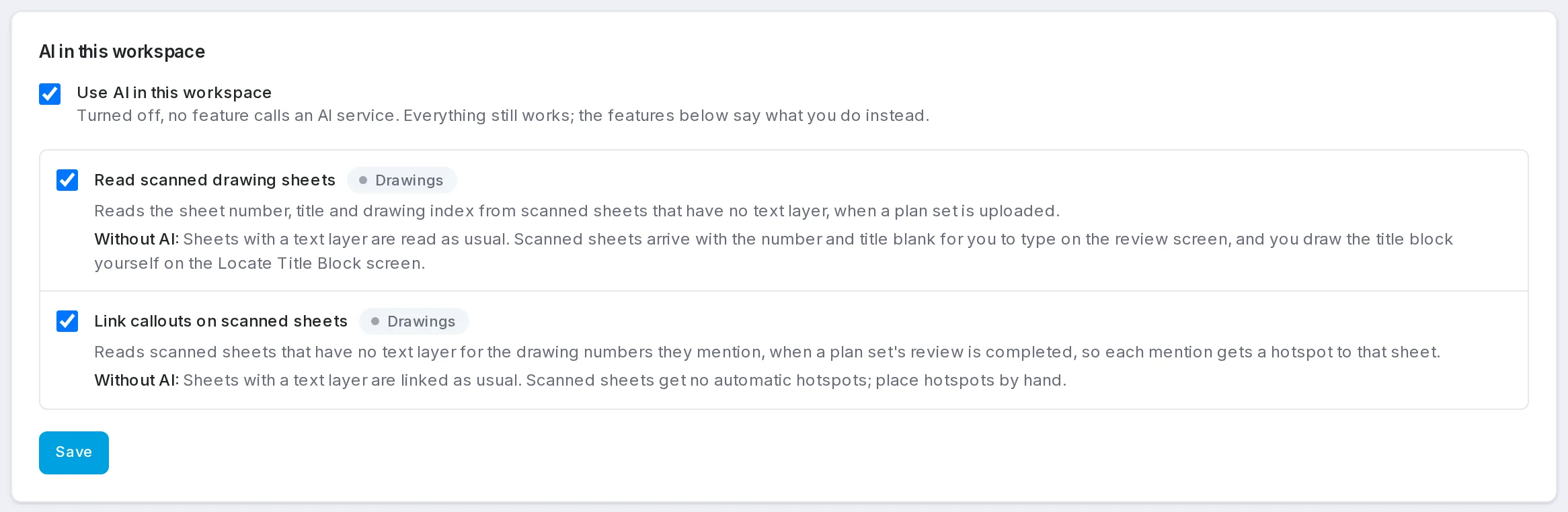
Turning AI off everywhere shows Saved. AI is off: nothing in this workspace calls an AI service. While it's off, each feature is marked Off with AI, whatever its own switch says. When you turn AI back on, each feature goes back to its own switch.
Both switches start on.
The features
Each feature shows which module it belongs to, what it does with AI, and what happens without it.
| Feature | With AI | Without AI |
|---|---|---|
| Read scanned drawing sheets (Drawings) | Reads the sheet number, title and drawing index from scanned sheets that have no text layer, when a plan set is uploaded. | Sheets with a text layer are read as usual. Scanned sheets arrive with the number and title blank for you to type on the review screen, and you draw the title block yourself on the Locate Title Block screen. |
| Link callouts on scanned sheets (Drawings) | Reads scanned sheets that have no text layer for the drawing numbers they mention, when a plan set's review is completed, so each mention gets a hotspot to that sheet. | Sheets with a text layer are linked as usual. Scanned sheets get no automatic hotspots; place hotspots by hand. |
Next, choose whose account AI runs on: see Choose whose AI account is used.
People with Settings — Read see the switches greyed out.