
Each kind of AI StruXure uses has its own card on Settings → AI features, titled with the kind and whose account, for example Text recognition (OCR): whose account. On each, you choose who the AI runs under.
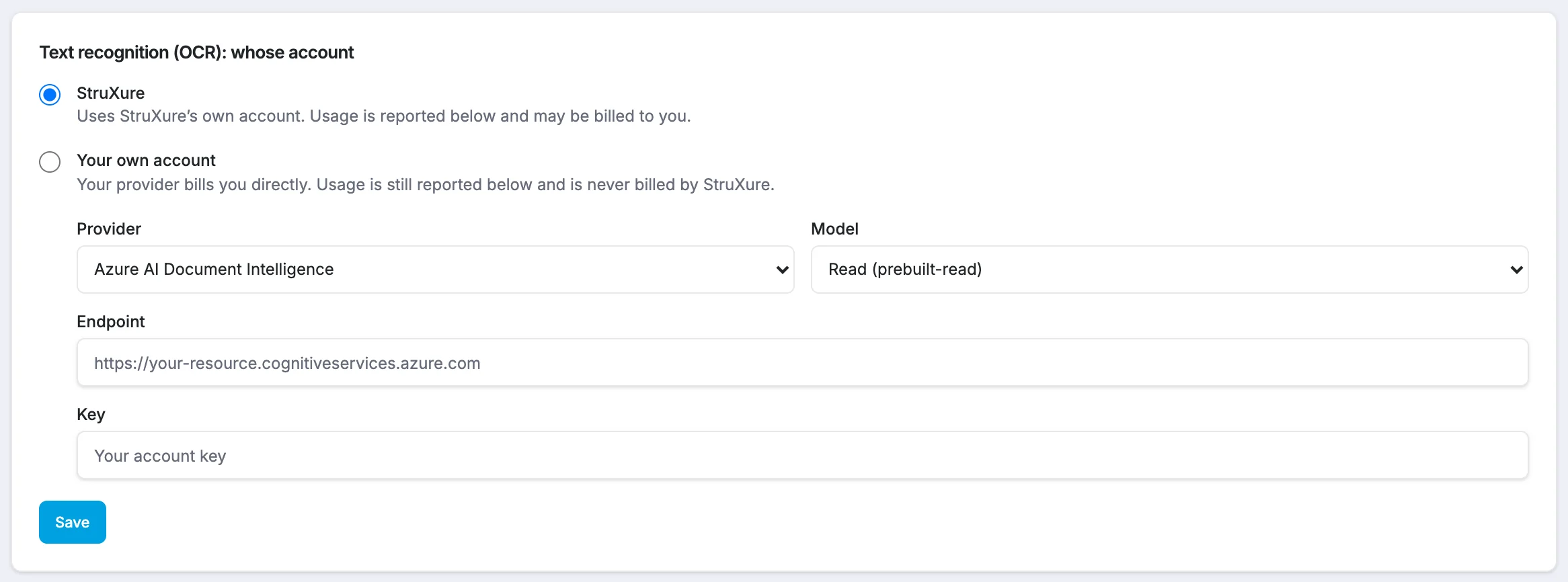
| Choice | What it means |
|---|---|
| StruXure | Uses StruXure's own account. You don't need to set anything up. Usage is reported on the page and may be billed to you. |
| Your own account | Uses your company's account with an AI provider. Your provider bills you directly. Usage is still reported on the page and is never billed by StruXure. |
If StruXure's account isn't available for a kind of AI yet, the card says so. Use your own account, or leave the feature doing its work without AI.
Use your own account
- Go to Settings and open AI features.
- On the card, choose Your own account.
- Choose the Provider and Model from the lists.
- Fill in Endpoint, the address of your account with that provider. The box shows an example of what it looks like.
- Paste your account's Key.
- Click Save.
Once a key is saved, the Key box shows the last characters of it and says Leave blank to keep it. Type a new key only to replace it.
Go back to StruXure's account
Choose StruXure on the card and click Save.
Messages you might see
| Message | What to do |
|---|---|
| Choose a provider. / Choose a model. | Pick one from the list. |
| The endpoint must be your … resource address, like … | Copy the address from your provider's account, in the form shown. |
| Enter the key for your account. | Paste the key. It's needed the first time, and whenever you change provider. |