
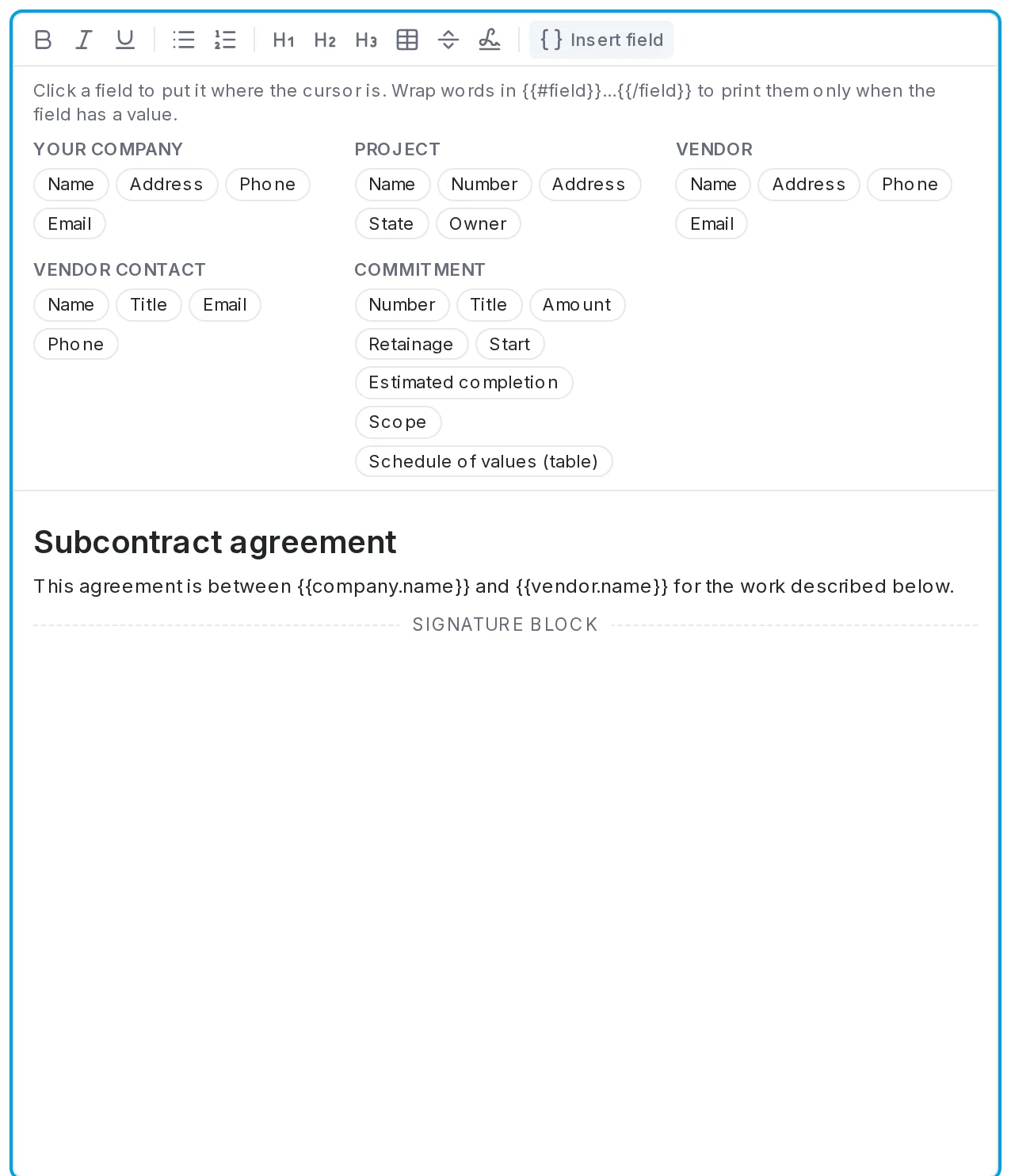
You write a document's own wording under Your wording on its page in Settings → Document templates. The editor has what a contract needs, and Insert field adds the details each document fills in from its record, like the vendor's name or the commitment's amount. Beside it, the preview shows the PDF as it will print.
Write the wording
- Go to Settings → Document templates and click the document's name.
- Write under Your wording. The toolbar has Bold, Italic, Underline, Bulleted list and Numbered list, and for documents:
- Heading 1, Heading 2 and Heading 3 for titles and article headings.
- Table adds a table with a header row. Inside a table you'll see Add row, Add column, Delete row, Delete column and Delete table. Press Tab to move to the next cell.
- Page break starts the words after it on a new page.
- Signature block adds a line for each side to sign, with their names and a date.
- Click Save as new version.
Add fields
- Put the cursor where the detail goes.
- Click Insert field, then the field. It's written in the wording like
{{project.name}}.
The fields are grouped, and each document offers only the groups it has:
| Document | Groups |
|---|---|
| Subcontract agreement | Your company, Project, Vendor, Vendor contact, Commitment |
| Owner pay application | Your company, Project, Prime contract, Pay application |
Schedule of values (table) and Continuation sheet (table) are tables StruXure fills in. Put each on a line of its own.
To print words only when a field has a value, wrap them like this: {{#vendor.phone}}Phone: {{vendor.phone}}{{/vendor.phone}}. Anywhere else, a field with no value prints as a blank line to fill in.
If a field is wrong
A field the document doesn't have is named under the editor as you type, for example {{vendr.name}} is not a field this document has. A {{#field}} with no {{/field}} is named too. You can't save until it's fixed, and the preview says Fix the errors to see the preview.
The preview
Preview, on your letterhead with sample details shows the PDF a moment after you stop typing. It uses your letterhead, footer and paper from PDF documents, your company's own details, and sample details for the project, the vendor and the record.