
Your company's details are the ones StruXure prints at the top of every PDF and uses in your emails. They're the same record as your company in the Directory, so a change here is a change there too, and the other way round.
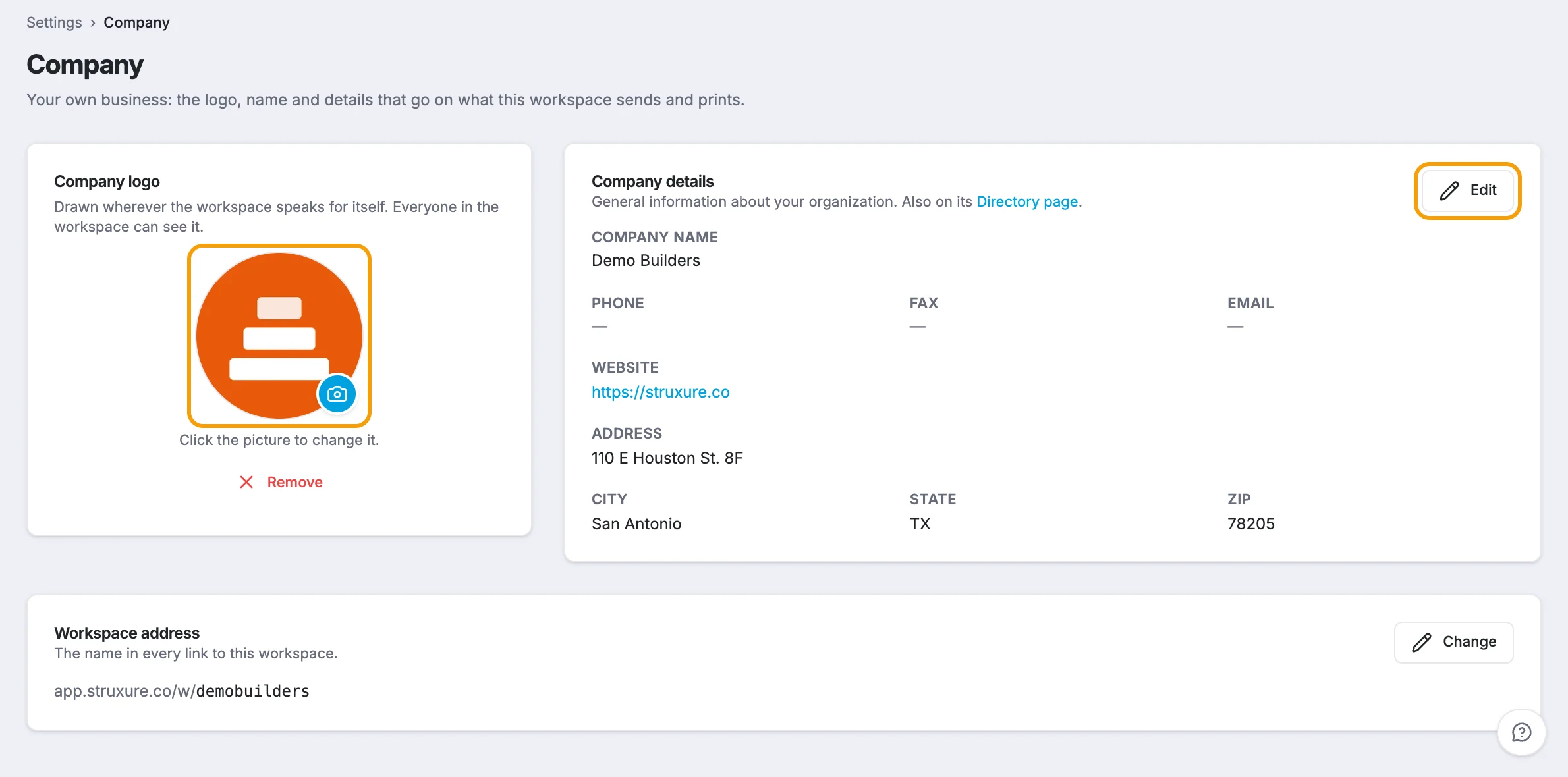
Change the details
Go to Settings and open Company.
In the Company details card, click Edit.
Change what you need:
Field Notes Company name Required. It can't be the same as another company in your Directory. Phone and Ext. Fax Email Must look like an email address. Website With or without https://.Address, Address 2, City, State, Zip Suggestions appear as you type the address; pick one to fill in the city, state and zip. 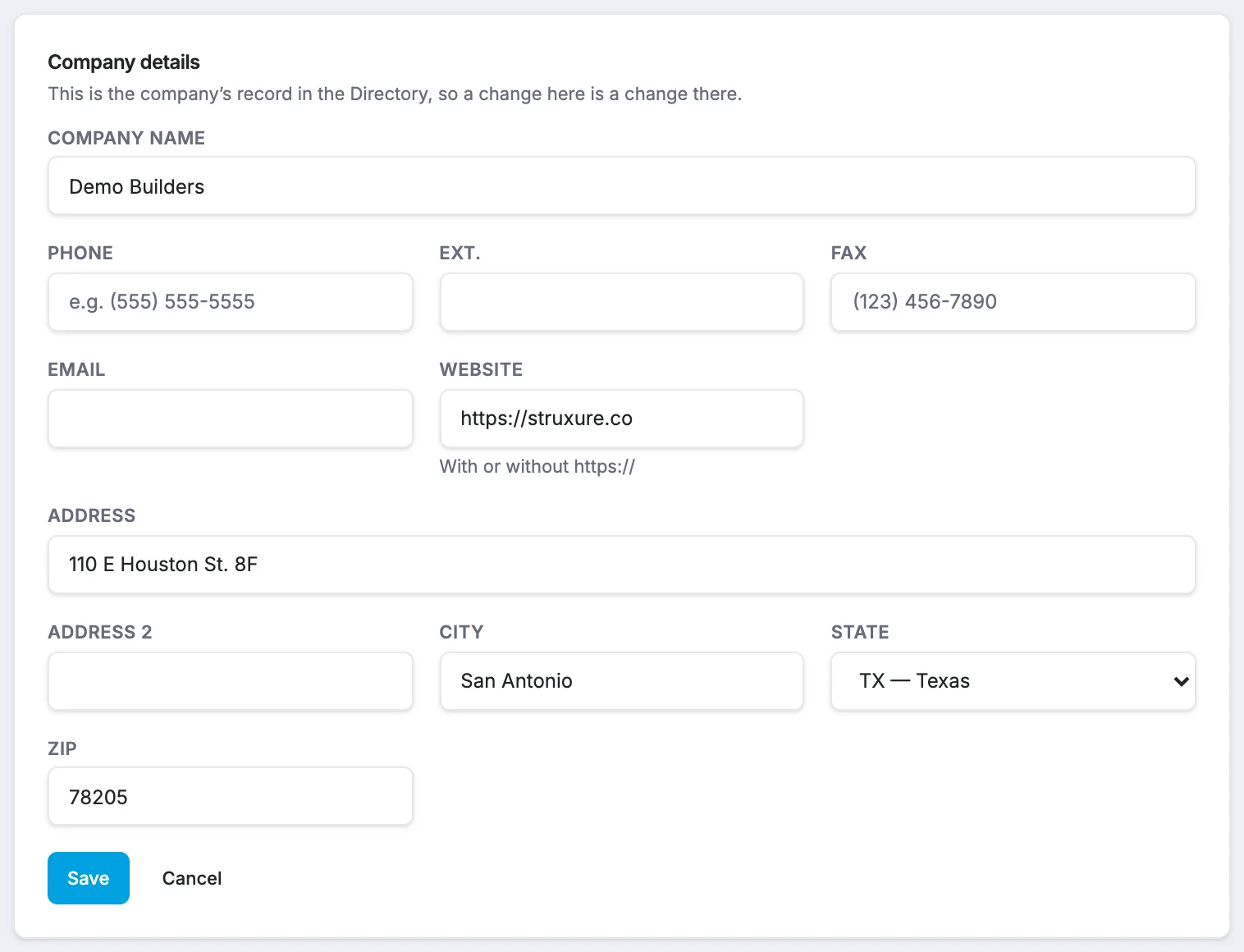
Click Save. You'll see Saved. at the top of the page. Click Cancel to leave without saving.
PDFs and emails produced from now on use the new details. Ones already sent or downloaded don't change. To choose which of these details appear on a PDF's letterhead, see Set how your PDFs look.
If StruXure asks "Which company is yours?"
If no company in your Directory is marked as your own, the Company page shows Which company is yours? instead of the details.
- Choose your company from the Company list. Each entry shows how many people it has.
- Click This is our company.
From then on its logo and details go on your letterheads and email templates, and its people are shown as internal in the Directory. If the list is empty, add your company in the Directory first, then come back.
Messages you might see
| Message | What to do |
|---|---|
| Your company needs a name. | Fill in Company name. |
| There is already a company called "…" in the Directory. | Use a different name, or tidy up the other company in the Directory. |
| "…" does not look like an email address. | Check the Email field. |
People with Settings — Read see the details but not the Edit button.