
Your logo goes on the letterhead of every PDF your workspace prints and at the top of every email your projects send. Everyone in the workspace can see it.
Add or change the logo
- Go to Settings and open Company.
- Click the circle under Company logo. It shows your company's initials if there's no logo yet.
- Choose an image file: PNG, JPEG, GIF, WebP, BMP or AVIF, up to 5 MB. A PNG with a transparent background works best.
- In the crop window, drag the logo and use Zoom to fit it in the circle, then click Use this photo.
The logo saves straight away, and you'll see Logo saved. StruXure keeps your original file, so PDFs print it sharp; the circle is only how it's shown on screen.
Every logo is checked for malware first. PDFs and emails use it once the check comes back clean, usually within seconds.
After adding a logo, open PDF documents: StruXure suggests accent colors taken from your logo under From your logo. See Set how your PDFs look.
Remove the logo
Under the logo, click Remove.
Confirm with Remove logo.
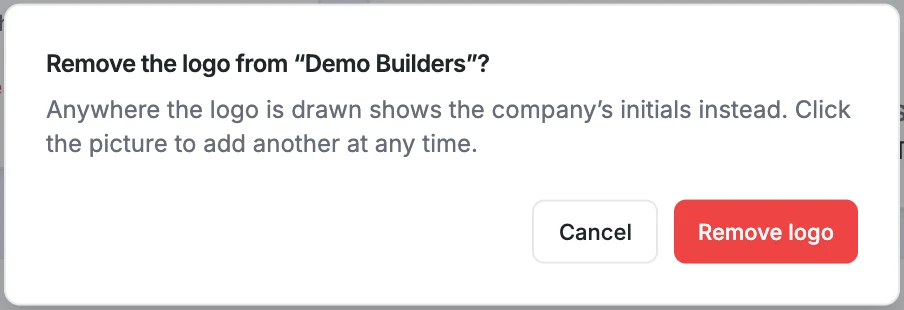
Wherever the logo was drawn, your company's initials are shown instead. Click the circle to add another at any time.
If the logo is refused
| Message | Meaning |
|---|---|
| That file is … A logo is limited to 5 MB. | Use a smaller file. |
| A logo is an image: PNG, JPEG, GIF, WebP, BMP or AVIF. | The file isn't one of those types. |
| That file says it is …, but its contents are not an image a browser can show. | The file is damaged or mislabelled. Export it again from the original. |
| That file is empty. | Choose the file again. |
People with Settings — Read see the logo but can't change or remove it.