
Offices are your own company's branches. Each project can belong to one office, and a new project starts on whichever office is marked as the default.
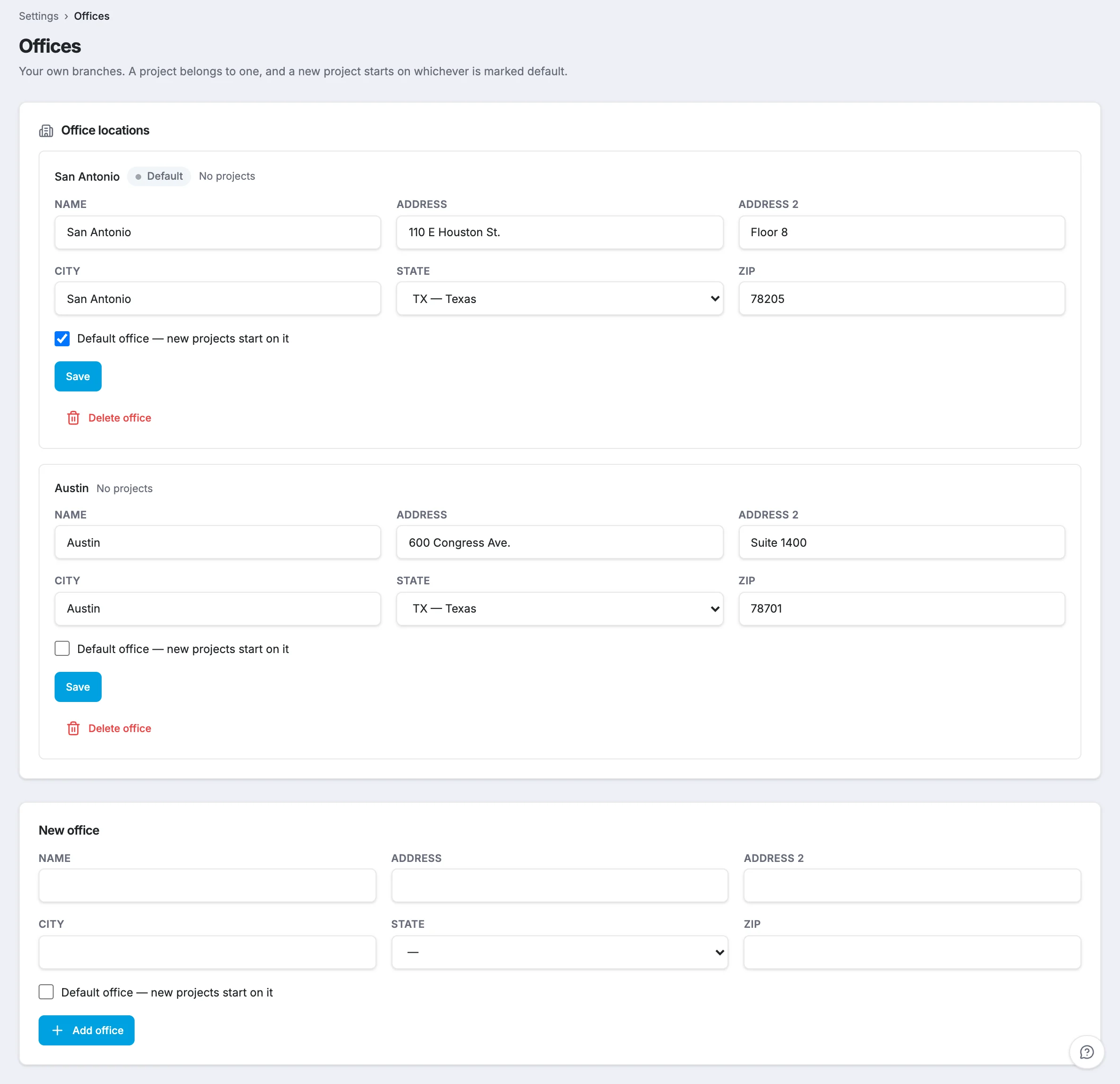
Add an office
- Go to Settings and open Offices.
- Under New office, fill in the Name (required) and, if you like, Address, Address 2, City, State and Zip. Pick a suggestion as you type the address to fill in the city, state and zip.
- Tick Default office — new projects start on it if this should be the default.
- Click Add office.
Office names must be different from each other.
Edit an office or change the default
Each office is listed under Office locations with its fields ready to edit, a Default badge if it's the default, and how many projects belong to it.
- Change the fields, or tick Default office — new projects start on it.
- Click Save under that office.
There's only ever one default. Making one office the default takes the badge off the old one.
Delete an office
Click Delete office under the office.
The confirmation says how many projects belong to it. Click Delete office to confirm.
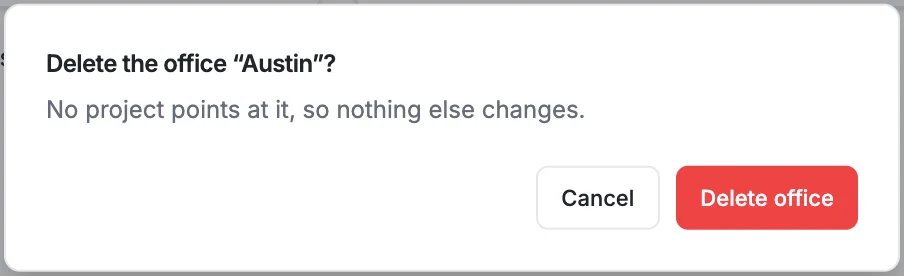
The projects aren't deleted. They're left with no office, and you can put them on another one.
Where offices are used
- New projects start on the default office.
- To move a project to a different office, open the project's Admin page and change Office in its general information. See Edit project details and dates.
People with Settings — Read see each office's name, address and default badge, without the editing fields.