
Each person chooses their own Email Level on their profile: how many notification emails they get, and what waits for their Daily Summary. As an admin, you choose the level that people added to the Directory start at.
Go to Settings → Email and open the Notifications tab.
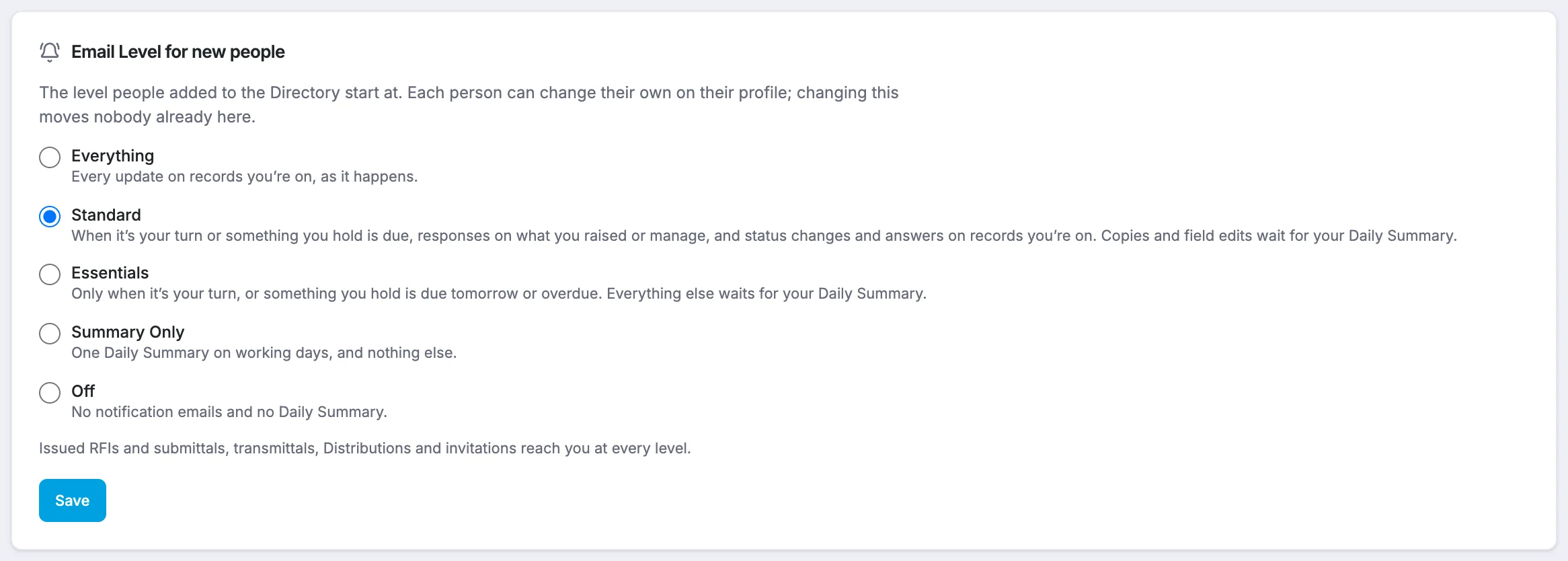
Under Email Level for new people, choose one:
Level What people get Everything Every update on records they're on, as it happens. Standard When it's their turn or something they hold is due, responses on what they raised or manage, and status changes and answers on records they're on. Copies and field edits wait for the Daily Summary. Essentials Only when it's their turn, or something they hold is due tomorrow or overdue. Everything else waits for the Daily Summary. Summary Only One Daily Summary on working days, and nothing else. Off No notification emails and no Daily Summary. Click Save.
Changing this moves nobody already in the workspace; it only applies to people added from now on. Each person can still change their own level.
Note
Issued RFIs and submittals, transmittals, Distributions and invitations reach people at every level, even Off. These aren't notifications: someone chose to send them.
For how people set their own level, see Choose how much email you get.