
Every PDF StruXure prints, such as an RFI, a submittal or a punch list report, uses the same layout. On PDF documents you adjust the parts that are yours: the letterhead, the accent color, the footer and the paper.
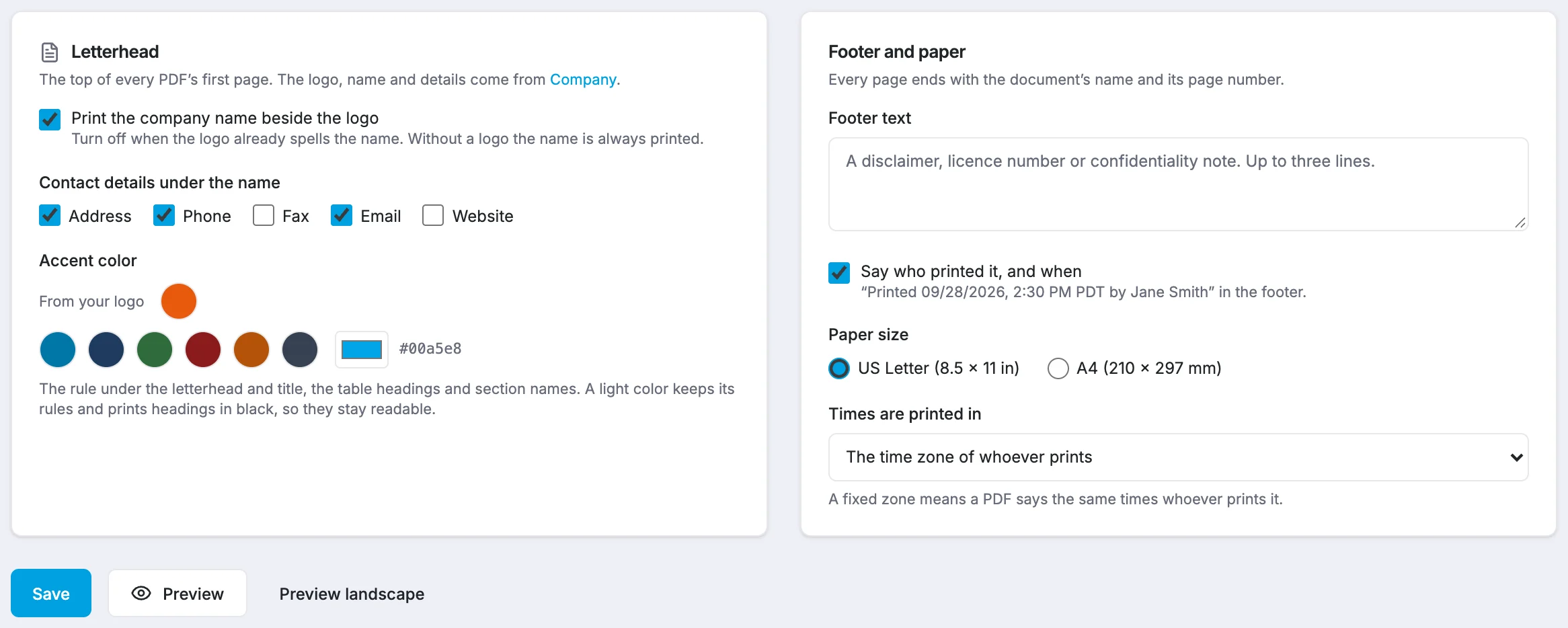
Change the settings
- Go to Settings and open PDF documents.
- Under Letterhead:
- Print the company name beside the logo: turn this off if your logo already spells out the name. Without a logo, the name is always printed.
- Contact details under the name: tick which of Address, Phone, Fax, Email and Website appear. They come from your company details; see Edit your company details.
- Accent color: used for the rule under the letterhead and title, the table headings and the section names. Colors from your logo are offered under From your logo, then a few standard ones, then a color picker for any other color. A light color keeps its rules and prints the headings in black so they stay readable.
- Under Footer and paper:
- Footer text: a disclaimer, licence number or confidentiality note, up to three lines and 400 characters.
- Say who created it, and when: adds a line like "Created 09/28/2026, 2:30 PM PDT by Jane Smith" to the footer. A PDF sent by email says who sent it instead, for example "Distributed 10/23/2026, 11:41 AM CDT by Jeff Watts" on a daily report.
- Paper size: US Letter (8.5 × 11 in) or A4 (210 × 297 mm).
- Times are shown in: leave it on The time zone of whoever creates it, or pick a fixed zone so a PDF shows the same times whoever creates it. A project's PDFs use the project's own time zone instead (see Set the project address and map pin), so this setting applies to PDFs that aren't about one project, and to a project whose time zone isn't known. A meeting's own date and time are always printed in the meeting's time zone.
- Click Preview (or Preview landscape) to open a sample PDF in a new tab, using the settings as they are on screen, saved or not.
- Click Save.
You'll see Saved. Every PDF printed from now on uses these settings. PDFs printed before don't change. Every page always ends with the document's name and page number.
Note
The accent color is also used on your emails. See Change the wording of emails.
Messages you might see
| Message | What to do |
|---|---|
| The footer text is … characters. It can be up to 400. | Shorten the footer. |
| The footer text can be up to three lines. | Join some lines together. |
| Choose an accent color such as #1f3a5f. | Pick a color again. |
People with Settings — Read see the settings greyed out, and can still use Preview.