
Insights are an add-on. If your company has them, Insights appears on the Settings page under Projects. They're off until an admin turns them on.
What Insights do
With Insights on, StruXure checks your records every hour and asks the questions nobody remembered to ask, such as a submittal that isn't approved as its order-by date approaches, an observation still open after its due date, or the same form question answered Deficient by one company again and again. If your company has Financials, it also points out a budget line projected over its revised amount, a commitment that takes a budget line over, a Prime Change Order still pending more than 30 days after it was sent for approval, and an item of a unit-price contract billed past its contract quantity. Each Insight:
- appears under the field it concerns, on the record itself,
- explains itself, with links to the records behind it,
- is decided by the person it's waiting on: act on it, assign it, acknowledge it, or dismiss it with a reason.
Insights never stop anyone saving, approving, closing or distributing anything, and they don't use AI.
The What people see card shows one of each kind StruXure raises today, on sample records. Click a headline or a marker to open it.
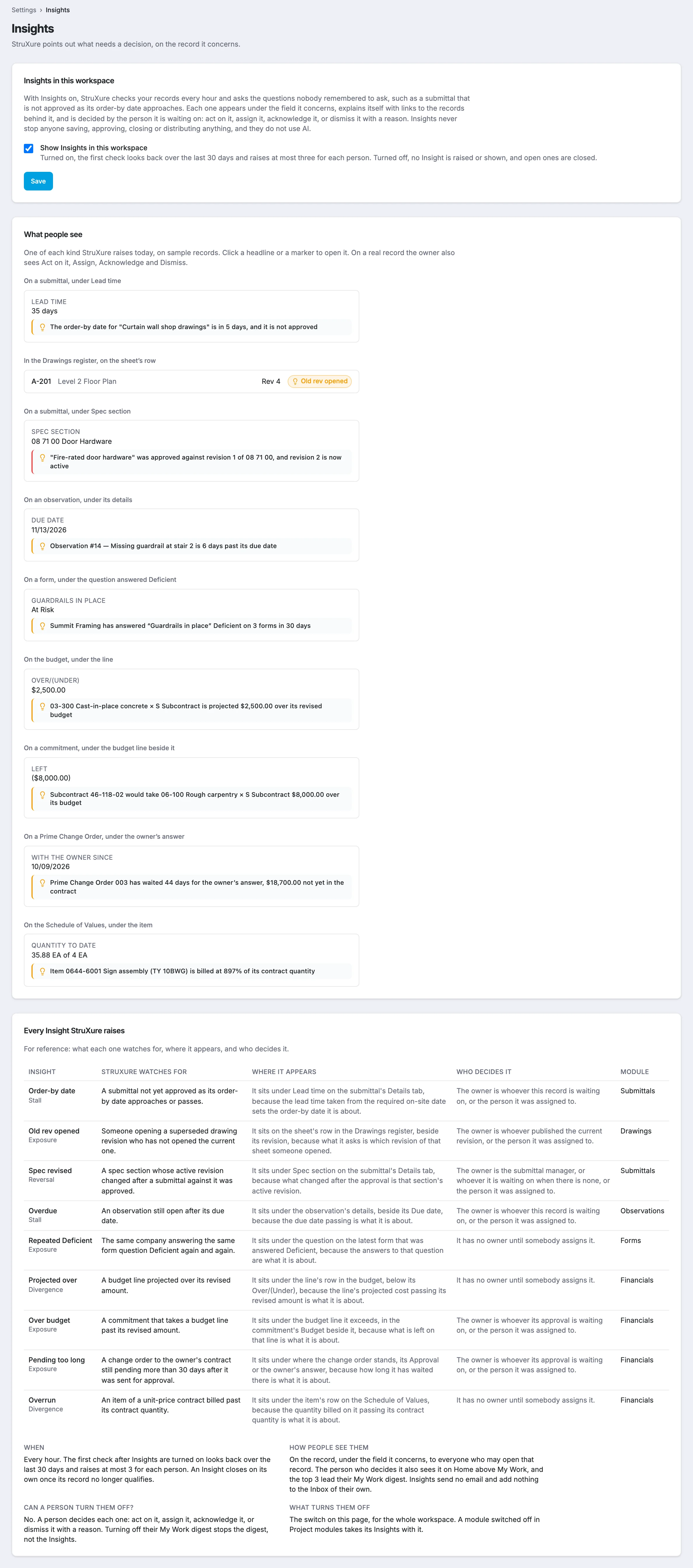
See every kind of Insight
The Every Insight StruXure raises card lists each kind, for reference:
- Insight: the marker people see, and its family.
- StruXure watches for: what makes a record qualify.
- Where it appears: the field or row its note sits under.
- Who decides it: whose decision it waits on.
- Module: the project module it needs. Switching that module off in Project modules takes its Insights with it.
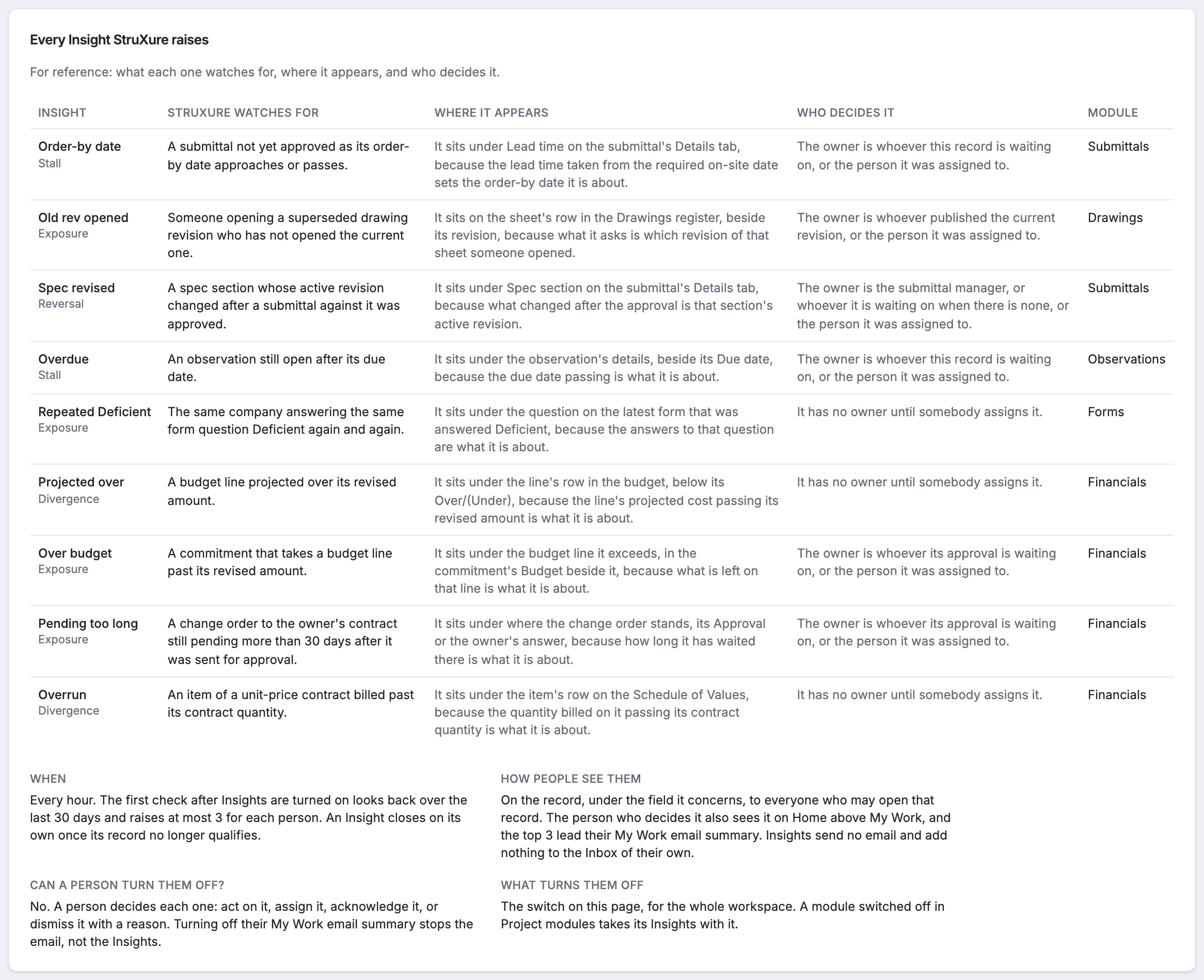
Under the list, the card says when the check runs and how people see Insights. Insights send no email and add nothing to the Inbox. They appear on the record, on Home for the person who decides them, and at the top of the My Work email summary. Nobody can turn them off for themselves: they decide each one instead.
Turn them on or off
- Go to Settings and open Insights.
- Tick or untick Show Insights in this workspace.
- Click Save.
- Turned on, the first check looks back over the last 30 days and raises at most three Insights for each person, so nobody is flooded on day one.
- Turned off, no Insight is raised or shown, and open ones are closed.
People with Settings — Read see whether Insights are on or off, without the switch.