
Download one sheet
Click the Download icon at the end of the sheet's row in the register. You get the active revision's PDF as issued, named with the sheet number and revision.
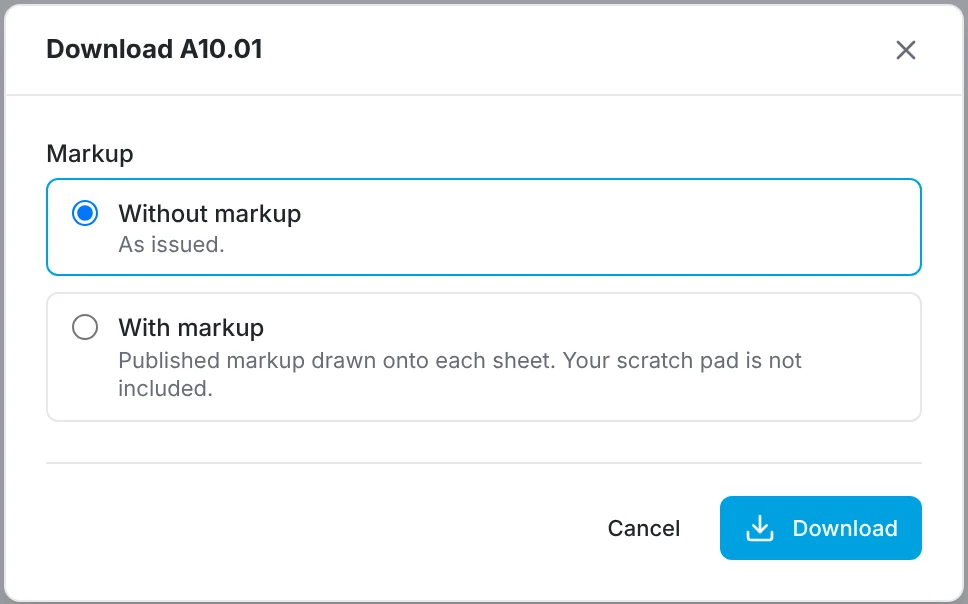
To get it with its markup, open the sheet's info (Open Info on the row) and click Download at the top. Choose:
- Without markup: the PDF as issued.
- With markup: the published markup drawn onto the sheet.
Then click Download.
Download several sheets
- Tick the sheets in the register. To download every sheet showing, tick nothing.
- Click Download (n), or Download with nothing ticked.
- Under Format, choose:
- Separate files: one zip,
drawings.zip, holding each sheet's active revision as its own PDF. - One combined PDF: one file,
drawings.pdf, with every sheet in the order the register shows them. Each sheet has a bookmark with its number and title, so you can jump to it in your PDF reader.
- Separate files: one zip,
- Under Markup, choose Without markup (as issued) or With markup (each sheet's published markup drawn onto it).
- Click Download.

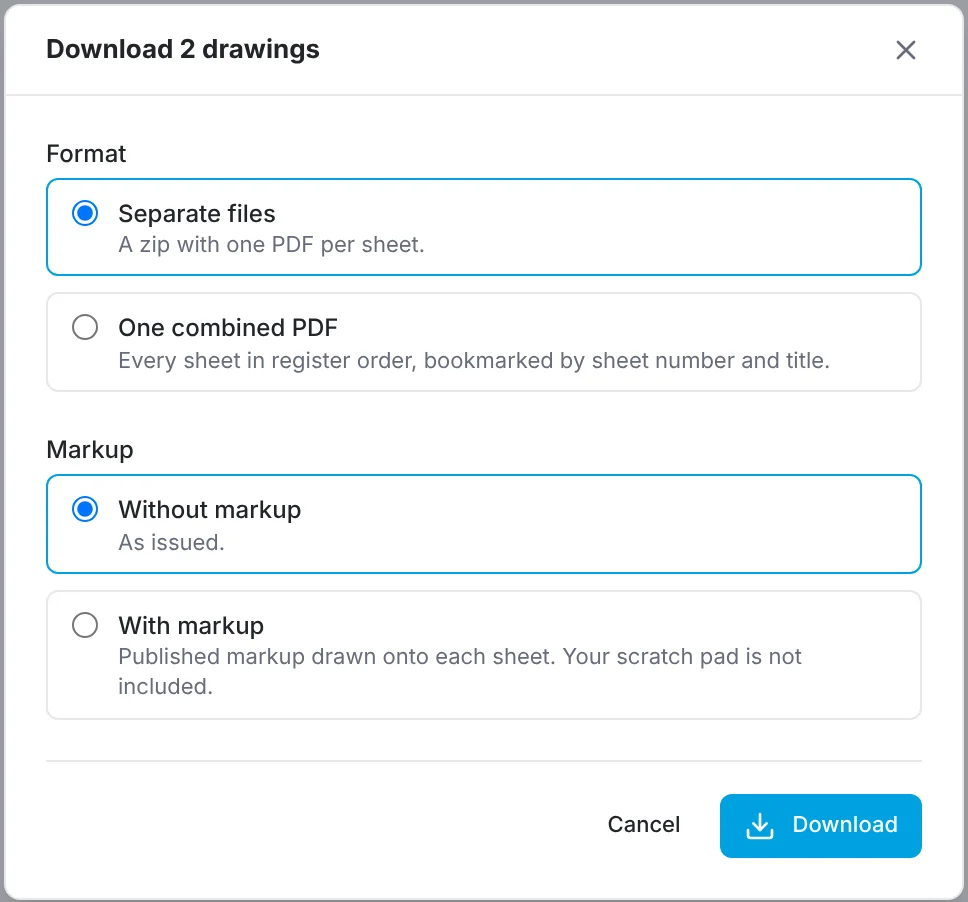
The dialog remembers your last choice the next time you open it in this browser.
A large download
Up to 20 sheets download straight away. For more than that, you go back to the register with the message Putting … drawings together, and a Preparing Download… card in the bottom-right corner counts the sheets as they're done. You can keep working or leave the page. When the card says Download ready, click Download on it. The file stays there for a day.
A selection over 200 MB is refused with That selection is over … Select fewer sheets.; select fewer and download in batches.
Print the Drawing Log
- Tick the sheets you want in the log. Use the box at the top of the register to tick every sheet shown.
- Click PDF Report (n).
The Drawing Log opens in a new tab as a landscape PDF, grouped by discipline, with each sheet's number, title, revision, drawing date, received date and set. Each sheet number links back to the sheet in StruXure.
Export to a spreadsheet
Click Export CSV next to Columns. You get the register as it is on screen, as a CSV file you can open in Excel: your search and filters, your sort, and the columns you've chosen in the order they're shown.
Good to know
- With markup includes only published markup. Your scratch pad is never in a download, and neither is anyone else's.
- Markup drawn onto a downloaded sheet is part of the page: it prints, and it can't be moved or deleted in a PDF reader.
- Sheets that haven't been published are in a download only for people who can see them in the register.
- Each sheet you download is recorded in its Download History, which drawing admins can see. The entry says whether it was a separate file or in one combined PDF, and with or without markup.
- To email the team a link to new sheets, publish them with Publish and notify. See Publish drawings.