
The Drawings tab groups sheets by discipline, in the project's discipline order. When a plan set is uploaded, each new sheet goes under the discipline that has its number's prefix: A for A101, PD for PD2.1. A sheet whose prefix no discipline has goes under Other.
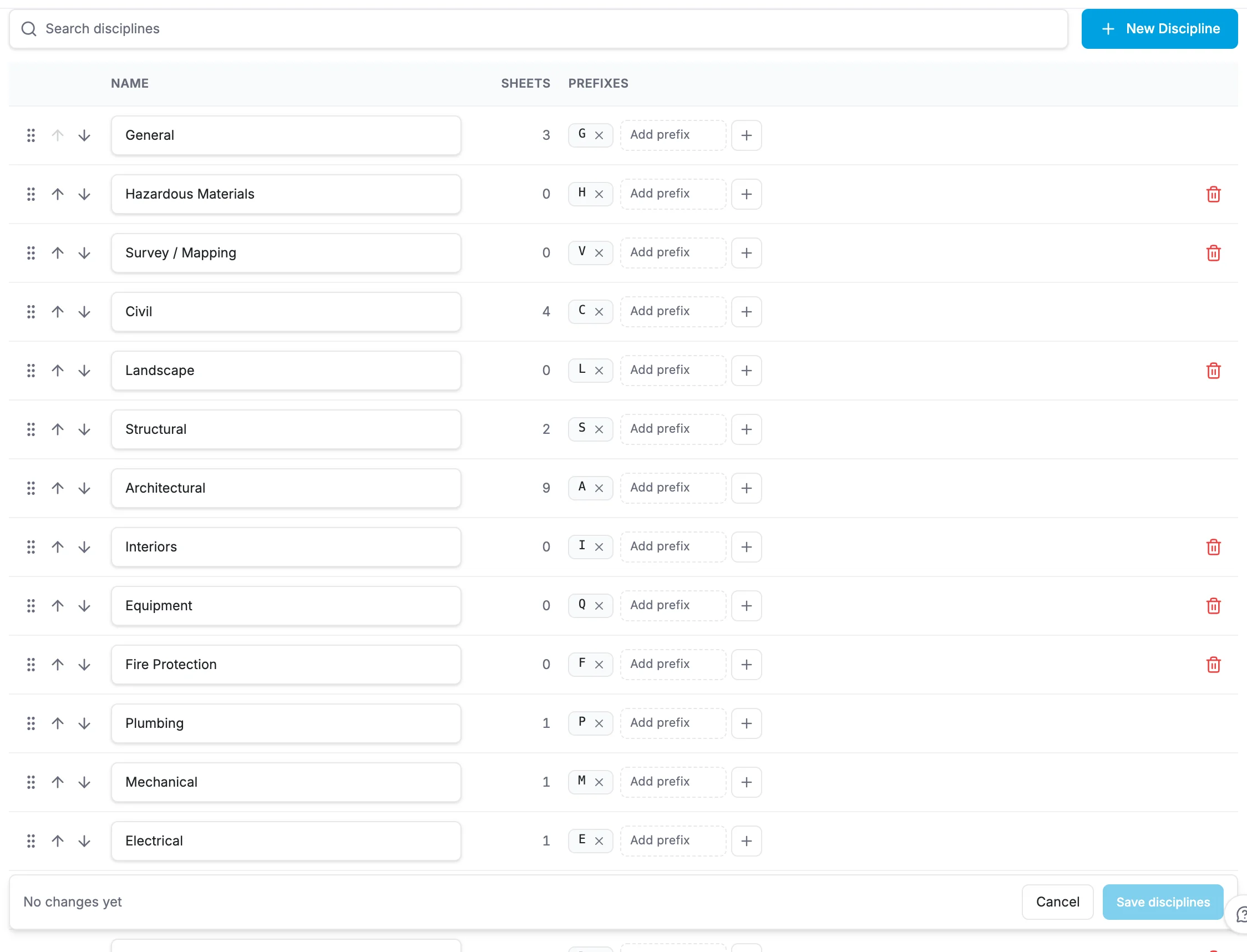
To change them:
- On the Drawings tab, click Disciplines at the bottom of the register.
- Make your changes:
- Rename a discipline by typing in its name box.
- Add a prefix by typing one to three letters in Add prefix and pressing Enter or clicking +. Remove one with the × on it.
- Change the order by dragging a discipline by the grip at the start of its row.
- Add a discipline with New Discipline. It's added at the bottom.
- Delete a discipline with the trash icon at the end of its row.
- Click Save disciplines. Cancel takes you back without saving.
The register shows Disciplines saved., with its groups in the new order.
Good to know
- A prefix belongs to one discipline. Adding a prefix another discipline has moves it, and the row says where it came from.
- Only a discipline with no sheets can be deleted, counting sheets in the Recycle Bin and pages waiting on the Review tab. To delete one, move its sheets to another discipline and finish reviewing any pages under it first.
- Other can't be renamed or deleted. You can still move it and give it prefixes.
- You can also change the order on Reorder sheets, where you can collapse every discipline and drag them into order. See Reorder sheets.
- The grips are hidden while you search. Clear the search to change the order.
- Changing a prefix doesn't move sheets already in the register. It applies to sheets uploaded from then on.
- A plan set with a drawing index sheet can add disciplines and move prefixes when it's uploaded, to match the index.