
Every sheet has a Sheet Scale, used by everyone's measurements on it. StruXure reads it from the sheet's graphic scale (the drawn scale bar) or its written scale (such as 1/8" = 1'-0"), and someone with Markup access can confirm it or set it.
Read the scale chip
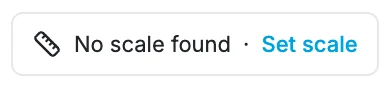
The ruler chip in the bar above the sheet says what scale the measuring tools are using:
| The chip says | What it means |
|---|---|
| Scale … · from graphic scale or · from written scale | Detected: StruXure read it from the sheet. Nobody has checked it yet. |
| Scale … · confirmed by … | Confirmed: someone checked and accepted it, or set it, on the date shown. |
| Scale … · carried from Rev. … | The previous revision's confirmed scale, carried onto this one. |
| … · changed from Rev. … (amber) | It differs from the previous revision's scale. Worth checking. |
| Half-size set? … (amber) | The sheet looks printed at half size. The chip says whether it is using the graphic scale or half the written scale. |
| Not to scale | The sheet says it isn't to scale. |
| No scale found or Scale varies by detail | There is no single scale. Set one before you measure. |
| Your scale · … | A scale you set that applies only to you. See below. |
Click the chip to see where the scale was read: a box appears round it on the sheet for a few seconds.
Measure
Open the Measure group on the toolbar.
Pick Distance, Arc, Perimeter, Area, Circle Area, Rectangle Area or Count.
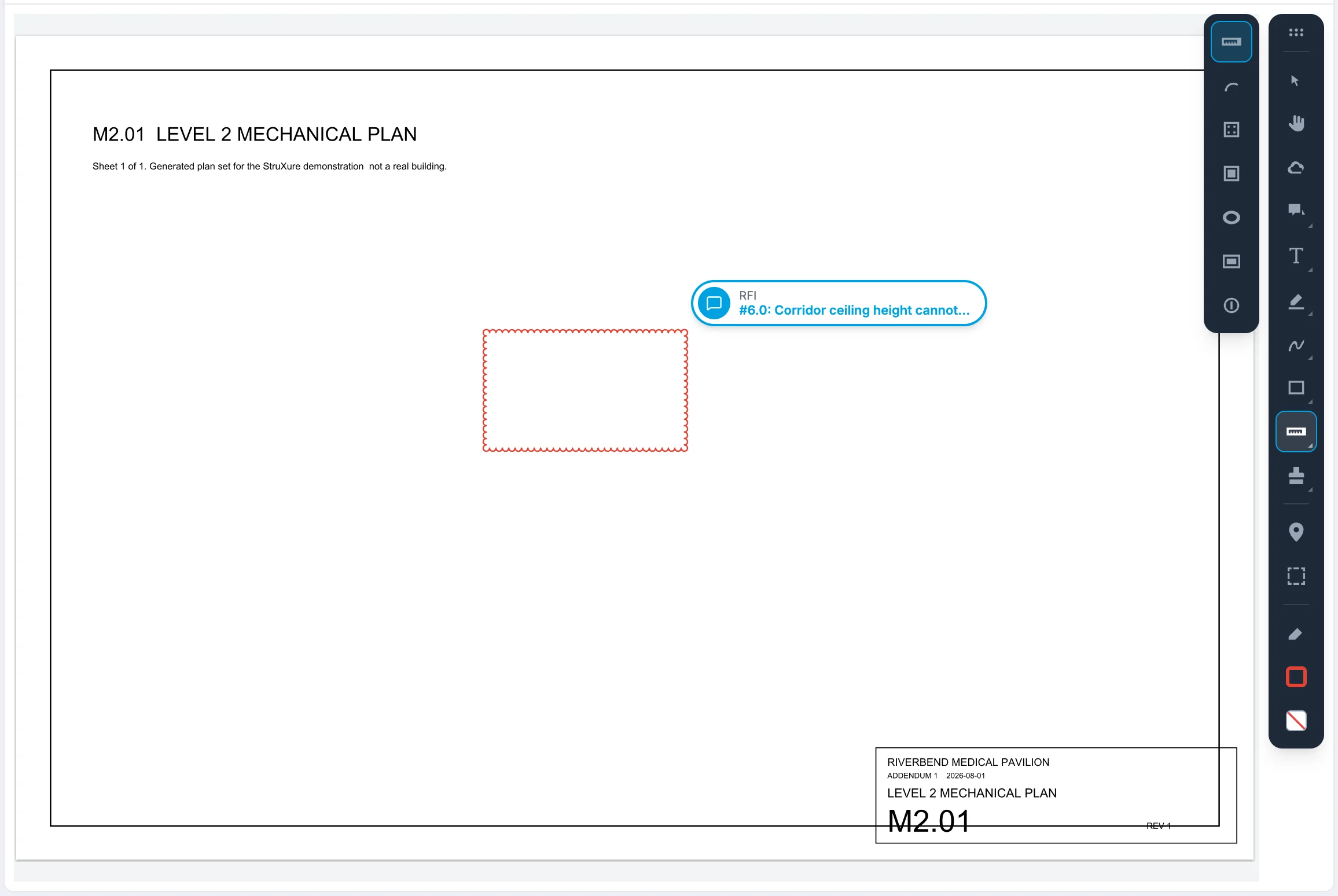
Click on the sheet to measure. For Distance, click the start and then the end, or press at the start and drag to the end. The result is in the sheet's units.
Measurements are markup: they save as you draw, and follow the scratch pad rules.
If the sheet's scale changes after a measurement was taken, the measurement is tagged Measured at old scale. Click Update on the tag to remeasure it at the current scale.
Confirm the scale
With Markup access, click the chip and choose Confirm scale. The chip changes to confirmed by you.
The first time you pick a measuring tool on a sheet with a detected scale, StruXure asks Check this scale · Confirm. Click Check this scale to see where it was read, Confirm to accept it, or × to dismiss.
Set the scale
If the scale is wrong or missing, measure a dimension you know:
Click Set scale beside the chip, or click the chip and choose Set scale for everyone (with Markup access) or Set scale.
When the chip says Click two points a known distance apart, click both ends of a dimension you know, such as a dimensioned wall or a grid spacing.

Under That line is, type its real length, such as 10' 6" or 3.5 m, and click Set for everyone or Apply.
With Markup access, the scale you set is saved as the sheet's confirmed scale for everyone. With Read access, it applies only to you, in this browser, until you leave; the chip says Your scale, and Clear your scale removes it.
| Message | What to do |
|---|---|
| Type the line's real length, like 10' 6" or 3.5 m. | Enter a length with its unit. |
| That line is too short. Draw it again. | Click two points further apart. |