
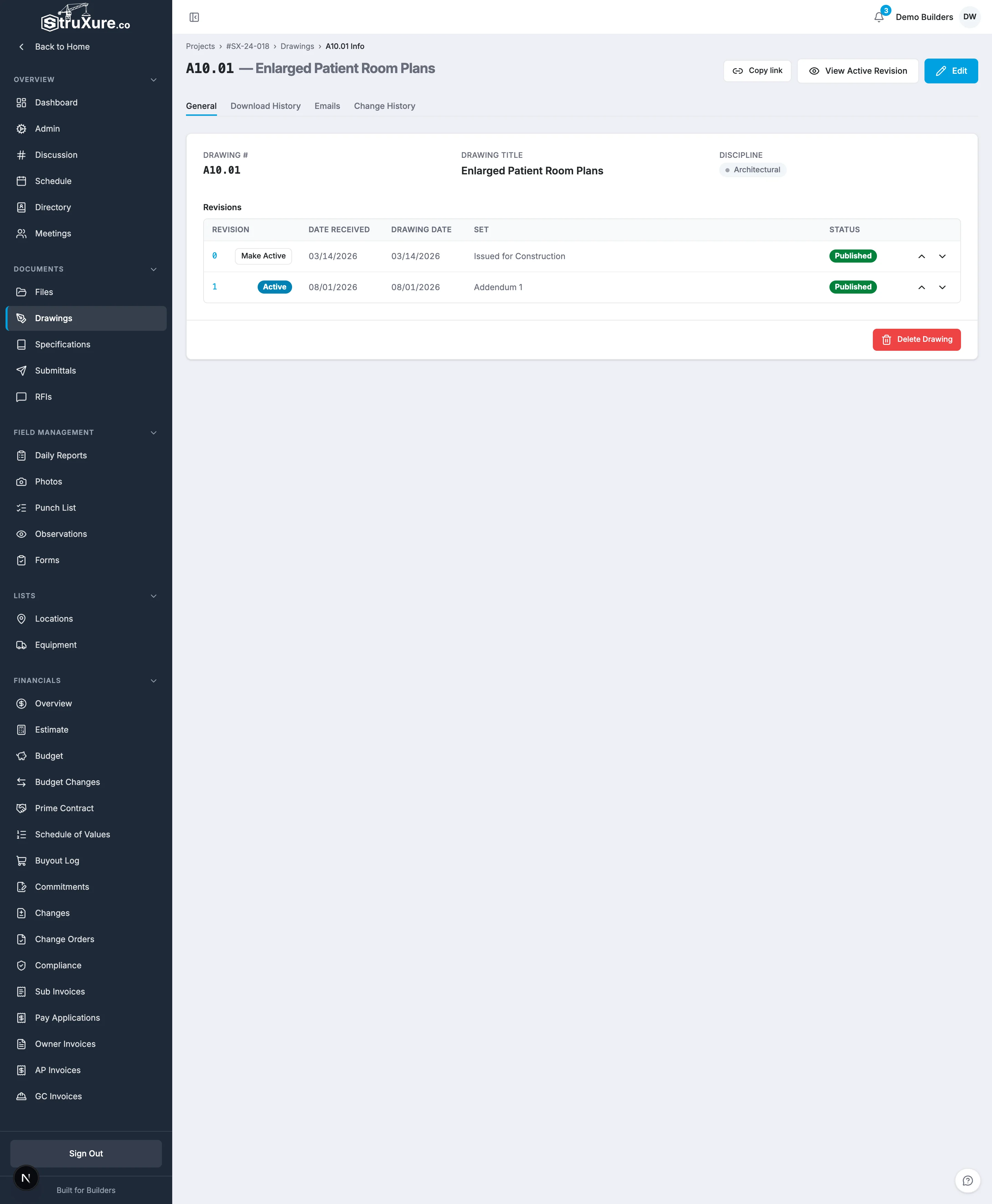
Each sheet has an Info page with its number, title, discipline, and every revision it has had. Open it with the Open Info icon on the register row, or Info in the viewer.
The revisions
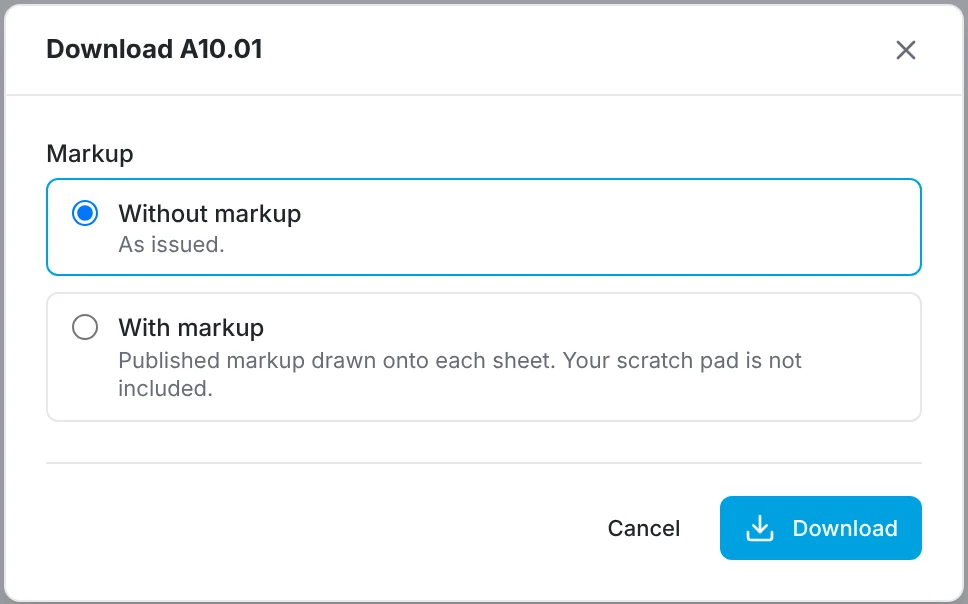
The Revisions table lists each revision with its Date Received, Drawing Date, Set and Status. Click a revision's label to open it in the viewer. View Active Revision at the top opens the current one. Download at the top downloads the active revision, Without markup or With markup (see Download sheets). Copy link copies a link to the sheet, which always opens its current revision.
Change the active revision
The register shows each sheet's active revision. Publishing a new revision makes it active automatically, and so does moving a published revision to the bottom of the list. To go back to another revision:
- On the Info page, click Make Active beside the revision you want.
The page says The active revision has changed. and the register now shows that revision. You can switch back the same way.
Hotspots StruXure placed on other sheets for this drawing's number open the active revision, so they follow the change once the revision is published. Hotspots and references people added themselves keep the revision they were linked to.

The up and down arrows at the end of each row change the order of the revisions. The last published revision in the list is the active one, so moving a different published revision to the bottom makes it active. Make Active still lets you choose another one until the order is next changed.
Correct the number, title or discipline
- On the Info page, click Edit.
- Change Drawing #, Drawing title or Discipline.
- Click Save, or Cancel.
The change applies to every revision of the sheet. A sheet needs a number and a title, and no two sheets on a project can share a number. Links to the sheet's old number still find it.
History tabs
Drawing admins also see three tabs:
- Download History: who downloaded the sheet, and when. A download from the register's Download also says how: as a separate file or in one combined PDF, and with or without markup.
- Emails: when the sheet was sent by email.
- Change History: when the sheet was uploaded, added from a plan set, published, edited, made active, reordered, deleted and restored, and by whom. An edit says which field changed and its old and new value, for example "Title: Roof Plan → Roof Framing Plan". Published has a blue label, so it stands out. Several edits made by one person within a minute of each other show as one Field updates row, such as "6 field updates"; click it to see each change, and click it again to hide them.
Who can do this
Anyone with drawings access can see the Info page and the revisions. Make Active, the order arrows, Edit, the history tabs and Delete need Markup / Publish / Edit / Delete access.