
Emailing files from StruXure sends a transmittal: an email with links back to the files in this project, not attachments. StruXure keeps a record of each one.
Send a transmittal
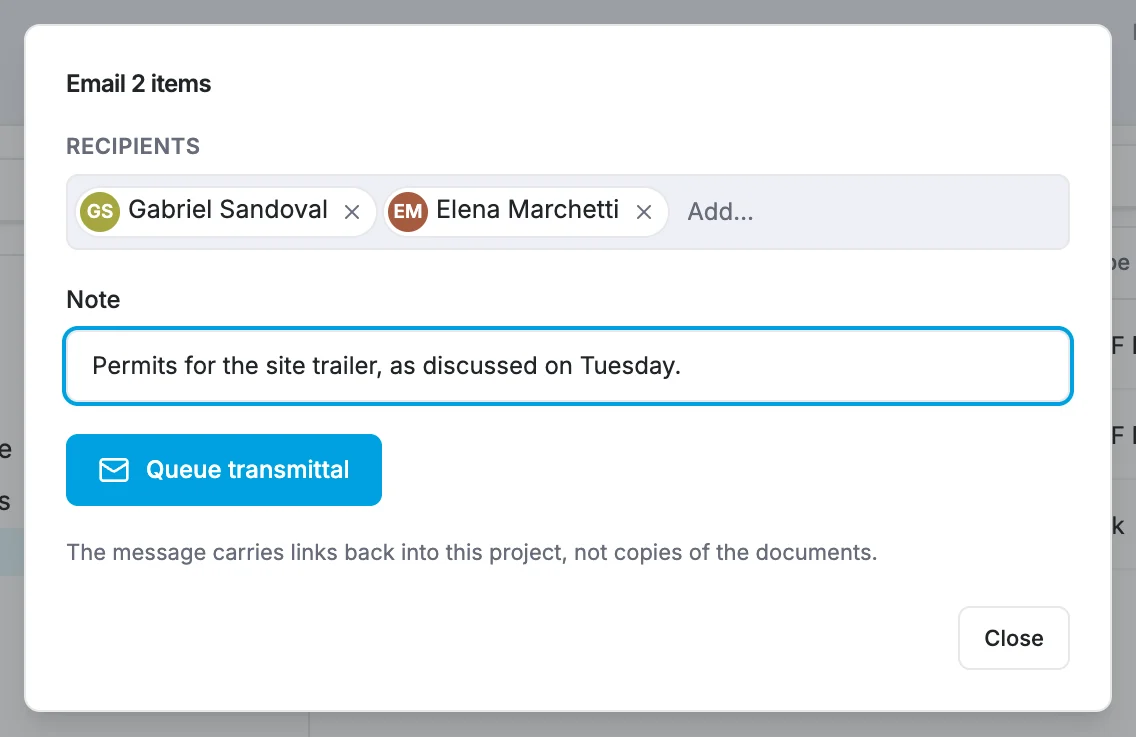
- Tick the files (or folders) to send, then click Email (n) at the top right of the page. For one file in the three-pane layout, you can select it and click Email in the right-hand pane instead.
- Under Recipients, click in the box. The list shows people grouped by company, and the project's distribution groups. Type to narrow it, then click a person to add them, or a company's Add all, above the people, to add everyone from it at once. Click × on a name to take it off.
- Optionally write a Note. It appears in the email.
- Click Queue transmittal.
The page says, for example, Transmittal filed: 2 documents to 2 recipients. The message is queued. The email goes out shortly after.
Who can open the links
The email links back into the project, so recipients sign in to StruXure to open the files, and they see only what their own access allows. Someone without access to Files on this project, or without a role for a private folder, can't open those files from the email.
Good to know
- Only people in the project's directory with an email address can be chosen. A distribution group is turned into its people when you send.
- Ticking a folder sends every file inside it. Saved links aren't sent.
- The dialog lists Recent transmittals below the form: when each was sent, how many documents, who to, and whether the email has gone.