
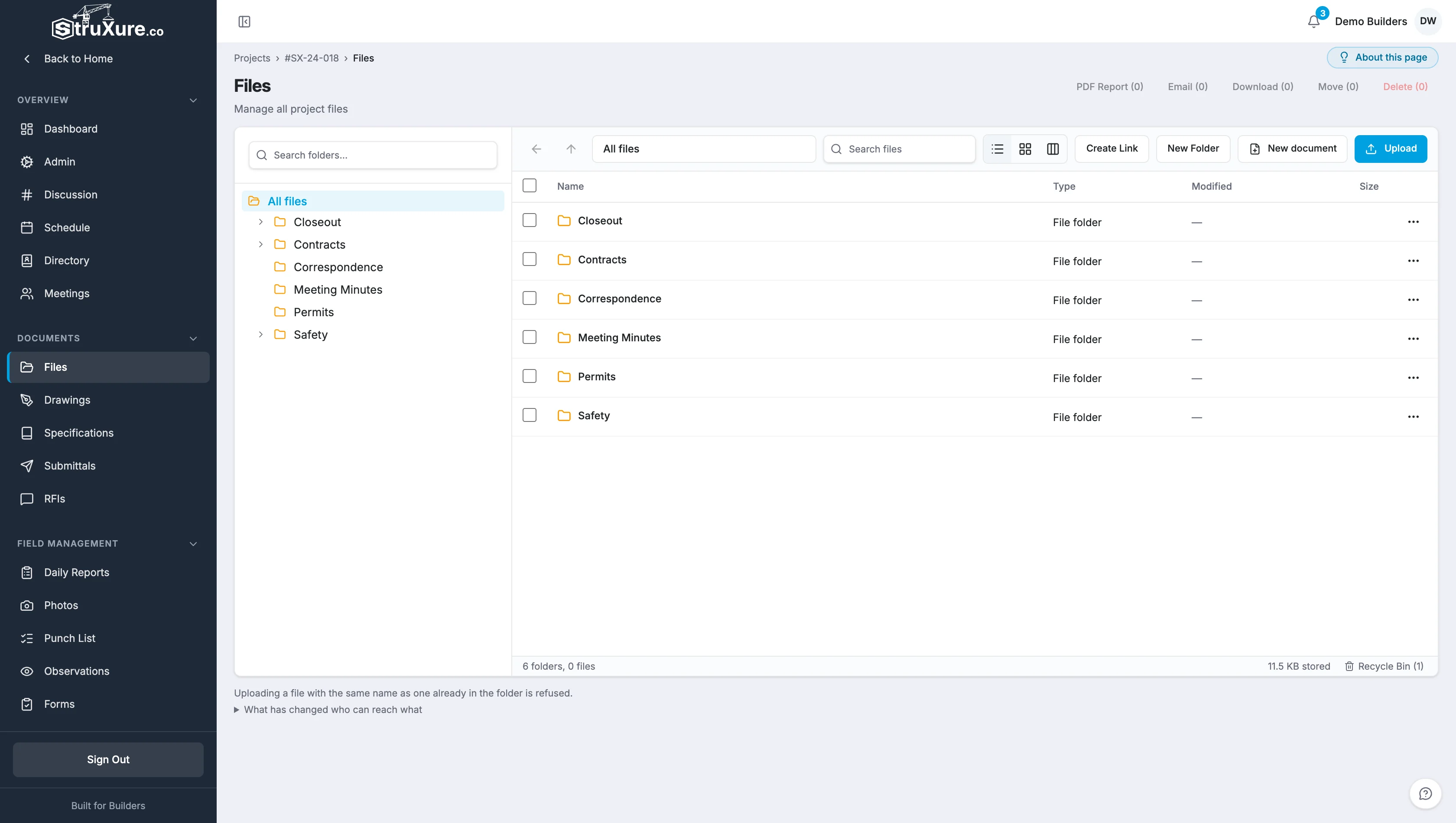
Files is the project's filing cabinet: contracts, permits, letters, meeting minutes, warranties and anything else the team needs to keep together. Each project has its own Files area. Open it from Files under Documents in the project sidebar.
What you'll find here
- Folders, nested as deep as you need. The top level is called All files. A new project may already have folders, set up from your company's folder template when the project was created.
- Files of any type, up to 5 GB each. PDFs, pictures, and Word, Excel and PowerPoint files open right in StruXure. Anything else downloads when you open it.
- Links: saved web addresses, such as the city's permit portal or the owner's shared drive. Opening a link takes you to the address in a new tab.
Drawings and the specification book have their own areas (Drawings and Specifications), and so do files attached to RFIs, submittals, punch items and meetings. Those files stay on their records and aren't listed in Files.
Private folders
A folder can be made private so only people with certain roles can see it, such as a buyout folder that only project managers and project admins should open. Everything inside a private folder is private too: its sub-folders and files. People without one of the chosen roles don't see the folder at all, in the list, in search results, or in the recycle bin. The person who made the folder private always keeps access to it. A padlock on the icon marks a private folder and everything inside it. See Make a folder private.
Nothing is lost by mistake
- Names are unique within a folder. You can't upload a file with the same name as one already in that folder, or have two folders with the same name side by side.
- Deleting sends things to the recycle bin. A deleted file or folder (with everything inside it) can be restored until someone with full access empties the bin. See Delete files and folders.
- Edits keep the old version. When a Word or Excel file is edited and saved in StruXure, the previous version is kept, and you can preview, download or restore it. See Previous versions.
Who can do what
Access to Files is set by your roles, in three levels:
- Read lets you browse folders, open and preview files, download them one at a time, search, and look in the recycle bin.
- Read / Create / Edit / Delete also lets you upload, create folders, links and new Word or Excel documents, edit Word and Excel files, rename, move, delete and restore, email files, download several at once and print a File Log.
- Read / Create / Edit / Delete / Permissions also lets you make folders private, permanently delete things from the recycle bin, and see who changed access to what.
See Who can do what in Files for which roles have each level.