
There are two search boxes, and they do different things.
Search the folder you're in
The box in the toolbar searches the names of files and folders in the folder you're in and every folder below it. At All files it searches the whole project. Its placeholder names the folder, such as Search Permits.
- Open the folder to search in.
- Type in the search box. The list narrows as you type.
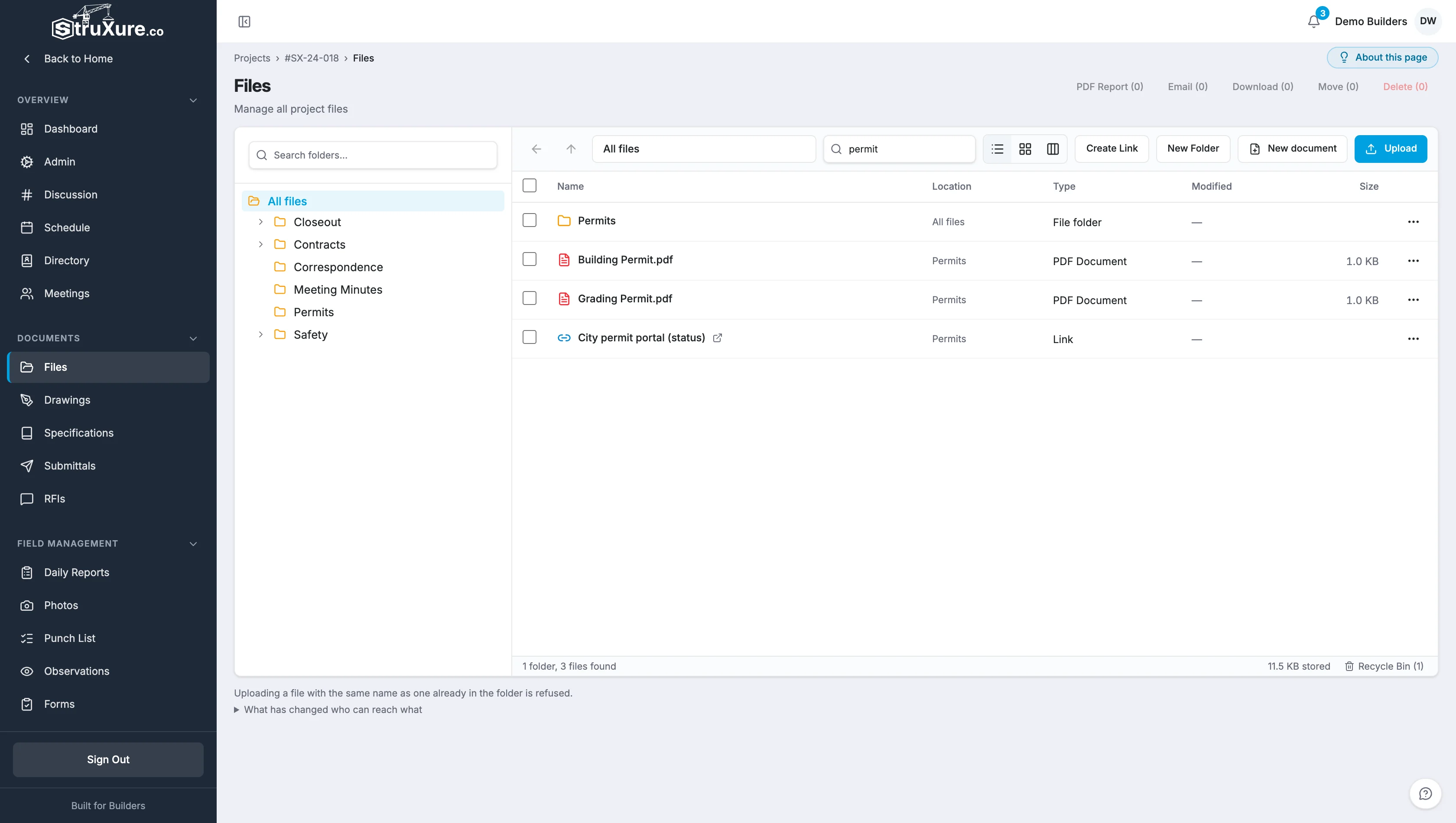
The results add a Location column (or a line under each tile) showing which folder each match is in. The status bar says how many folders and files were found. If nothing matches, the list says No results for "…".
Opening a folder from the results ends the search and takes you into that folder. Empty the box to end the search where you are.
Narrow the folder tree
Search folders... above the folder tree filters the tree to folders whose names match, wherever they are in the project, keeping their parent folders so you can see where each one sits. If nothing matches, the tree says No folders match "…". The tree narrows as you type, and only folders are shown: to find files, use the search box in the toolbar. The filter stays while you click around the tree. Empty the box to show the whole tree again.
How matching works
- Plain text matches anywhere in the name and ignores capitals: permit finds "Building Permit.pdf".
- * stands for any run of characters, and ? for exactly one. With a wildcard, the pattern has to match the whole name: *.pdf finds every PDF, and Bid?Tabs finds "Bid Tabs" and "Bid-Tabs".
Search looks at names only, not at the text inside files. It never shows anything in a private folder you don't have a role for.