
Some documents shouldn't be seen by the whole project team: the prime contract, buyout numbers, bid tabs, personnel matters. Make the folder they're in private and choose which roles may see it.
What private means
- Only people holding at least one of the chosen roles can see the folder. For everyone else it isn't there: not in the tree, the list, search results, downloads, File Logs, emails or the recycle bin.
- Everything inside it is private too, including sub-folders and files added later.
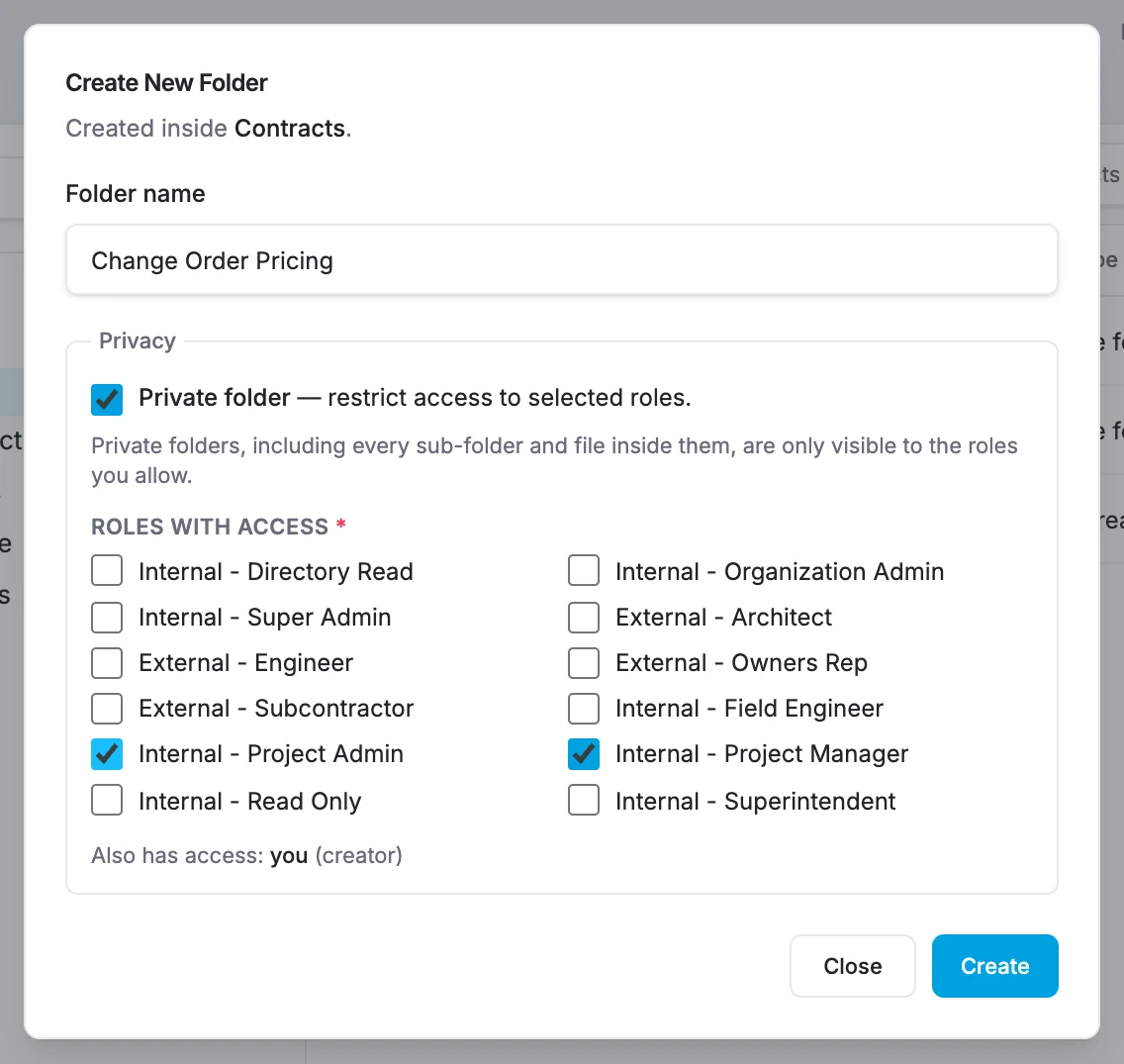
- The person who created the folder, and anyone who saves its privacy, always has access, whatever roles are ticked. The Privacy section lists them under Also has access.
- A folder inside a private folder takes its privacy from it. Its Privacy section says Privacy has been inherited from the parent. and has nothing to change.
- A folder that is private in its own right inside another private folder keeps its own Privacy section. Opening it needs a role for both folders.
- A private folder, and every folder and file inside it, shows a padlock on its icon, in the tree, the list and the tiles. The list also shows which roles can see a private folder.
Make a folder private
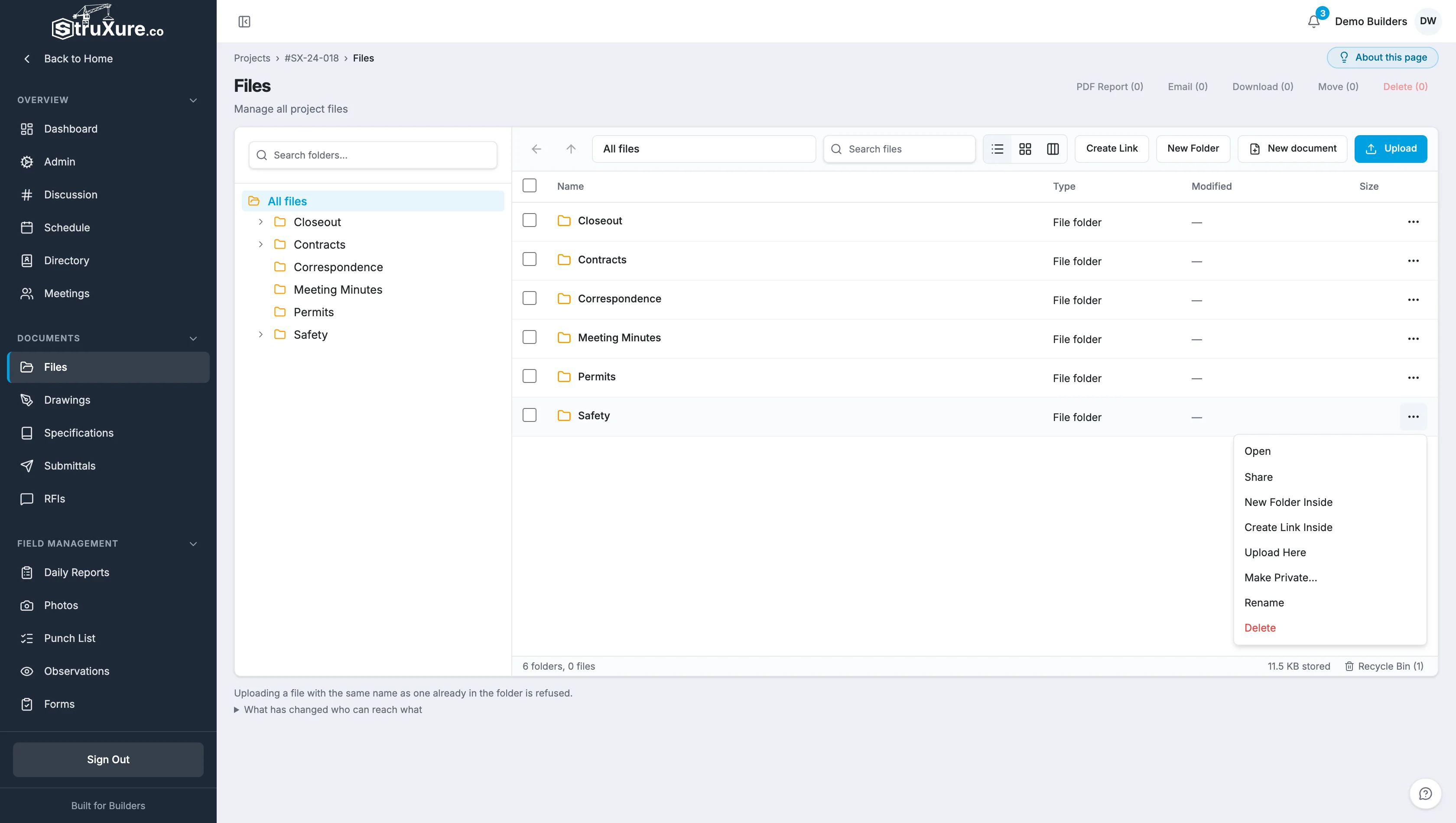
- Choose Make Private… from the folder's … menu, in the list or in the tree.
- Tick Private folder.
- Under Roles with access, tick each role that may see the folder. At least one is required; until you tick one, the dialog says Choose at least one role.
- Click Save.
The page says Privacy saved. It applies to everything inside this folder as well.
You can also make a folder private as you create it: the Create New Folder dialog has the same Privacy section. Inside a private folder, it says Privacy has been inherited from the parent. instead.
Change who has access, or open it up
- Choose Privacy Settings… from the private folder's … menu.
- Tick or untick roles, or untick Private folder to make it visible to everyone with access to Files again.
- Click Save.
When the folder stays private, you keep access after you save, whatever roles are ticked. The dialog says so: You keep access to this folder when you save, whatever roles are ticked.
Opening the folder up and making it private again starts the list of people who keep access afresh: only its creator and the person who makes it private again.
See what changed
People with the top level of Files access see What has changed who can reach what below the Files list. Open it for the latest moves, privacy changes, saves and deletions, with who did each and when.
Good to know
- Moving a file or folder into a private folder makes it private; moving it out to a folder that isn't private makes it visible again.
- Someone who can't see a private folder can't delete a folder that contains it.
- Privacy follows roles, so giving someone a role on the project gives them every folder open to that role, and taking the role away removes their access straight away.