
Rename
- Choose Rename from the item's … menu (or right-click it). In the three-pane layout you can also select a file and click Rename in the right-hand pane.
- Change the Name and click Rename. The page says Renamed.
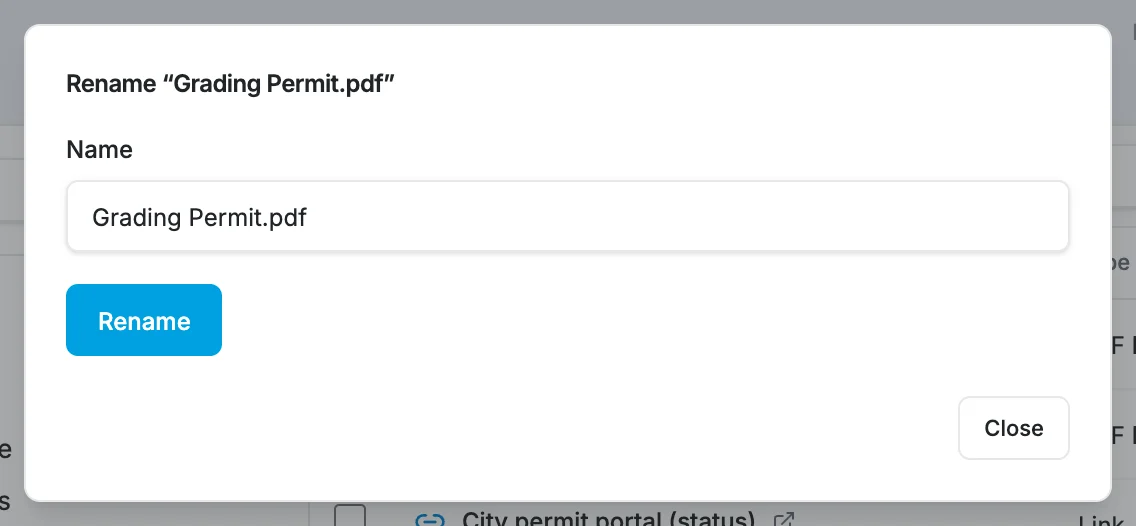
For a quicker rename, select the row and press F2, or double-click the row away from its name. A box opens in place: type the new name and press Enter, or Esc to cancel.
A name can't be the same as another item's in the same folder, and a folder name can't contain a slash. A file can't be renamed to end in a program or script extension, such as .exe or .bat.
Move by dragging
Drag a file or folder onto another folder: in the list, in the tree, or on the breadcrumb at the top of the list (to move it up into a folder you came through). The folder you're over is outlined. Hold the item over a closed folder in the tree for a moment and it opens, so you can reach a folder further down.
To move several items, tick them first, then drag any one of the ticked rows: they all move together.
Move with the Move dialog
- Tick the items to move, then click Move (n) at the top of the page. In the three-pane layout you can also select one file and click Move in the right-hand pane.
- Under Move to, choose the folder. All files is the top level.
- Click Move.
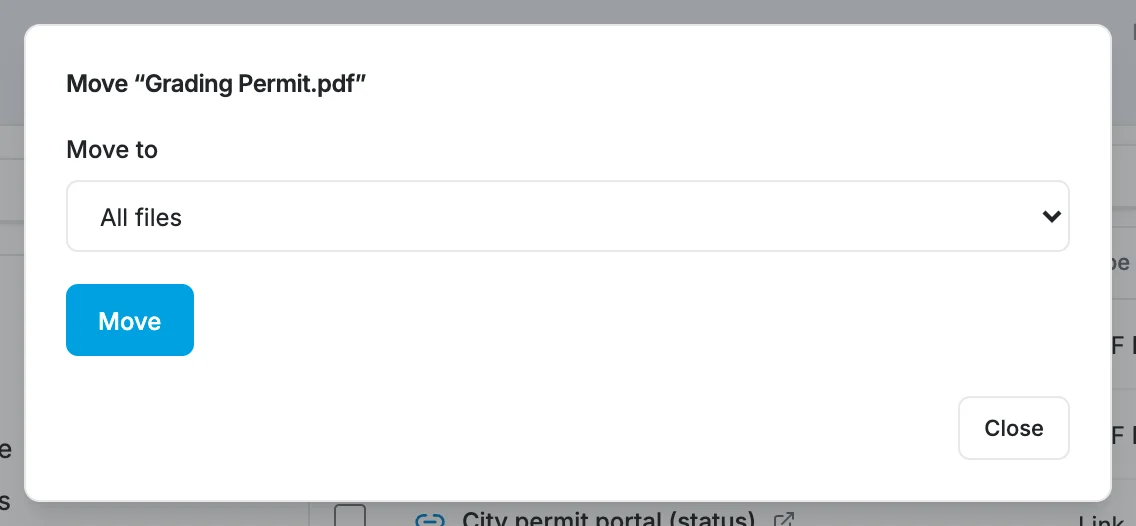
The page says what moved, for example Moved 2 files. Anything already in that folder is left where it was: Nothing moved. Everything selected was already in that folder.
Move Up to … in an item's … menu moves it one level up, out of the folder it's in, in one click.
Good to know
- A folder can't be moved inside itself or one of its own sub-folders: A folder cannot be moved inside itself.
- An item can't be moved into a folder that already has something with the same name.
- Moving something into a private folder makes it private too: only people with that folder's roles will see it afterwards. Moving it out makes it visible again to everyone with access to Files.