
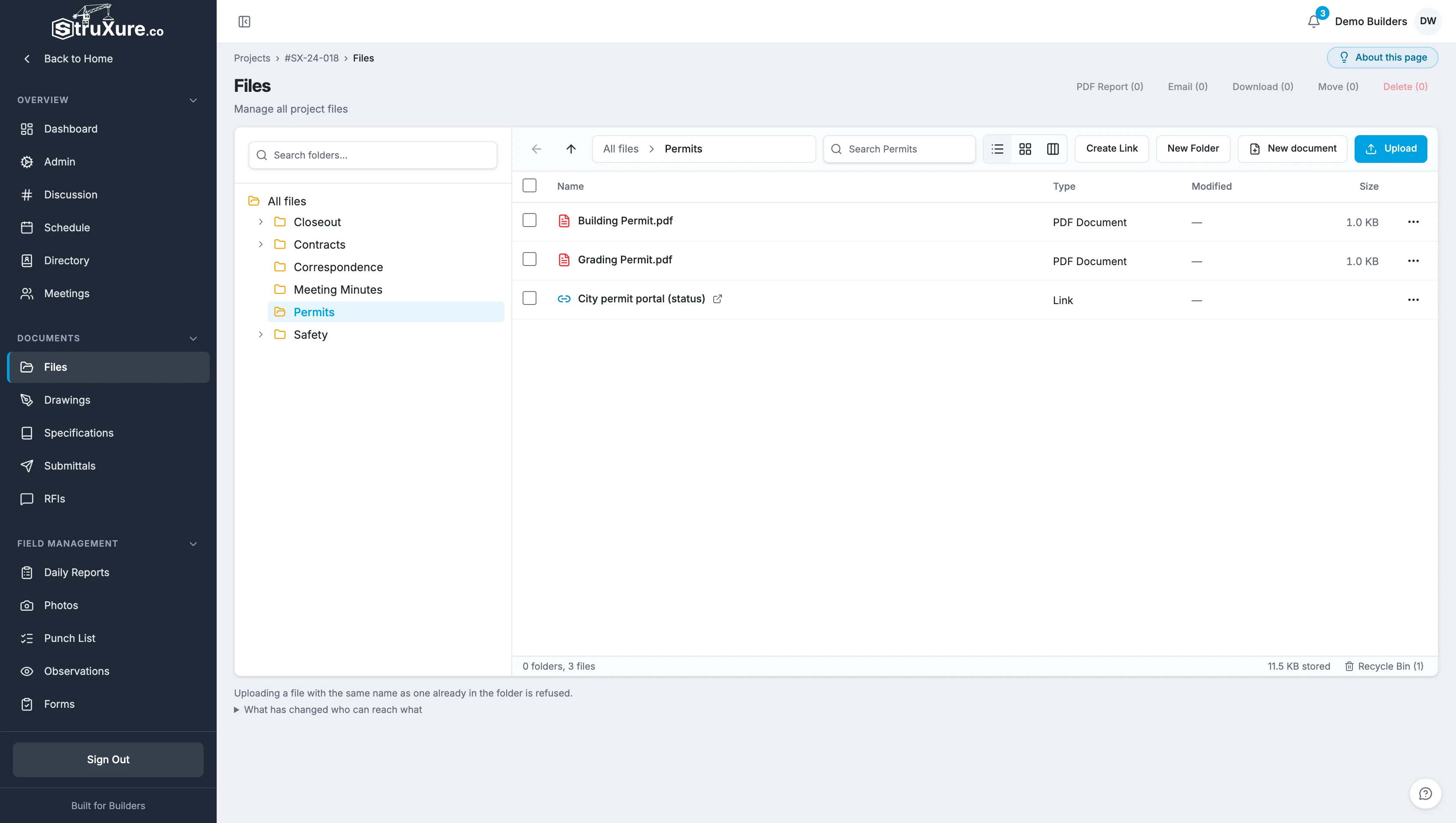
The Files page works like the file explorer on your computer: a folder tree on the left and the contents of the current folder on the right.
Move between folders
- Click a folder in the tree or in the list to open it. Click the arrow beside a folder in the tree to show or hide its sub-folders without opening it. The arrow points down and the folder icon shows an open folder while its sub-folders are showing, and for the folder you're in.
- The breadcrumb at the top of the list shows where you are. Click any part of it to go back up to that folder, or All files for the top level.
- Up one level (the up arrow) opens the folder that contains this one.
- Back (the left arrow) returns to the folder you were in before, step by step.
- Search folders... at the top of the tree narrows the tree to folders whose names match, so you can jump to a folder deep in the tree. See Search for files and folders.
At the bottom of the list, the status bar shows how many folders and files are in view, how much the project stores in total, and a link to the Recycle Bin.

Choose a layout
The three buttons in the toolbar switch the layout. StruXure remembers the one you last used in this browser.

| Layout | What it shows |
|---|---|
| List view | One row per folder or file, with Name, Type, Modified and Size columns. |
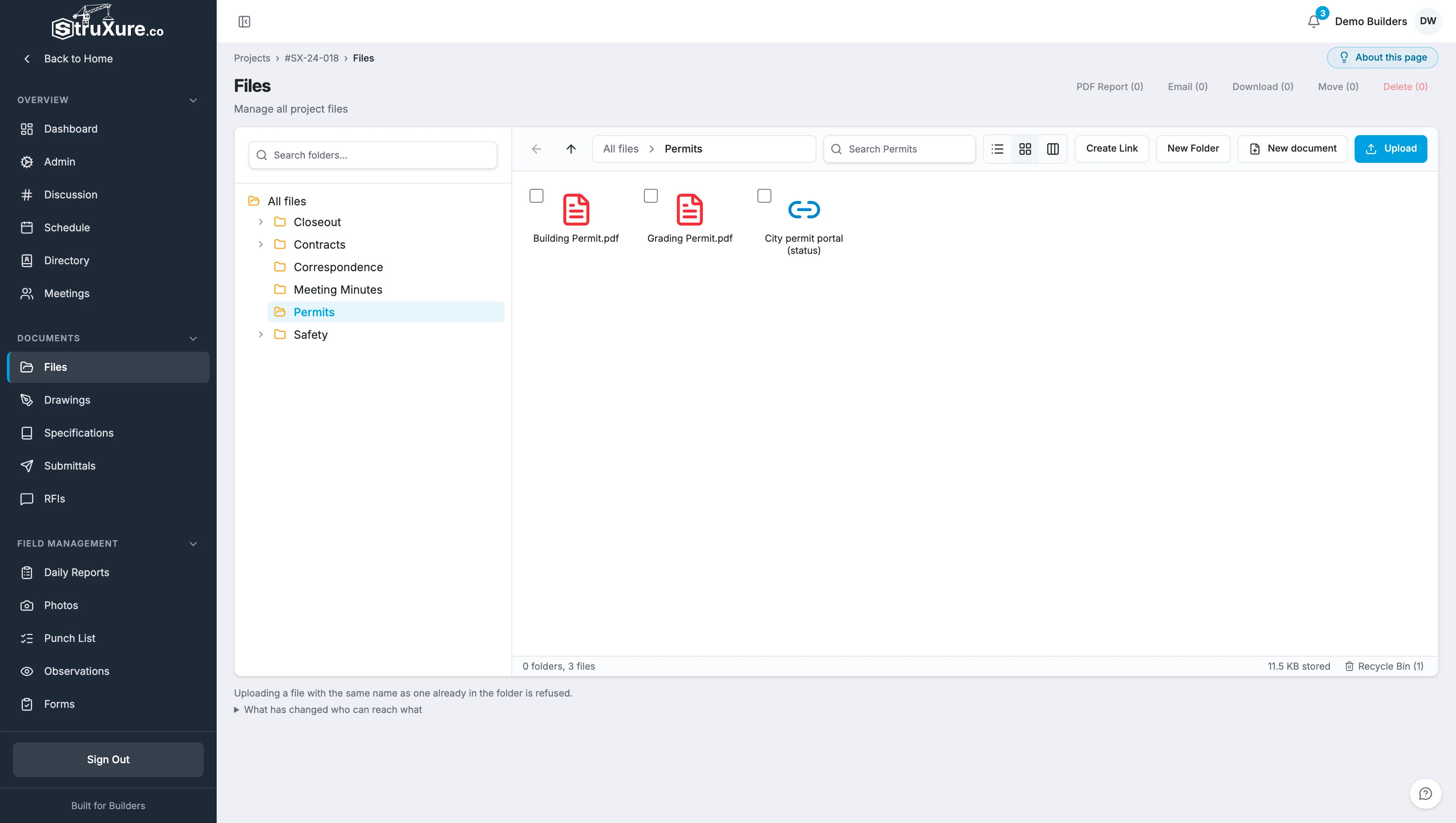
| Tile view | A large icon for each folder and file. |
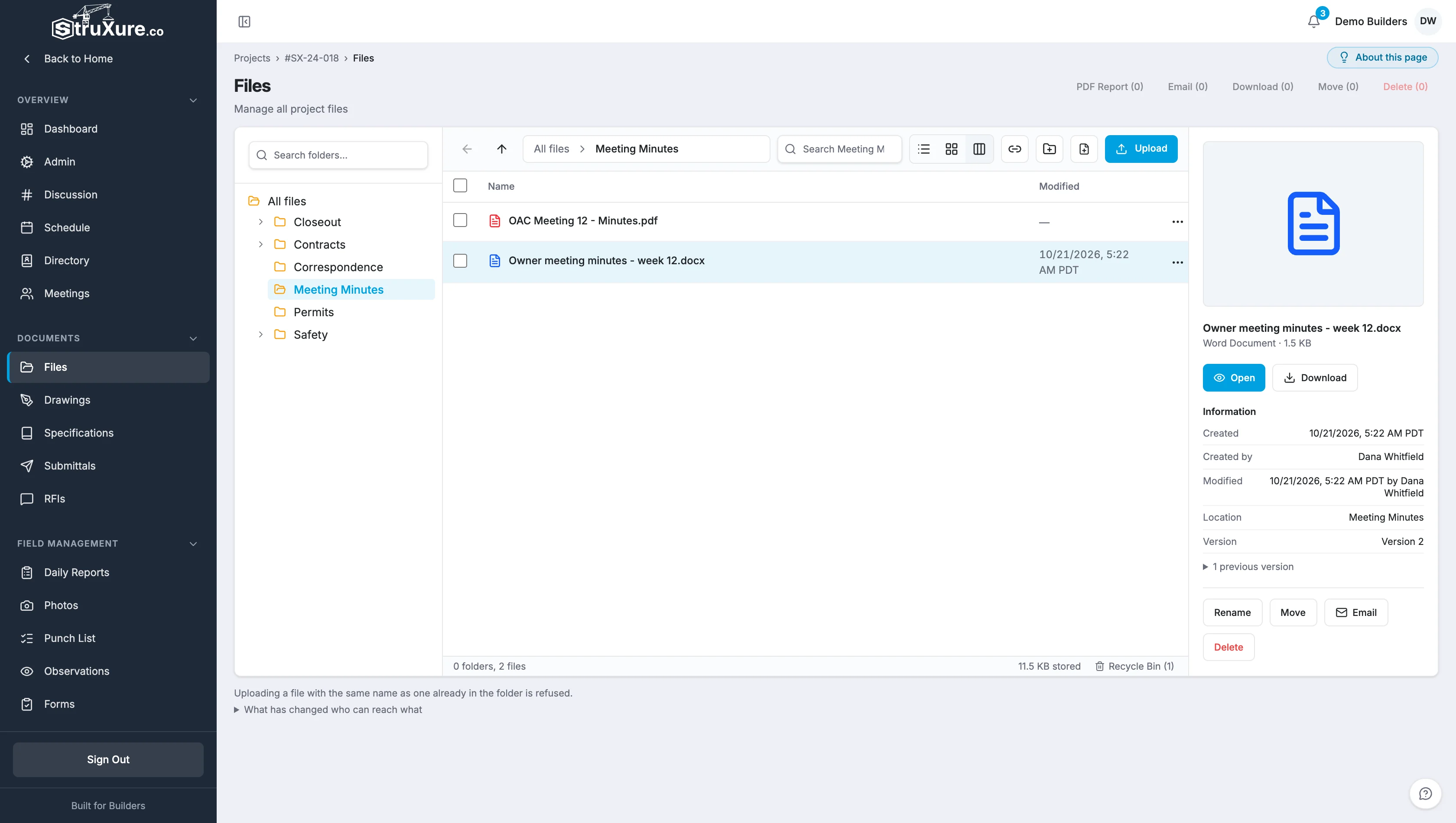
| Three-pane view | The tree, the list, and an information pane on the right about the selected file, like the Finder on a Mac. |
Selecting and opening
In the list and tile layouts, clicking a file's name opens it. In the three-pane layout, clicking a file selects it and the right-hand pane shows its details: a preview for pictures, its type and size, who created it and when, where it is filed, and its version. Double-click it, press Enter, or click Open in the pane to open it.
With nothing selected, the pane describes the folder you're in.
To learn what opening does for each type of file, see Open and preview a file.
Menus
Every folder and file has a … button at the end of its row with everything you can do to it. Right-clicking a row opens the same menu, and so does right-clicking a folder in the tree. Right-clicking empty space in the list or the tree opens a menu for the folder you're in: New Folder, Create Link, New Word Document, New Excel Workbook, Upload Files… and Upload Folder…. You only see the items your access allows.
Keyboard shortcuts
| Key | What it does |
|---|---|
| ↑ ↓ | Move between rows. In the three-pane layout, the information pane follows. |
| Shift + ↑ ↓ | Tick a run of rows. |
| Space | Tick or untick the row. |
| Enter | Open the row. |
| F2 | Rename the row in place (with write access). |
| Ctrl + A (⌘ + A on a Mac) | Tick every row. |
| Esc | Close a menu, cancel a rename, or clear the ticks. |
You can also Ctrl-click (⌘-click) rows to tick them one by one and Shift-click to tick a range. Clicking empty space in the list clears the ticks. See Work with several files at once.