
Files are filed in the folder you're in when you upload them. Open the folder first, then use whichever way suits you.
Drag files in
- Open the folder in the list.
- Drag files from your computer onto the list. The list shows Drop files here to upload, and a band at the top says Uploading to: and the folder's name.
- To file them somewhere else, hold them over a folder in the list or the tree first: the band changes to that folder's name. Drop.
An upload panel shows each file as Queued, its progress, then Done. Files go up two at a time. When they're finished, the panel says how many were uploaded; click Clear to put it away.
You can drag a whole folder from your computer too. Its sub-folders are created in StruXure to match, and each file goes into its own sub-folder. If your browser can't hand over a dropped folder's contents, you'll see a message saying so: use Upload Folder… instead.
Choose files from your computer
- Right-click empty space in the list (or in the folder tree) and choose Upload Files…, or Upload Folder… for a whole folder.
- Pick the files or the folder. They go into the folder you're in, with the same upload panel.
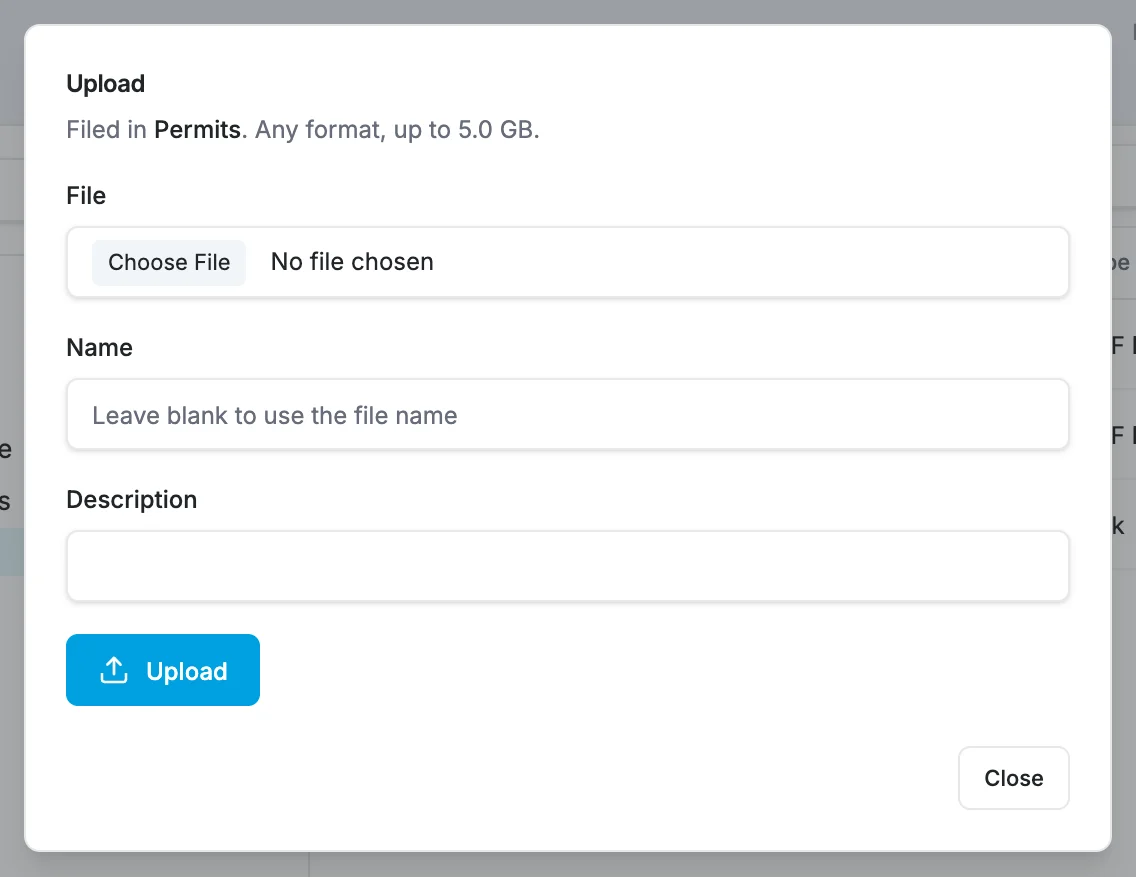
Upload one file with a name and description
- Click Upload at the right of the toolbar. You can also choose Upload Here from a folder's … menu to file it in that folder.
- Under File, choose the file.
- Optionally type a Name (leave it blank to use the file's own name) and a Description.
- Click Upload. A bar shows how much has gone up. When it's done, the page says File uploaded.
Limits and refusals
- Each file can be up to 5 GB. A bigger file is refused with a message giving its size and the limit.
- A file with the same name as one already in the folder is refused: There is already a file called "…" here. Rename one of them, or move the old one first.
- An empty file is refused.
- Programs and scripts, such as .exe, .bat, .js or .sh files, are refused: That file is a program or script. StruXure doesn't accept those. A program is refused even when it has been renamed to look like a document.
- When you drop a folder, any programs or scripts in it are marked Skipped, with the reason underneath, and the rest of the folder still uploads.
If the connection drops, the file says Stopped at and how far it got. Click Resume and it carries on from where it stopped instead of starting again. In the Upload dialog, Resume appears beside Upload.
Stay on the page until your files finish. You can open other folders in Files while they upload. If you try to go to another page or reload, StruXure asks first. If you leave anyway, the uploads stop and you'll need to choose the files again.
If a file in the panel says Failed, the reason is shown underneath. Click Retry to try it again.
To change a Word or Excel file that's already here, open it and edit it in StruXure instead of uploading a new copy. The old version is kept. See Create and edit Word and Excel documents.