
Every row has a tick box. Tick the folders and files you want, and the five buttons at the top right of the page act on all of them. Each button shows how many items are ticked.
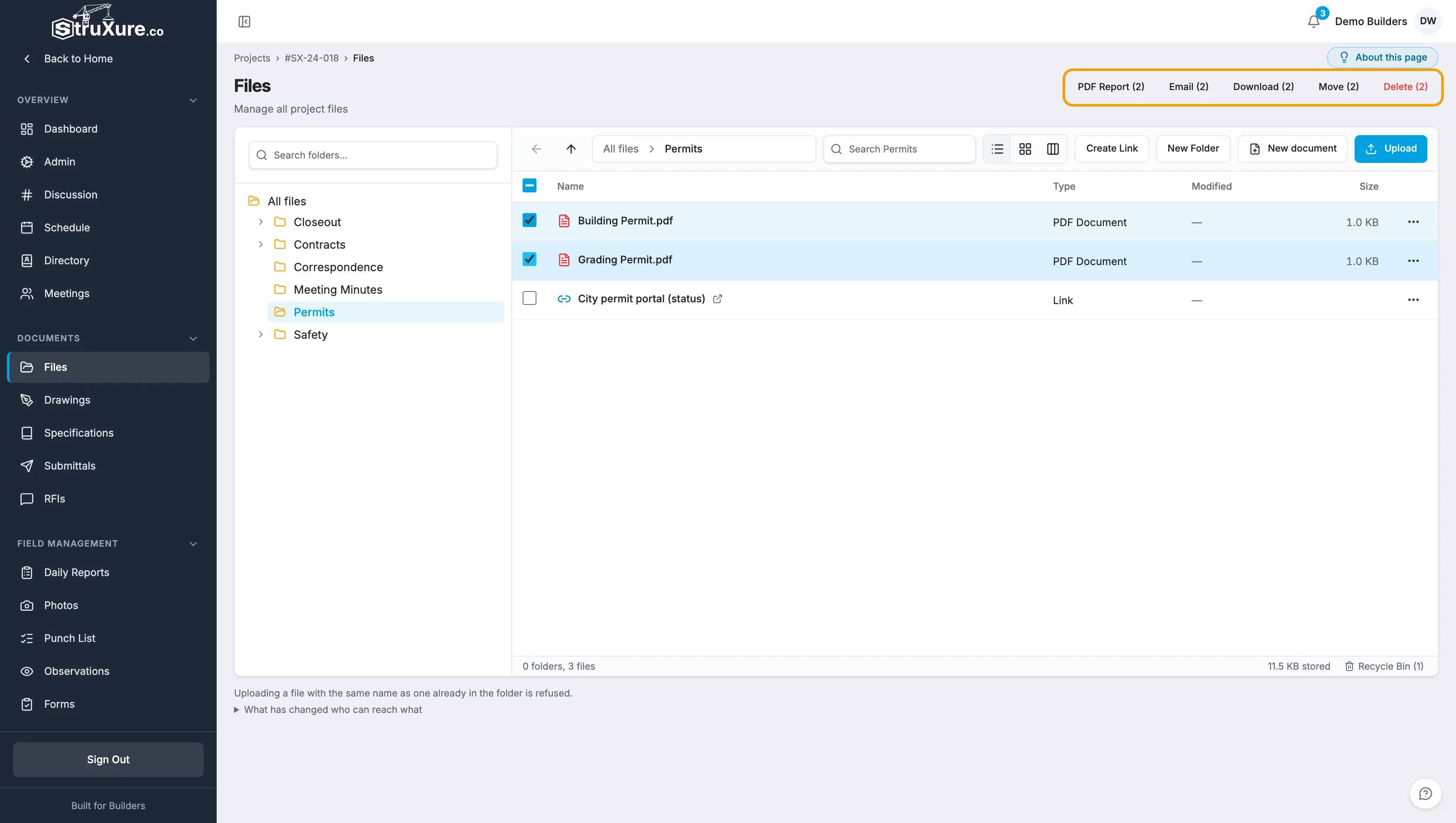
Tick rows
- Tick the box at the start of each row, or Ctrl-click (⌘-click on a Mac) the rows.
- Shift-click to tick every row between the last one you ticked and this one.
- Tick the box in the header to tick every row in the folder, or press Ctrl + A (⌘ + A).
- Press Esc, or click empty space in the list, to clear the ticks.
Ticking a folder includes everything inside it, including its sub-folders.
What the buttons do
| Button | What it does |
|---|---|
| PDF Report (n) | Opens a File Log in a new tab: a PDF listing the ticked items and everything inside the ticked folders. See Print a File Log. |
| Email (n) | Emails links to the ticked files to people on the project. See Email files. |
| Download (n) | Downloads the ticked files as one zip file, with folders kept as folders. See Download files. |
| Move (n) | Moves the ticked items into a folder you choose. See Rename and move. |
| Delete (n) | Sends the ticked items to the recycle bin, after you confirm. See Delete files and folders. |
Saved links are left out of the zip and of emails, since there's no file to send.