
Open a file
- In the list or tile layout, click the file's name.
- In the three-pane layout, double-click it, select it and press Enter, or select it and click Open in the right-hand pane.
- From any layout, choose Open from the file's … menu.
What happens depends on the type of file:
| Type | Opens as |
|---|---|
| The document fills the Files area, in a viewer with page arrows and zoom buttons. | |
| Pictures (JPG, PNG, GIF, WebP and similar) | The picture fills the Files area. |
| Word, Excel and PowerPoint (and CSV) | The document opens in StruXure. Word (.docx) and Excel (.xlsx) files can be edited if you have write access. See Create and edit Word and Excel documents. |
| Saved links | The address opens in a new tab. |
| Anything else | The file downloads to your computer. |
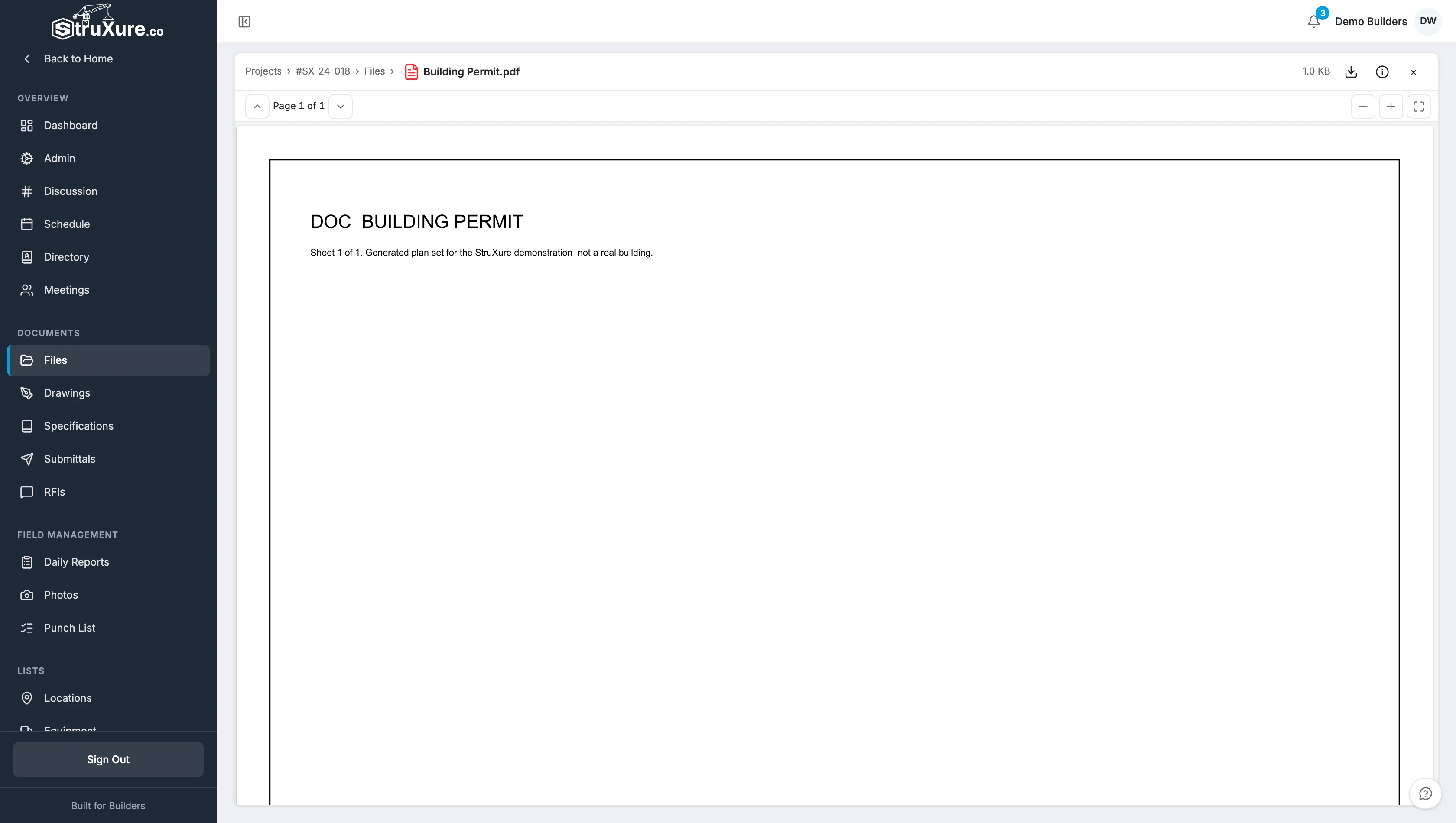
While a file is open
The file gets the whole page under the top bar: the page heading and the buttons for ticked files are put away until you close it.
The bar across the top shows where you are (Projects, the project and Files, each of which you can click to go back), then the file's name and size, with three buttons:

- Download saves the file to your computer.
- Details (the "i" button) shows the file's type, size, who created it and when, when it was last changed and by whom, the folder it's in, and its version. If the file has older versions, they're listed here too. See Previous versions.
- Close (×) puts the folder list back, with the same file still selected.
If a file can't be shown in the browser, you'll see This file cannot be shown in the browser. Download it to open it. and a Download button.
A file that is being checked
Every file is checked for malware when it's added, and nobody can open it until the check comes back clean. That usually takes a few seconds. Until then a label beside its name says why, and opening it shows that instead of the file, with no Download button:
| Label | What it means |
|---|---|
| Scanning for Malware | The check hasn't finished. The file opens as soon as it comes back clean. |
| Infected | Malware was found. The file can never be opened or downloaded. |
| Scan Failed | The file couldn't be checked. It stays closed unless a Files admin selects it and chooses Allow Download Anyway, which is kept with the file's checks in the right-hand pane. |
| Not scanned | The file was added before checking began. It opens as before, until it is checked. |
A clean file has no label. When a file is found Infected, whoever added it and the Files admins are told in their Inbox.